Interactive Options
Interactive Options presents the customer with a set of choices, each leading to a different path in the conversation. It is the primary tool for branching based on decisions — when you need the customer to pick from a discrete set of options rather than type a freeform answer.
Think of it as a fork in the road where the customer chooses which way to go. "Are you a natural person or a legal entity?" Two buttons, two paths, two completely different onboarding sequences that follow.
The options can be fixed, drawn on the canvas one by one, or come from a list variable when the node runs: one row per pending case, per product, per branch. The second way is described in Options From a List Variable.
How It Works
The node sends a message with your prompt text and displays the options as buttons. The customer selects one, and the conversation routes to whichever node is connected to that option's output handle.
Each option you add creates its own output handle. You connect each handle to a next step, and the customer's choice determines which branch executes. Two options may lead to the same node when they only differ in what the customer sees, and an option may lead straight into another Interactive Options node: the engine waits for the answer to the first before sending the second.
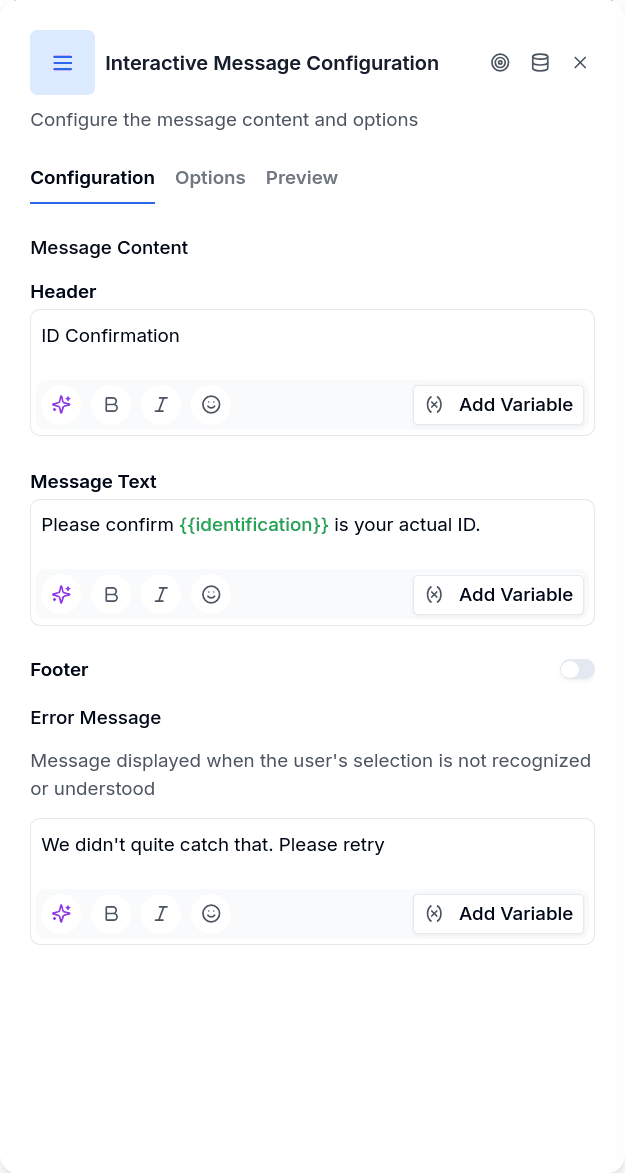
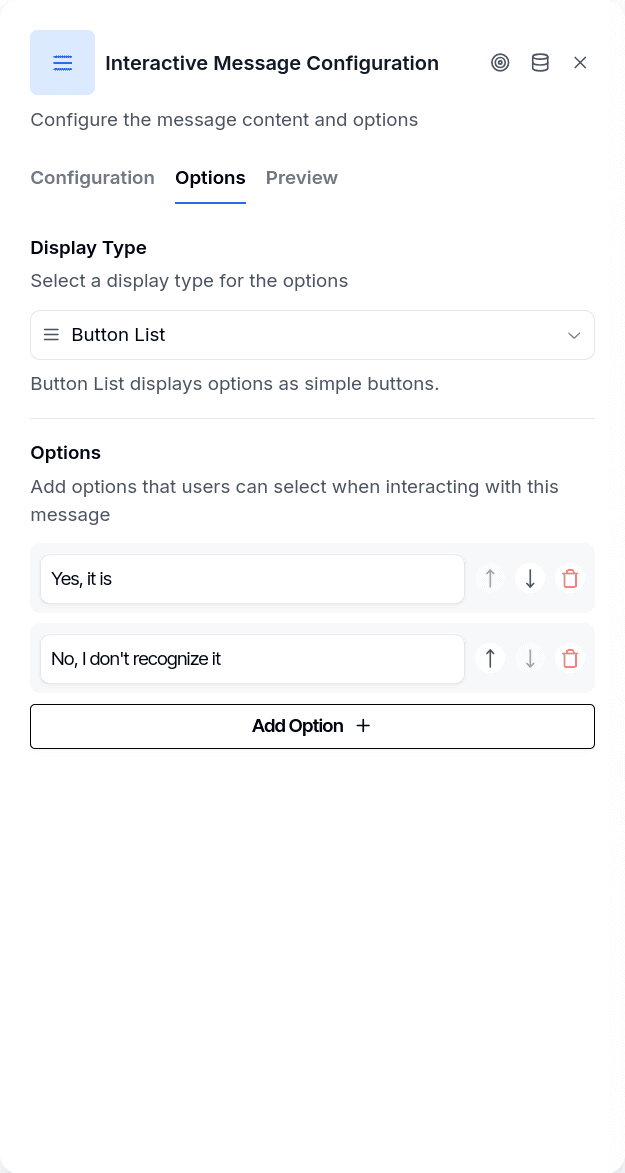
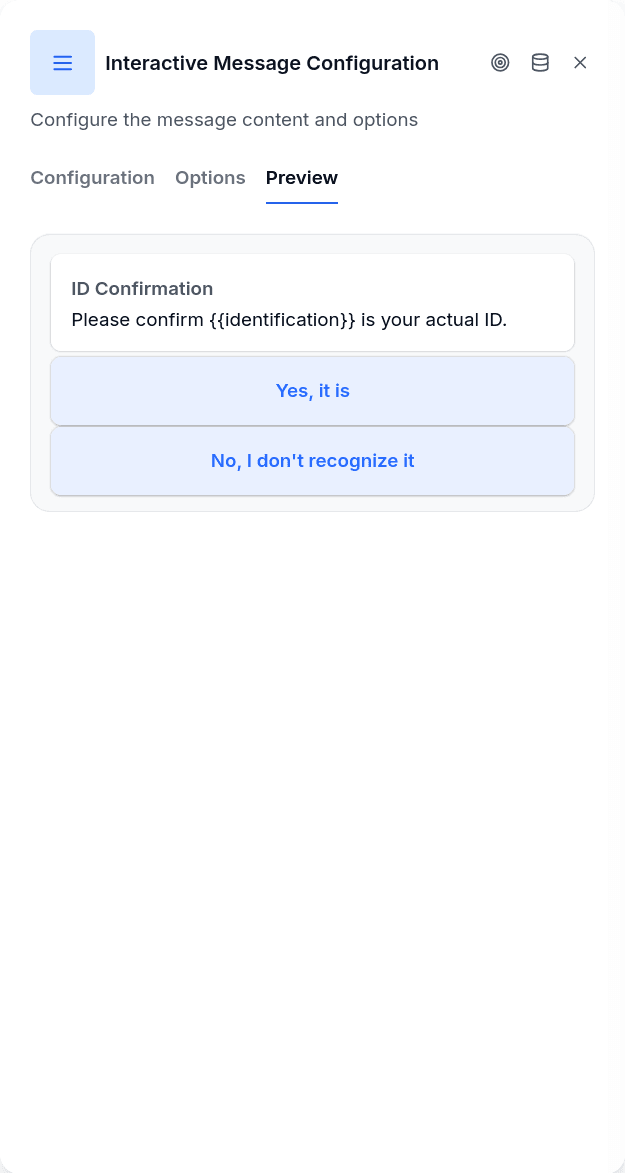
If the customer types a text response instead of selecting a button, the system attempts to match their text against the option labels. The match is case-insensitive — typing "natural" matches a button labeled "Natural." If nothing matches, the node shows an error message and waits for them to try again — unless you connected the No match output, in which case the conversation continues there (see Output Handles).
The node is available on the WhatsApp and web channels; email flows do not offer it.
Display Types
By default, options appear as inline buttons below your message — the familiar quick-reply style. WhatsApp limits this to three buttons maximum. If you configure more than three options, the system automatically converts to a list format instead.
The list format shows a single button that opens an expandable menu. The button title setting controls what that button says — something like "Menu" or "Select an option." Use lists when you have many choices or when the options benefit from more space to describe them.
In practice, most implementations stick with buttons. Binary choices dominate: yes/no confirmations, correct/incorrect validations, two-path forks. These fit naturally into the button format.
When to Use It
Confirming data with the customer
After collecting or retrieving information, verify it before proceeding. Display the value in your message using variables and let them confirm or correct it: "Can you confirm this is your ID number: {{id_number}}?" with Yes and No buttons.
Routing by customer type
At the start of onboarding, ask what kind of entity they are. The answer determines which documents you request and which validation path to follow.
Offering recovery options after an error
When something fails — a validation error, a timeout, an unexpected result — give the customer a choice. "Retry" reconnects them to the previous step. "Talk to an agent" escalates to human support. This turns dead ends into decision points.
Single-option confirmations
Sometimes you need a "Continue" or "I'm ready" button rather than a choice. Configure one option and it functions as a checkpoint — the customer must tap it to proceed, ensuring they've read your message before moving on.
Message Structure
The node supports three text areas: a header (rendered bold, above the main text), the body text (your actual message), and a footer (smaller, grayed-out text below). Only the body text is required.
Variables work throughout — in the header, body, footer and in the option labels — using {{variable_name}} to interpolate values stored earlier in the flow. This is especially useful for confirmation prompts where you're asking the customer to verify information they just provided.
A variable that nothing has set by the time the node runs is not replaced: the customer sees {{variable_name}} as written, and the node writes one warning notice on the conversation listing every unresolved name across header, body, footer and labels. The publish check warns ahead of time about variables that no node in the flow assigns.
Saving the Choice
The node can keep what the customer chose, so nothing has to be reconstructed afterwards with a Set Variable.
Save to variable stores the label of the chosen option, as the customer read it, in a string variable. Use it to confirm the choice in the next message: "You chose {{group_label}}".
Also save the option key turns on a second field on every option, the key, and a second variable where it is stored. The key is what your records expect, typically snake_case and stable across languages: the customer taps "Seafood and Shrimp" and the flow stores seafood. An option without a key stores its label, so nothing breaks while you fill them in. The key is never shown to the customer and does not change how the option routes.
With both on, one node leaves two variables: one for the message, one for Customer Update.
Options From a List Variable
A fixed option is an output handle with its own connection, so fixed options are decided when you draw the flow. Some lists cannot be drawn: the requests waiting for a manager, the orders a customer placed this week. They change between one conversation and the next, sometimes between one message and the next. For those, set Options source to From a list variable: the node reads the list when it runs and shows one row per element.
Changing the source asks for confirmation when something would be lost. Going to the list mode removes the fixed options and their connections; going back removes the list settings and the Chosen option and See more connections. The No match connection survives both ways.
Configuration
| Field | Description |
|---|---|
| List button text | The text of the button that opens the list on WhatsApp. Up to 20 characters; a longer one is cut with a warning notice. The web widget does not show it |
| Variable with the list | The list the rows come from. Only list (array) variables are offered |
| Title field (optional) | The field of each element shown as the row's title |
| Description field (optional) | The field shown under the title, in smaller text |
| Identifier field (optional) | The field that identifies the element. This is what the flow keeps when the customer picks a row |
| Variable for the text of the chosen row | Optional. Stores the title the customer saw |
| Variable for the id of the chosen row | Stores the identifier of the chosen element. Required |
The three fields are paths inside each element, with dots to go into an object: content.name. A field is looked up on the element first and then inside its content, which is where a Packages read keeps the stored data, so for a package name and content.name find the same value. Left empty, they fall back to sensible defaults:
- The identifier is the element's
id. - The title is its
label, then itsname, then the identifier. A Packages read with nothing configured therefore gives one row per package, titled by its label. - In a list of plain values (texts or numbers), each element is both its title and its identifier, and the field names are ignored.
The text and the id cannot go to the same variable: the title would overwrite the identifier. The editor refuses it.
Where the list comes from. Any list variable works: a Packages read in list mode, a Set Variable that extracts a list from a larger response, the result of a Python Executor. The engine also reads a path into an object, such as queue.pending from a Python Executor that returned {"pending": [...]}, and a list saved as its JSON text. The editor's selector only lists array variables, so from the editor you extract that list first with a Set Variable into an array variable.
What the Customer Picks
Each row is identified by the value of its identifier field, never by its position. Between sending the list and the tap, somebody else can decide a case or a new one can arrive; "the third row" could then point to a different case; the identifier cannot.
A tap is checked against the rows that were sent, which the message keeps, not against the variable as it is at the moment of the tap. A case that left the list after it was sent can still be picked from that message, and one that was never offered cannot. If the flow must not act twice on the same case, check its state after the pick.
- On WhatsApp, the tap carries the row's identifier. A typed answer is compared with the titles of the last list this node sent, without distinguishing upper and lower case. A title that two rows share matches nothing, so two cases with the same name are never confused.
- On the web, the tapped row is matched by its identifier. An identifier that was not in the list is no match; it never falls back to the title.
On a selection, the id variable gets the identifier (the full value, even when it is long) and the text variable gets the title. The conversation continues through Chosen option.
Limits and Paging
A list holds ten rows. With more than ten elements, the node shows nine and adds a tenth row, Ver más, which leaves through the See more output. Connect that output to whatever brings the next page (a Packages read with Start at position, or your own paging) and loop back to the node. If See more is not connected, the first ten are shown and a warning notice counts the rest. The row reads Ver más for the customer whatever the language of the editor.
On WhatsApp, a title has up to 24 characters and a description up to 72; longer ones are cut, with a warning notice. The web widget has no such limits, so on the web the texts go out whole and without a warning. The ten rows and the Ver más row are the same on both channels, so a flow pages its list the same way on either.
Elements without an identifier, or repeating one already listed, are skipped with a warning notice.
An Empty List
An empty list is not an error, it is an empty queue. WhatsApp refuses a list without rows, so nothing is sent: the node leaves through No match with a notice, and the node connected there runs right away, in the same turn, without waiting for the customer. If No match is not connected, the flow ends with a warning notice.
Only a real empty list ([]) is an empty queue. A variable that does not exist or has no value, a path that leads nowhere, or elements none of which has an identifier also leave through No match, but with a warning that says which, so a misconfigured node never reads as "nothing pending".
Keep in mind that No match also fires when the customer types something that matches no row. If the branch there says "nothing pending", check first that the list really was empty (for example with a Conditional on a count your flow keeps).
Output Handles in This Mode
| Handle | When it fires |
|---|---|
| Chosen option | The customer picked a row. Must be connected to publish |
| See more | The customer tapped Ver más. Optional |
| No match | The list was empty or could not be read, or the customer typed something that matches no row |
| Error | WhatsApp refused the list. Without a connection there, the conversation follows the failure path: an agent on WhatsApp, the end of the flow on the web |
The publish check also requires the list variable and the id variable, and refuses the same variable for text and id.
WhatsApp Constraints
Button labels have a 20-character limit on WhatsApp. A longer label is truncated with an ellipsis when sent as a button; on the web channel it is shown in full. Keep labels short and action-oriented: "Retry" rather than "Click here to retry the verification process."
Ten options is the most WhatsApp can show in a list. A node with more than ten fails at runtime — it leaves a failure notice and the message is never sent — which is why the publish check refuses it (see below).
Headers and footers are optional styling — they help structure the message but aren't required. The body text carries the main content.
Publish Gate
| Rule | Result |
|---|---|
| No options, or an option without a label | Blocks publishing |
| Two options with the same label on the same node | Blocks publishing |
| An option's output handle not connected | Blocks publishing |
| More than 10 options | Blocks publishing: "options exceed the WhatsApp limit" |
| 4 to 10 options | Warning: "the message may be rejected". WhatsApp sends these as a list; check the button title reads well |
| A label over 20 characters | Warning: "WhatsApp will truncate it; web and email show it in full" |
| The same output id on two nodes | Warning. It happens when one node is a paste of the other: delete that option on one of the two nodes and create it again so each node has its own ids |
| The No match output not connected | Allowed. It is optional: unconnected, the node asks again |
Output Handles
| Handle | When it fires |
|---|---|
| One per option | Customer selects that option (button or matching text) |
| No match | The customer typed something that matches no option, and this output is connected |
No match is a fixed output shown under the list of options. It cannot be deleted or renamed, and connecting it is optional. Connected, the text the customer typed leaves the node through it and stays available as the conversation's last message, so the target node can read it — an AI Router that interprets the intent, a Human Takeover, or a Message that explains the alternatives before asking again. If the node saves the choice to a variable, that save does not happen through this output: no option was chosen.
Unconnected, the behaviour is the usual one: the node shows the options again, or the selection error message if you configured one, and waits until the customer picks a valid option. With fixed options there is no error output; the list mode has its own outputs, described in Options From a List Variable.
On WhatsApp the buttons of every earlier message stay tappable. A tap on the buttons of a previous Interactive Options node is not read as an answer to the current one: the current node asks again and leaves a warning notice naming the node whose message was tapped.