Extract Information
The Extract Information node uses AI to read a document, an image, or a block of text and pull out the fields you define — an invoice total, an issue date, a table of line items. You describe each field in plain language, the node sends the content to the extraction service, and you get back typed values stored in a flow variable. Nothing appears in the chat. The node works across WhatsApp, Web, and Email flows.
It reads either every file in a single pass, producing one object with all the fields, or each file on its own, producing a list with one entry per file. The second mode is what you want when the customer sends a batch through Ask File with Multiple files turned on.
Prerequisites
The source material must already live in a flow variable, or be reachable through a URL, before this node runs. Typically an Ask File node will have stored the file, or a Read Incoming node will have captured the body of an email.
You must also configure at least one field to extract, and a place for the result to go. Without them the flow cannot be published.
Configuration
File source
The File Source selector decides which single input the node reads. It never combines the two: with From URL the file variable is ignored, with From Variable the URL is ignored. Switching the selector clears the field that no longer applies.
| Option | Description |
|---|---|
| From Variable | Reads the File Variable. The picker only offers variables of type attachment (one file) or array (a list of files, as written by Ask File with Multiple files). |
| From URL | Reads the File URL. Supports {{variable}} placeholders, so the address can be built from values collected earlier in the flow. |
The Text Variable is read in both modes. It only offers variables of type string, and its content is sent together with the file in the same read. Google Maps links inside the text are expanded before extraction, so a shared location resolves to an address the model can read.
A flow saved before the selector existed behaves as From Variable.
Extraction targets
Each target defines one field to extract. The Field Name is the key you use downstream, the Type decides how the value is cast, and the Description is passed straight into the prompt the model receives, so what you write here directly shapes what the model looks for.
| Type | What the field holds |
|---|---|
string, float, int, boolean, date | A single value. Dates come back as YYYY-MM-DD. |
list[string] | A list of values, split on semicolons, line breaks, or commas. |
dict | One object with the subfields you declare — a block of the document such as the issuer's details. |
list[dict] | A list of objects, one per row, each with the subfields you declare — a table such as invoice line items. |
A dict or list[dict] target opens a Subfields section where you declare its columns: a name, a type, and a description each. Subfields are scalar only (string, float, int, boolean, date — no list[string], no nested objects), one level deep, and at most 20 per target. Changing a target's type from dict or list[dict] back to a scalar removes its subfields.
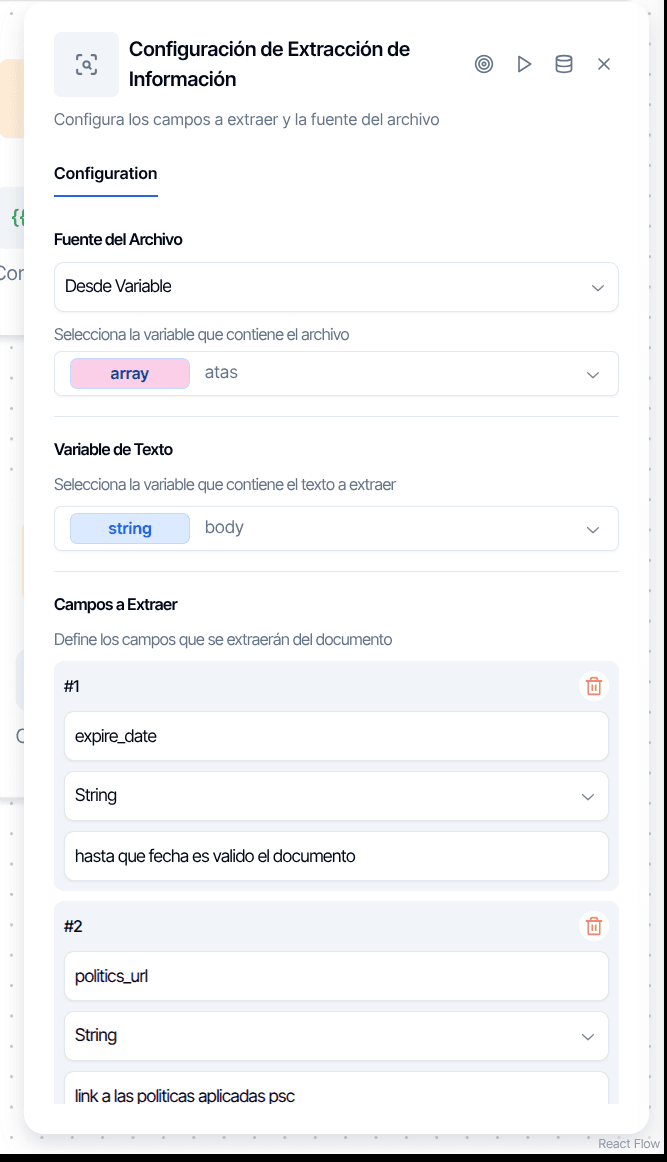
The description field is your main lever for accuracy. "The amount" is vague. "Total invoice amount including taxes, typically shown at the bottom of the document" is not. Treat each description as an instruction — tell the model where to look and what format to expect.
One result per file
The One result per file switch changes what the node does with a list of files.
Off (the default) sends every file, plus the text variable if there is one, into a single read. The result is one object with a value per field. Files from a list are sent as document_1, document_2, and so on, and the result does not say which file a value came from. This is the right mode for the pages of one document.
On reads each file separately and stores a list with one entry per file, in the order the files were sent. This is the right mode for a batch of different documents. In this mode the text variable and Store in package are ignored, and the node leaves a warning notice on the conversation saying so.
Flipping the switch clears the Response Variable, because the type it needs changes: object when off, array when on. Turning it off also removes any document types you had defined.
Document types
Available only with One result per file on. Use them when a batch arrives unsorted and each kind of document needs different fields. Each type has a name, a description of how to recognise it, and its own list of targets. Every file is first classified into one of the types and then read with that type's fields.
Without document types every file is read with the general targets above. Document types configured while the switch is off are ignored at run time, with a warning notice.
Response variable
Where the result goes. The picker only offers variables of the type the current mode produces: object when reading everything at once, array with one result per file. Access individual values downstream with {{variable.field_name}} in the merged mode.
Store in package
Available in the merged mode. Saves the extracted values as a package on the customer's record, so they survive the conversation. The Package label identifies what the extraction contains and tells its packages apart from other extractions in the same flow. The package also records the conversation, the customer, the node, the model that was used, and the fields that could not be extracted. If saving the package fails, the extraction still succeeds and a warning notice explains what happened.
Model ID
Optional. Leave it empty to use the default. The system picks different models for file-based extraction, which requires vision, and text-only extraction. Specify a model only if you need to override that choice.
Output
Merged read. The response variable holds one object with a key per field that was found. A field the model did not find is simply absent — there is no key holding null — so check for the field before using it.
One result per file. The response variable holds a list with one entry per file, in the order they were sent. Each entry has the position of the file, the name it was read under, the document type it was classified as when types are defined, and a values object with the fields that were found. A file that could not be read keeps its place with an error and an empty values, so a list of 24 files always has 24 entries.
Output Handles
| Handle | When it fires |
|---|---|
| Success | Something was extracted. If some fields are still missing after the retries, or some files could not be read, a warning notice lists them and the flow still routes here. |
| Error | The configuration was rejected before calling the service, there was no readable input, the service rejected the request, or nothing at all could be extracted. |
Behavior
Invalid targets are rejected before anything is sent. A target without a valid type, a dict or list[dict] without subfields, a scalar with subfields, more than 20 subfields, or a repeated name never reaches the extraction service: the node leaves an error notice naming the target and what to fix, and exits through Error. A target row without a name is simply dropped, with a warning notice.
Retries in the merged mode. The node makes up to three attempts. Each retry only re-requests the fields that are still missing, so the model can focus on what it did not find. If fields are still missing after the third attempt, a warning notice reads Missing fields after 3 attempts: field_a, field_b and the flow continues through Success with what was obtained. A value the model returned but that could not be cast to the declared type keeps its raw text rather than being dropped.
Not every failure is retried. If the extraction service rejects the request — anything but a rate limit — the node does not try again, because the same request would fail the same way; the notice quotes what the service said and states it was not retried. A service error or a timeout is retried, but if the loop ends with no value at all the node exits through Error. If any attempt times out, the retry loop stops immediately to avoid compounding delays.
One result per file does not retry missing fields. Reading a batch of 24 files three times would multiply the model calls, so a field the model missed stays absent from that file's values.
Unreadable files keep their position. A file that cannot be downloaded, or that the extraction service cannot turn into an image, is reported in a warning notice as N of M files could not be read: name: reason. In the merged mode the readable files are sent on their own and the unreadable ones are not sent again in the retries. In the per-file mode the entry stays in the list with its error. If no file is readable and there is no text, the node exits through Error with the reasons. A file that arrives with no content at all (0 bytes) is reported as empty, not as a failed download, so the notice points at the real problem.
File names are generated. Files are sent to the extraction service as document for a single file or document_1, document_2, and so on for a list, with the extension detected from the actual content when downloading — a JPG is read as a JPG even if the URL does not say so. The name the customer gave the file is not available; the variable only holds the file's URL.
Expired links are renewed. The URL an Ask File node stores expires after 60 minutes. If this node runs later than that, it renews the link on its own before downloading.
Billing. Each document actually read counts as one OCR Documentos metric. Retries do not count, and neither do files that could not be read. A PDF with attached files counts as one document, however many files it carries.
PDFs With Attached Files
A PDF can carry other files inside it, separate from its pages. A typical case is a cover page with the balance sheet and, attached to it, the accountant's certification as its own PDF. Most PDF viewers show these files in an attachments panel rather than on the pages, so they are easy to miss. The node reads the whole thing: first the pages of the PDF itself, exactly as it always has, and then every attached file. An attached PDF can carry attachments of its own, and those are read too.
Every page reaches the model labeled with where it came from — the main document and its page number, or the attachment's name and its page number — so a field description can point at a specific part: "Certification number, shown in the attached accountant's certification".
What happens to an attached file depends on what it actually is, judged by its content and not by its name:
| Attached file | How it is read |
|---|---|
| Its pages, plus any files attached to it | |
| Image | As an image |
| HTML | As text |
| XML, plain text, JSON | As text |
| Anything else, such as a spreadsheet or a ZIP | Skipped |
An attached file can also be skipped because it is protected by a password (one that opens with an empty password is read normally), because it is damaged and cannot be opened, or because its content is identical to a file already read — the same certification attached twice, for instance. A damaged attachment does not stop the others from being read.
There are limits, counted for each file the customer sent:
| Limit | Value |
|---|---|
| Attached files | 20 |
| Size of each attached file | 30 MB |
| Total size of the attached files | 60 MB |
| Pages read across all attached files | 40 |
| Depth | 3 levels: the PDF, its attachments, and the attachments of those |
The pages of the main PDF do not count toward the 40 and are not limited by this feature. Whatever goes past a limit is skipped and reported, never dropped quietly.
Skipped files leave a warning, not a different route. When anything is skipped, the node leaves one warning notice that lists each skipped file by name with its reason in plain words. The node exits through the same handle it would have used anyway, based on what it did read.
In the per-file mode the PDF and its attachments are one document. They produce one entry in the list, at the PDF's position, and the values found in the attached files come back in that entry's values. The list still has one entry per file the customer sent, and index still matches the order they were sent in. In the merged mode the attached files simply join the single read.
The test dialog reads attached files the same way, so you can check a PDF of this kind before publishing.
Testing Your Configuration
The node has a built-in test dialog — click the play icon in the configuration panel. You can upload files (PDF, PNG, JPG, TIFF, BMP), add one or more URLs, or paste raw text and run the extraction with the targets you configured without executing the full flow.
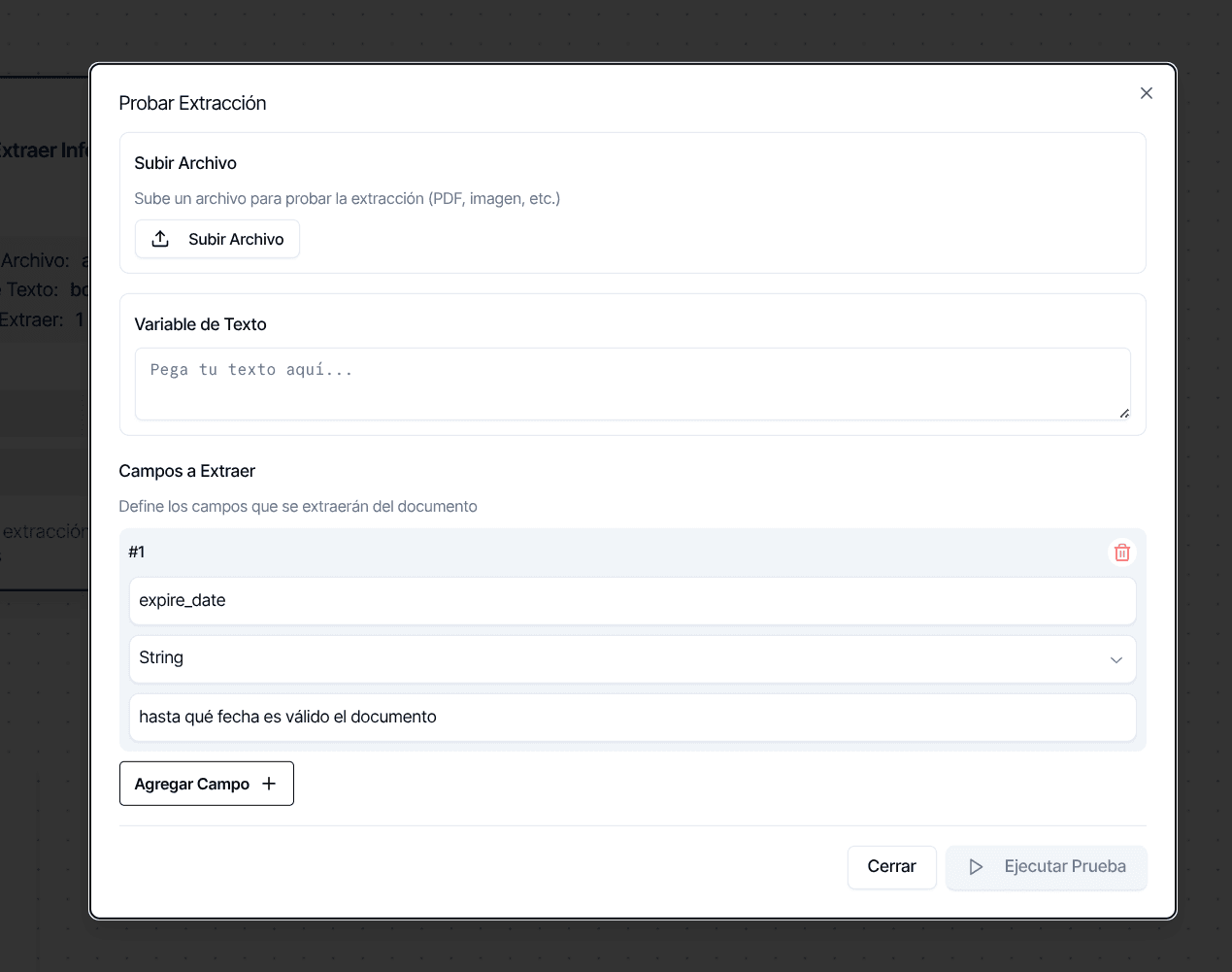
The test results include:
- A results table showing each field's extracted value, its type, and the source text.
- For file-based extractions, annotated images where bounding boxes highlight where each value was found on the page, color-coded per field.
- For text-based extractions, the original text with highlights marking where each extracted value appears.
- Response time in milliseconds, so you can gauge whether the extraction fits your flow.
When the service rejects the request, the dialog shows the actual message — which target, and what is wrong with it — instead of a generic failure. Use the dialog iteratively: adjust your field descriptions, re-run, and check whether the model finds what you need.
Publish Rules
The editor checks this node before the flow can be published, applying the same rules the engine applies at run time. See Structural Rules for the rules that apply to every flow.
These block publishing:
- No target with a name, at the top level or inside a document type.
- A repeated field name among the targets, or among the subfields of one target.
- A type outside the list above, or a subfield type that is not scalar.
- A
dictorlist[dict]target without subfields, a scalar target with subfields, or more than 20 subfields. - A document type without a name, with a repeated name, or without targets.
- No input for the selected source: From URL without a URL, or From Variable without a file variable and without a text variable.
- One result per file with a file variable that is not a list (
array). - No Response Variable and no package. With One result per file the package does not count, because it is ignored in that mode.
- A Response Variable whose type does not match the mode: it must be
objectwhen reading everything at once andarraywith one result per file.
This is a warning, not a block:
- Document types defined while One result per file is off. The flow runs; the types are ignored.
Chaining with Ask File
The typical pairing is an Ask File node followed by this one.
- One document. Ask File stores the file in an
attachmentvariable. Select it as the File Variable, leave One result per file off, and store the result in anobjectvariable. - A batch. Turn on Multiple files in Ask File so it stores the files in an
arrayvariable. Select that variable here, turn on One result per file, define document types if the batch is mixed, and store the result in anarrayvariable. Downstream, iterate the list and check each entry'serrorbefore reading itsvalues.
Things to Know
Partial extraction routes to Success, not Error. Design downstream logic to handle absent values — check whether each field exists before using it, in both modes.
Every deviation leaves a notice. Missing fields, unreadable files, skipped attachments, options ignored by the current mode, and failed package saves are all recorded as notices on the conversation, so the support chat shows why a result is incomplete.
Dates are parsed day-first. Ambiguous dates like "01/02/2024" are interpreted as February 1st, not January 2nd, following Latin American and European conventions, and are returned as 2024-02-01.
Number parsing handles regional formats. Currency symbols and thousands separators are stripped automatically, so "$1,500.50" becomes 1500.50.