OTP Verification
OTP Verification signs an Authorization with a one-time code. It's the second half of a two-step consent process: first, Opt-In presents terms and creates the Authorization when the customer accepts; then OTP Verification sends a code and, when entered correctly, applies the customer's signature to that Authorization.
The distinction matters. This node doesn't verify that a phone number belongs to someone — that's what POC Verification does. OTP Verification proves identity for the purpose of signing a specific authorization record. The output is a signed Authorization in the Authorizations API, not a verified contact.
The Two-Step Pattern
Opt-In and OTP Verification work as a pair. Opt-In displays consent terms and creates an Authorization when the customer taps "Accept". It stores the authorization ID in a variable. OTP Verification then references that variable, sends a code to the customer, and marks the Authorization as signed when they enter it correctly.
The authorization ID variable is the link between them. Whatever variable name Opt-In uses to store the authorization ID, OTP Verification must reference the same variable.
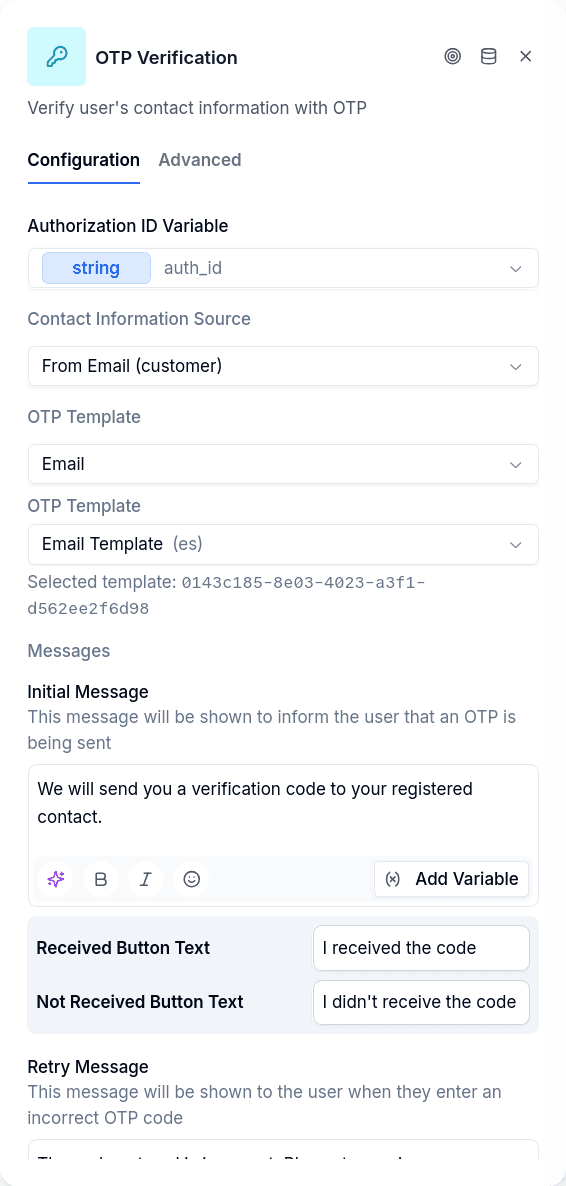
Contact Source Options
The node needs to know where to send the code. Five options are available.
WhatsApp number uses the phone number the customer is currently messaging from. This is the most common choice — the customer is already in this conversation, so they'll receive the code here or via SMS to the same number.
Stored phone POC looks up the borrower's phone Point of Contact record. This requires the borrower to have a phone POC already created, typically via Create Entity earlier in the flow.
Stored email POC does the same for email contacts.
Variable pulls the contact value from a flow variable. Useful when you've collected a phone number or email through Ask Phone or Ask Email but haven't yet created a POC record.
Manual uses a hardcoded value. Rare in production, but useful for testing.
Delivery Channel
Separate from where the contact comes from, you choose how to deliver the code. Channel first, then the template: the picker only offers the templates of that channel.
| Channel | Where the code leaves from |
|---|---|
| A WhatsApp message from your Business number | |
| SMS | A text message |
| The platform's email provider | |
| Email from your own connector | The tenant's email connector inbox, so the code leaves from the address the customer already talks to. The body goes out as plain text: an email template's branding does not travel |
| Delivered by the customer | The customer's own endpoint, which delivers it through their own infrastructure. See Delegated OTP delivery |
Channel and contact source have to match: a phone can be reached by WhatsApp, SMS, and delegated delivery; an email by email, email from your own connector, and delegated delivery. Delegated delivery is on both lists because the customer is the one deciding how to reach the person.
A common pattern sends to the WhatsApp number but delivers via SMS — the customer gets a text message to the same phone they're chatting on.
The templateId specifies which message template to use for delivering the code. It must exist under Settings → OTP Templates, and the two channels that deliver through a connector also need one picked on the template.
Backup Methods
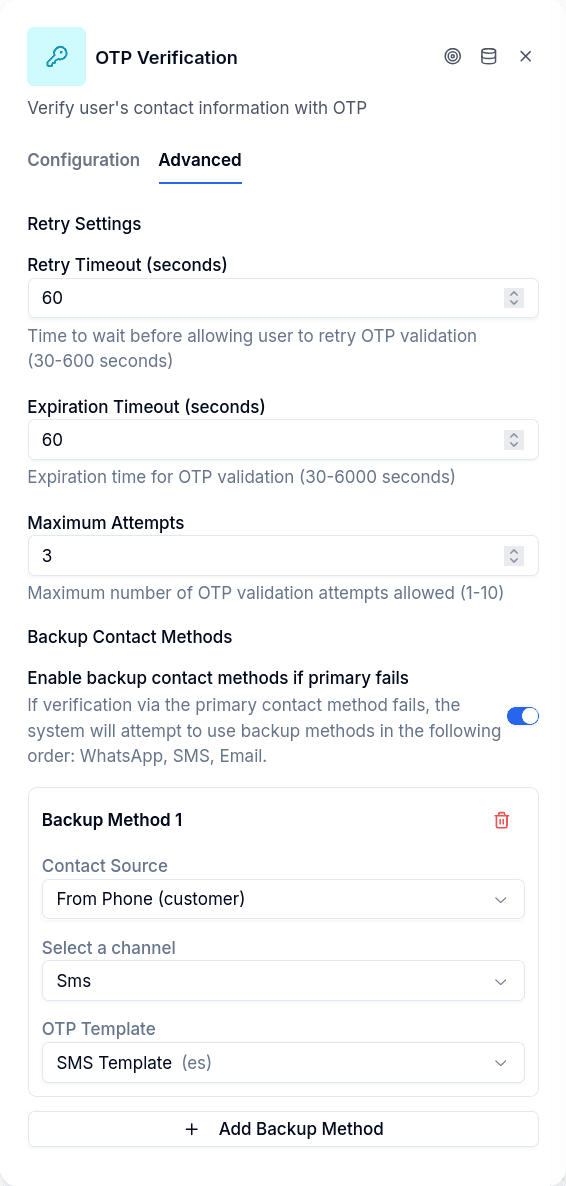
When enabled, backup methods provide fallback delivery if the primary channel fails or the customer reports not receiving the code. Configure a list of alternative contact sources and channels, each with its own template. If the customer clicks "I didn't receive it", the system tries the next method in the list.
The send mode decides when they are used. All at once (the default) sends the code through the primary method and every backup at the same time, and each channel bills its own OTP send. Cascade on failure tries them in order and stops at the first one the provider accepts — bearing in mind that "accepts" is a synchronous answer, not a delivery: a channel that accepts the message and never delivers it still stops the cascade, and the customer is left with the "I didn't receive it" button.
A typical setup: primary delivery via SMS to the WhatsApp number, backup delivery via WhatsApp message to the same number. Different channel, same destination — sometimes one gets through when the other doesn't.
Configuration
| Option | Description |
|---|---|
| Authorization ID Variable | Variable containing the authorization ID from Opt-In |
| Contact Source | Where to get the contact: WhatsApp number, stored POC, variable, or manual |
| Template Channel | How to deliver the code: WhatsApp, SMS, email, email from your own connector, or delivered by the customer |
templateId | Message template for the OTP delivery |
| Send Mode | Whether backups go out with the primary (all-at-once, the default) or only when the previous one fails (cascade) |
retryTimeoutSeconds | Seconds before resend is allowed (default: 60) |
expirationTimeoutSeconds | How long the code remains valid (default: 60) |
| Max Attempts | Wrong code attempts before routing to timeout (default: 3) |
| Enable Backup Methods | Whether to offer fallback delivery options |
| Expired code and exhausted attempts leave through the same output | On by default. Turn it off to give an expired code its own output. See Expired Code vs Exhausted Attempts |
Output Handles
Which handles the node shows depends on the Expired code and exhausted attempts leave through the same output toggle. It is on by default, and every node created before the toggle existed behaves as if it were on.
With the toggle on:
| Handle | When |
|---|---|
| Continue | Code verified, authorization signed |
| Timeout/Max Attempts | Too many wrong codes or code expired |
| Error | Authorization not found, template missing, system failure |
With the toggle off, the timeout output splits in two:
| Handle | When |
|---|---|
| Continue | Code verified, authorization signed |
| Attempts exhausted | The customer used up the allowed attempts. It is the same output as Timeout/Max Attempts, with the same connections, under a new name |
| Code expired | The customer answered after the code expired, with attempts still left |
| Error | Authorization not found, template missing, system failure |
Expired Code vs Exhausted Attempts
An expired code and a customer who ran out of attempts are different situations. The first one usually only needs a new code; the second one may call for a different path, such as handing the conversation to an agent. Turn the toggle off when your flow needs to treat them differently.
Turning the toggle off doesn't change how the flow behaves. Every connection that leaves Timeout/Max Attempts is copied to Code expired, pointing at the same nodes. Until you rewire Code expired, both cases keep going where they went before.
Turning it back on removes the connections of Code expired. If any of them reaches a node that Attempts exhausted doesn't reach, the editor lists those nodes and asks you to confirm before removing them. If you cancel, nothing changes.
When both apply, exhausted attempts win. A code that has expired and has no attempts left leaves through Attempts exhausted.
Expiration is only checked when the customer answers. The node doesn't watch the clock: if the code expires while the customer is silent, the conversation stays where it is. When the customer sends something, the answer is evaluated and, if the code has expired, the conversation leaves through Code expired.
An unconnected Code expired doesn't strand the customer. If the toggle is off and Code expired has no connection, an expired code leaves through Attempts exhausted, as it would with the toggle on, and the conversation gets a warning notice that names the missing Code expired connection. The editor also warns about the unconnected output, without blocking publishing. The opposite case, a connection on Code expired while the toggle is on (for example, in an imported flow), is ignored, and the editor warns about it too.
OTP Verification vs POC Verification
Both nodes send codes and wait for responses. The difference is what they're verifying.
OTP Verification signs an Authorization. It requires an authorization ID from a previous Opt-In node, and when successful, that Authorization record gets marked as signed. The contact used is incidental — it's just the delivery mechanism.
POC Verification confirms contact ownership. It requires a stored Point of Contact record and, when successful, marks that POC's isVerified field as true. There's no authorization involved.
If you need documented consent with a signature trail, use the Opt-In → OTP Verification pattern. If you just need to confirm a phone number or email belongs to the customer, use POC Verification.
Prerequisites
The authorization must already exist. This means an Opt-In node must have executed earlier in the conversation, the customer must have accepted the terms, and the authorization ID must be stored in the variable you reference. If any of these conditions aren't met, the node routes to the error handle.
For stored POC contact sources, the borrower must have a matching Point of Contact record. For variable sources, the referenced variable must contain a valid phone number or email.
Things to Know
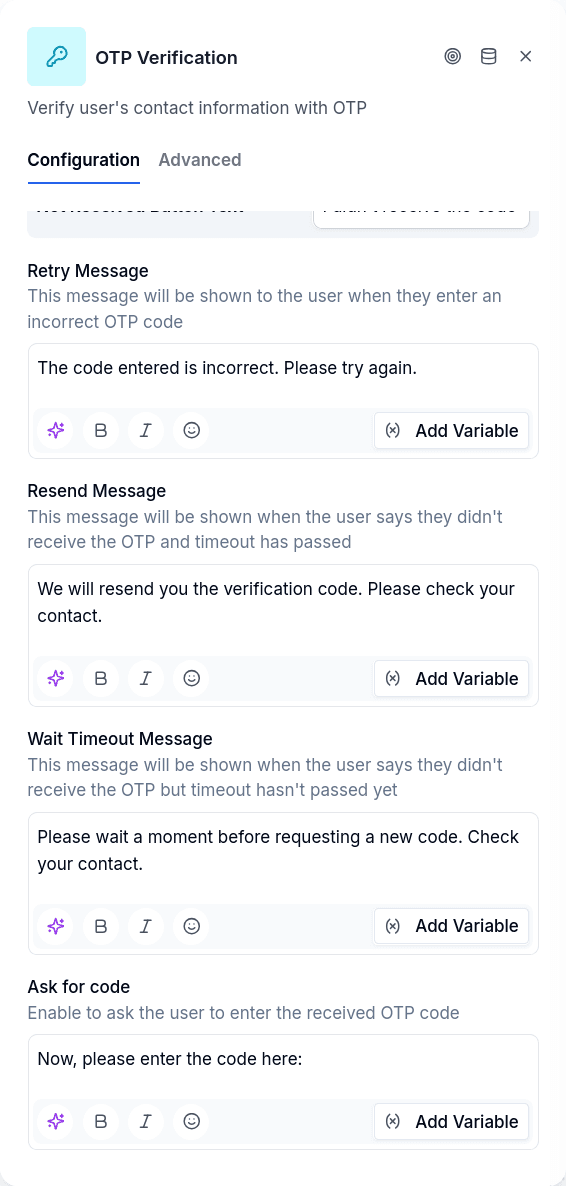
The customer flow is interactive. The node first shows a message saying a code was sent, with two buttons: "I have the code" and "I didn't receive it". Only after clicking the first button does the customer get prompted to enter the code. This gives them time to check their messages.
Retry timing matters. The retryTimeoutSeconds controls how long before a resend is allowed. Setting this too low risks duplicate codes causing confusion; too high and frustrated customers give up.
Where the code was validated is recorded. When the code is accepted, the OTP freezes the client context at that moment: on the web channel, the IP, browser, device, time zone and language the portal forwards; on WhatsApp, the ID of the message that carried the code. If a Document Verifications node later signs with that authorization, that copy lands in the signature evidence as otpVerifiedFrom. If the channel exposes nothing, the OTP is validated anyway.
By default, expiration and max attempts route to the same handle. Whether the code expired or the customer entered wrong codes too many times, the conversation leaves through Timeout/Max Attempts. Design that path to handle both cases — typically a message explaining what happened and an option to restart the process — or turn the toggle off to handle each case on its own output, as described in Expired Code vs Exhausted Attempts.