Form List
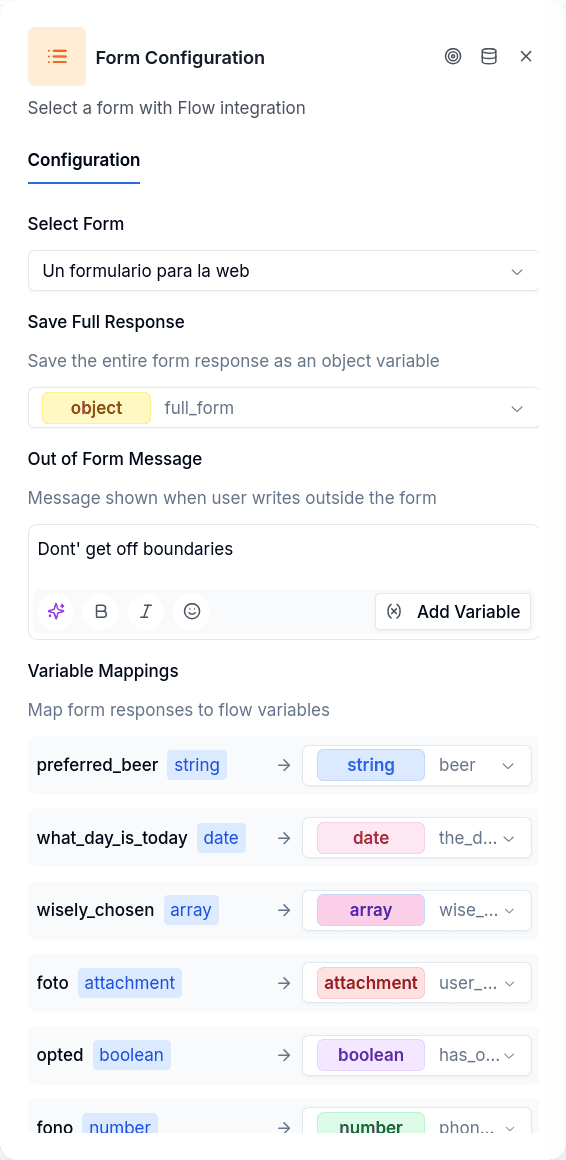
Form List embeds full-screen native forms into conversations — forms that collect multiple fields at once. Instead of asking questions one by one, customers tap a button, fill out a multi-field form with built-in validation, and submit everything together. The system captures the response and maps individual fields to flow variables.
Forms are designed in a separate Form Builder tool, then referenced here by ID. This node presents a published form and waits for submission.
When to Use It
Form List fits scenarios where you need to collect several pieces of information efficiently. An onboarding flow that needs name, email, phone, and ID document can gather all four in a single form submission rather than four back-and-forth exchanges. Document collection benefits from native file upload UI. Multi-step applications can span several pages within one form.
The tradeoff is complexity: you need to design the form separately before using it here, and the customer experience shifts from conversational to form-filling.
Configuration
| Option | Description |
|---|---|
formId | Published form to display (selected from dropdown) |
responseVariable | Variable to store the entire form response as an object |
variableMappings | Map individual form fields to flow variables |
outOfFormMessage | Message sent when customer types instead of completing the form |
Out-of-Form Message is sent when a customer types a regular message instead of submitting the form. The conversation stays on this node until the form is completed.
Extracting Submitted Data
Data extraction is configured directly in the node — no separate Set Variable step required.
Response Variable saves the entire form response as a single object. All submitted fields are accessible under this variable (e.g., {{application_data.name}}, {{application_data.email}}).
Variable Mappings extract individual form fields into separate flow variables. Map name_response → customer_name, and subsequent nodes can reference {{customer_name}} directly. The mapping UI filters by type — an email field only shows email-type flow variables as targets.
Once extracted, use Customer Update to persist data to the borrower record, or Workflow Execute to trigger processing.
Mappings to Variables That No Longer Exist
A mapping points at a form variable by name. If someone later deletes or renames that variable in the form, the mapping is left pointing at nothing: on every run the form's answer does not carry that field, the flow variable stays unset, and the conversation gets a form_variable_missing warning notice (Form variable 'X' is not in the submission).
The node shows those mappings so you can clean them up. In the Variable Mappings section they appear struck through, with the note This variable no longer exists in the form. Remove the mapping so the flow stops looking for it. and a Remove mapping button on each one. Nothing is deleted on its own when you open the node: you decide which ones to remove, and the change is saved with the flow like any other edit. While the form is still loading, or if it cannot be found, no mapping is marked.
File Fields
A form field that lets the customer upload documents maps to an attachment flow variable. That variable holds one file: when the customer uploaded several files in the same field, only the first is kept and the node leaves a warning notice on the conversation — "The customer sent N files and 'X' is typed 'attachment', so only the first was kept. Declare the variable as 'array' to keep all of them." The notice shows in the conversation's notices panel in Chat and aggregated in Flow Notices.
The mapped variable then feeds single-file nodes such as OCR Verification or a Customer Update attachment row. When you need every file the customer uploaded, collect them with an Ask File node with Multiple files instead.
Output Handles
| Handle | When |
|---|---|
| Success | Customer submitted the form and data was extracted |
| Error | Form not found, missing configuration, or API failure |
Things to Know
Not supported on the email channel. Form List embeds WhatsApp Flows. When an email conversation reaches this node, the engine leaves a warning notice on the conversation ("Unsupported node type for email") and skips it without writing any variable: through the Error handle when one is connected, otherwise through Success. For a multi-field capture over email, chain Ask nodes, or use Ask Question with Store attachments for the documents.
Forms require separate setup. Design and publish forms in the Form Builder before referencing them here.
File fields are decrypted automatically. When customers upload documents through WhatsApp, the media arrives encrypted. The system decrypts it and delivers the file data to your flow variables.
Customers must complete the form to proceed. Regular text messages while the form is pending trigger the out-of-form message but don't advance the conversation.