Document Verifications
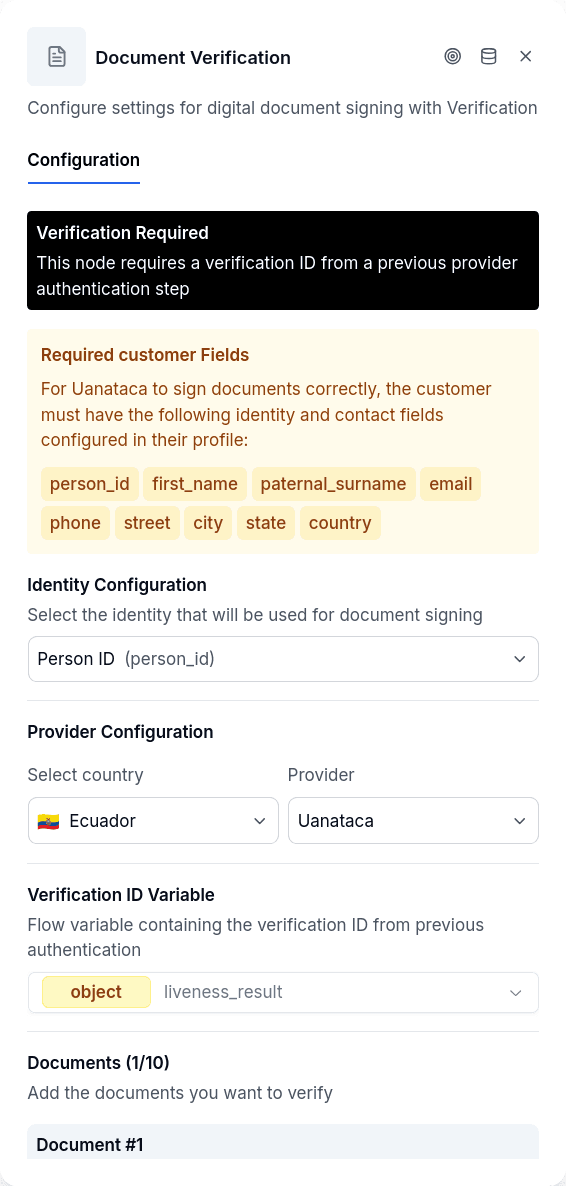
Document Verifications signs PDF documents and attaches a timestamp that proves when the signing occurred. Depending on the country and configured provider, signing happens either through a qualified electronic certificate or through AltScore's OTP signature. In both cases, each signed document is linked to an Authorization entity on the borrower's record as a permanent legal record.
The node supports two signing providers:
- Uanataca (Ecuador) — qualified electronic certificate, backed by a prior liveness check.
- AltScore (OTP) — signature backed by an OTP verification, with a verifiable QR stamped onto the PDF.
The provider is selected by country in the node configuration.
Common configuration
| Option | Description |
|---|---|
provider | Signing provider (by country) |
selectedIdentityId | Identity key to pull the signer's identifier from (e.g., person_id) |
signerNameSource | What is shown as "Signed by" (see below) |
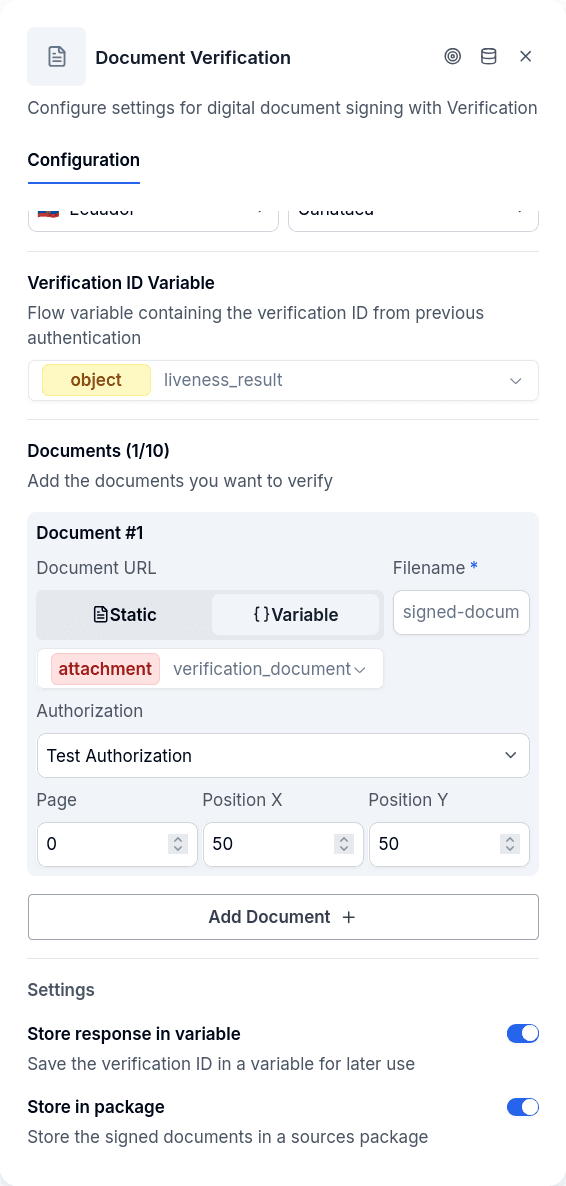
documents | Array of documents to sign (see below) |
storeInPackage | Create an audit record with signing results and metadata |
Each document in the array needs:
| Field | Description |
|---|---|
filename | Output filename for the signed PDF |
urlVariable | Variable containing the PDF (or use urlStaticValue for a fixed URL) |
page | Page number for signature placement (0-indexed) |
posX | Horizontal position as percentage (0-100) |
posY | Vertical position as percentage (0-100) |
authorizationKey | Links the signed document to an Authorization entity |
Authorization Key links the signed document to an Authorization entity on the borrower's record. Multiple documents can share the same key. These entities serve as permanent legal records containing the signer's identity snapshot, timestamp, and the signed PDF.
Store in Package creates an audit record with the signing results and metadata.
Reading the PDFs from a Variable
A document whose source is a variable can read a plain URL written by Workflow Execute or Create PDF, or the attachment variable written by an Ask File node. Unlike most file consumers, this node accepts several files from one variable — a file variable holds either one file or a list of them (an Ask File with Multiple files turned on writes a list), and the node resolves what it finds by the shape of the value, not by the type the variable was declared with:
- One file. One document is signed with the settings of that row.
- A list of files. One document is signed per file, all with the same page, position, filename and Authorization Key of that row. The customer's three signed forms become three signed PDFs, each linked to the same Authorization.
- No file. That document row is discarded with a warning notice ("The variable X has no file, so node conversational-document-verifications has no document to read...") and the other rows are signed. When no row resolves to a file, the node leaves a notice ("None of the configured documents resolved to a file, so there was nothing to sign. Check the variables the documents read their URL from.") and exits through Error.
- Expired link. Files captured by Ask File are signed links that expire 60 minutes after capture. The node renews an expired link on its own — for variable and static sources alike — before handing it to the signer; only when the renewal fails does it leave an error-level notice ("The file URL expired and could not be renewed. Ask the customer for the file again...") and exit through Error.
The publish gate accepts a file (attachment) or a list (array) variable here. It refuses to publish when a document points at a variable that does not exist or is not a file type, when a document's chosen source is empty, or when the node has no documents at all. See Publish Gate.
Signer display name
The "Signed by: ..." text on the PDF (and the signerName in AltScore's QR) is resolved from signerNameSource. These are two different things: which identity signs (the validation) and which name is displayed. This setting controls only the second one.
| Value | What is shown |
|---|---|
| Default | Name built from the identity's components (given names and surnames); if none, falls back to the client's label |
Client label (label) | The borrower's label (for companies, usually the legal/company name) |
An identity (identity) | The value of the chosen identity, e.g. legal_name |
Since identities are defined per tenant, the selector lists the ones that exist in the tenant, ordered by priority. If nothing is selected, behavior is unchanged. This avoids "Signed by: N/A" for companies, which have no natural-person names but do have a legal name.
Provider: Uanataca (Ecuador)
Uanataca issues a qualified electronic certificate and requires a prior Liveness Verification: the liveness check establishes who the person is, and this node uses that verified identity to sign. The two work as a pair.
| Option | Description |
|---|---|
verificationIdVariable | Variable containing the verification ID from Liveness Verification |
Provider: AltScore (OTP + QR signing)
With the AltScore provider, the signature is backed by an OTP verification instead of a liveness check. The typical flow:
- An OTP Verification node verifies the signer and leaves an Authorization with the OTP registered.
- Document Verifications takes that Authorization, signs the PDFs, and stamps a verifiable QR.
| Option | Description |
|---|---|
authorizationIdVariable | Variable containing the Authorization ID that holds the verified OTP |
signatureLabelsLanguage | Language for the stamped labels ("Signed by", "Date", footer) — es or en |
The stamped QR contains a verifiable record of the signature: signatureId, authorizationId, otpId, borrowerId, tenant, personId, signerName, signedAt, provider, and verificationMethod. Below the QR, the "Signed by" and "Date" labels are stamped, along with a footer telling where to verify the signature.
Signature evidence
Besides the QR, every signature made with the AltScore provider leaves an evidence record on the Authorization (the API flags it with hasSignatureEvidences): the PDF's SHA-256 hash, when it was signed, through which channel the OTP was verified, and from where. That record is what the public verification page compares and displays. The context fields depend on the channel the conversation runs on:
| Field | Web (portal) | |
|---|---|---|
channel | web | whatsapp |
ip | Customer's IP, taken from the request the portal forwards | Not applicable |
userAgent | Browser and operating system | Not applicable |
device | Platform and screen size (platform, WxH) | Not applicable |
timezone | Browser time zone | Not applicable |
locale | Browser language | Not applicable |
whatsappMessageId | Not applicable | ID of the WhatsApp message that verified the OTP |
otpVerifiedFrom | Copy of the client context at the moment the OTP was verified | { whatsappMessageId } |
signerIdentity | Identity the signature was made with (the Authorization's key and value) | Same |
consentVersion | Version of the accepted policy, if the Authorization has one | Same |
signedAt | Signing date and time, in UTC | Same |
On the web channel the portal builds the context on every message: the proxy takes the IP, user agent and language from the incoming request, and the browser adds time zone, language, platform and screen. The engine stores the latest context received on the conversation. OTP Verification freezes a copy on the OTP when the code is validated (otpVerifiedFrom), and this node takes the current context when signing; the two can differ if the customer switched network or device between validating the code and signing. No geolocation is captured.
Missing context does not fail. Every context field is optional. If the browser does not expose one of them, if the portal does not forward the headers, or if the conversation runs on WhatsApp, the signature is recorded anyway with whatever fields are available and null in the rest. Evidences recorded before this change do not have these fields.
IP and device are personal data. They are stored on the customer's Authorization and shown in Chat, on the authorization sheet, and on the public verification page to whoever holds the signed PDF. The tenant handles them under its own data policy and privacy notice, like the rest of the Authorization's information.
Verifying a signature
Any PDF signed with AltScore can be validated on the public verification page:
hub.altscore.ai/public/signature-verification
(the same link that appears in the PDF footer). The page asks you to upload the signed PDF and:
- Detects the QR inside the PDF and reads the signature record.
- Recomputes the PDF's SHA-256 hash and compares it against the hash stored at signing time. If they match, the document is the original, untampered.
- Displays the signature data in readable form: signer, date, method (OTP), the signature and authorization identifiers and, when the evidence carries them, the channel, device, time zone and signer identity.
This is an integrity check: if the PDF was modified after signing, the hash won't match and validation fails. The page is public and requires no login.
Output Handles
| Handle | When |
|---|---|
| Success | All resolved documents signed and attached to their Authorization entities |
| Error | Missing verification/authorization ID, identity not found, required fields missing, no document resolved to a file, or signing failed |
Every Error exit leaves a notice on the conversation with the cause, visible in the conversation's notices panel in Chat and aggregated in Flow Notices.
Things to Know
Uanataca is Ecuador only. The Uanataca provider operates in Ecuador. The selected identity must have the required fields populated: cédula number, name, email, phone, and address.
The identity must exist first. The node reads signer information from an existing Identity record on the borrower. If you're using OCR Verification to create that identity, make sure it runs first.
Spouse co-signing happens automatically. With Uanataca, if the borrower's marital status indicates married and spouse data exists, the system generates a second set of signed documents for the spouse.
Documents must be accessible. The URLs you provide must point to downloadable PDFs. Consider using Workflow Execute or PDF Creator to generate documents earlier in the flow, or Ask File to let the customer upload them.