Create PDF
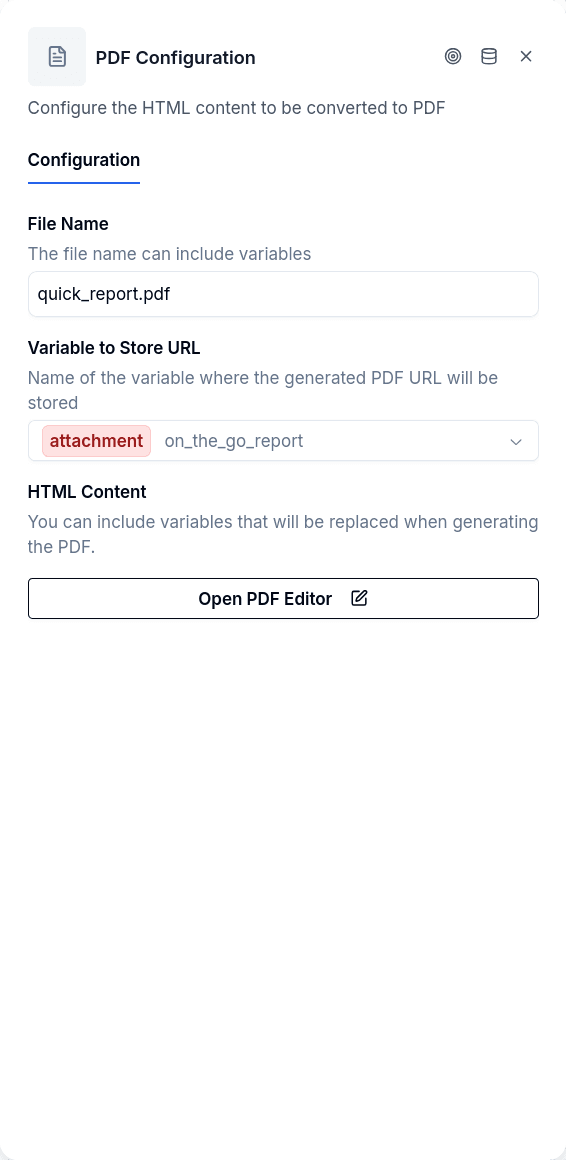
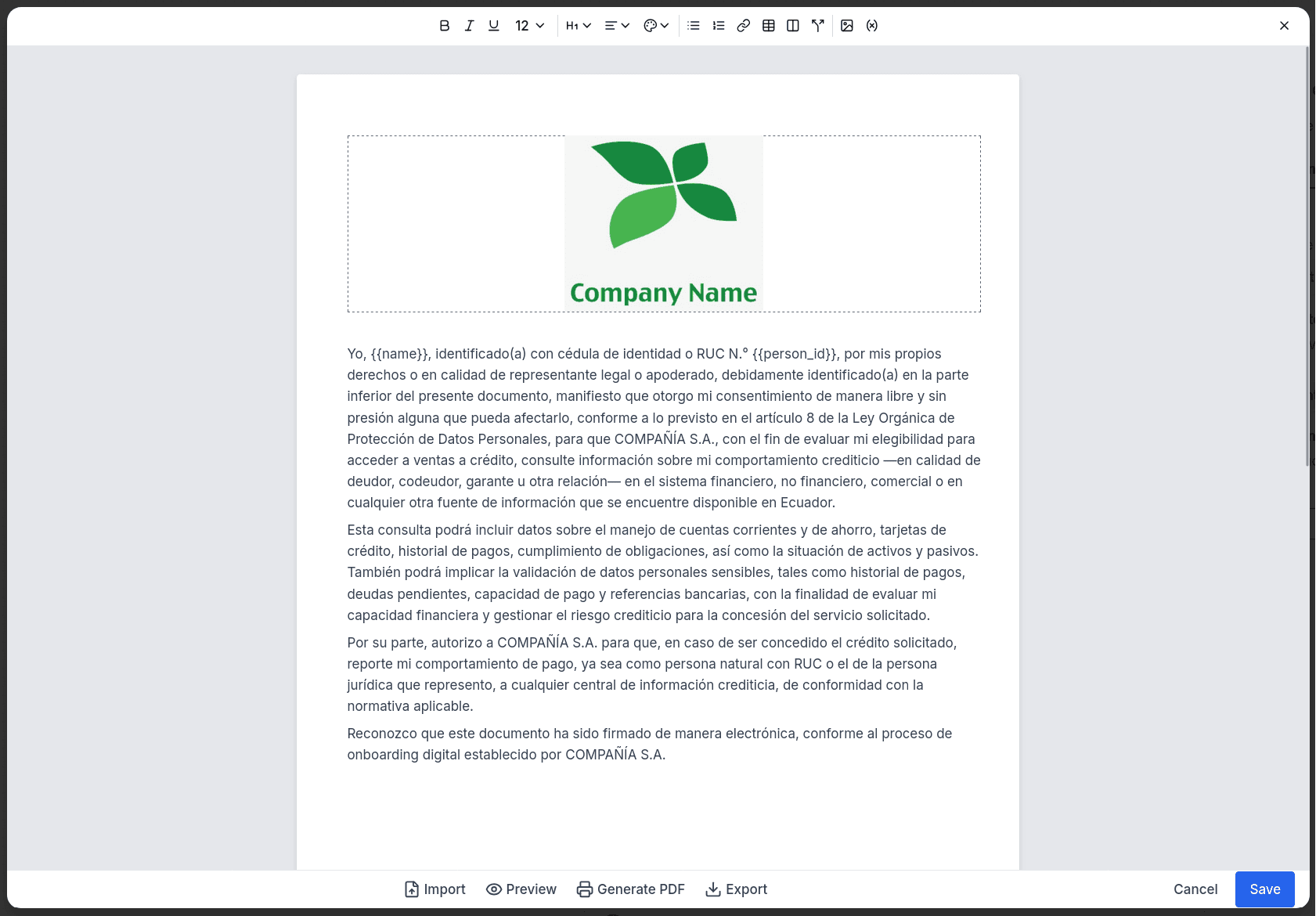
Create PDF generates documents from templates you design in a visual editor. You author the content — text, formatting, tables, images — and mark where dynamic values should appear using {{variable}} placeholders. At runtime, the node fills in those placeholders with actual conversation data and produces a PDF, storing its URL in a variable for later use.
The node operates silently. No message goes to the customer during generation. If you want feedback like "Generating your document...", add a Message node before it.
When to Use It
Create PDF is the right choice for template-based documents where the structure stays constant but certain values change per customer: authorization forms, consent documents, personalized letters. Business users can edit these templates directly through the visual editor — no developer involvement required.
For documents that require external API calls, complex calculations, or data aggregation from multiple sources, use Workflow Execute instead. Create PDF only works with variables already present in the conversation.
Configuration
| Option | Description |
|---|---|
fileName | Output filename — can include variables (e.g., authorization_{{person_id}}.pdf) |
htmlContent | HTML document authored via the WYSIWYG editor |
variableToStore | Variable name to store the generated PDF URL |
You design the document in a rich text editor with standard formatting options — bold, italic, headings, lists, tables, images. Insert variables using {{variableName}} syntax wherever you need dynamic content.
The stored variable holds a URL to the generated PDF, ready for Send File or Document Verifications.
Available Variables
The template system provides built-in values alongside any conversation variables you've collected:
| Variable | Source |
|---|---|
{{name}} | WhatsApp profile name |
{{phone}} | WhatsApp number |
{{borrower_id}} | Authenticated borrower's ID |
{{today}} | Current date |
{{now}} | Current date and time |
Any variable set earlier in the flow — through Ask Question, Set Variable, or other nodes — is also available.
Output Handles
| Handle | When |
|---|---|
| Continue | PDF generated successfully |
| Error | Generation failed or timed out |
Things to Know
A variable with no value stops the document. This PDF is signed, so a placeholder whose variable was never set — or whose value is null — is treated as a defect instead of being rendered. The node fails, writes a notice naming the placeholders, and takes the Error handle. It does not hand you a document with {{variable_name}} or the word None printed on it, because that reads as a valid document and gets signed anyway. Make sure the variables are written before the flow reaches this node. An empty string is a value, not a hole: it renders as empty and the document is produced.
Values are inserted as text, never as markup. A value containing <, > or & is escaped, so a company name like Ávila & Hijos reads correctly and no piece of data can alter the structure of the document around it. Formatting comes from the template you author, not from the data that fills it.
Generation can take time. The service has a 300-second timeout. For complex documents, consider the customer's wait experience.
Page size defaults to A4. This isn't configurable through the editor interface.