Send File
The Send File node delivers files to the customer — images or documents — as part of the conversation. Unlike Ask File which receives uploads, this node sends files outbound. Use it to deliver generated PDFs, promotional images, or any document the customer needs to receive.
How It Works
The node takes a URL, or a variable holding one file or a list of them, downloads each file, stores a copy internally, and sends it through the conversation channel with an optional caption. Once delivered, the flow continues immediately to the next node — there is no pause waiting for the customer to respond.
This makes Send File part of the "auto-advance" family of nodes. It executes, delivers, and moves on. Chain it with a Message node to explain what you're sending, or follow it with an Ask Question to confirm receipt.
When to Use It
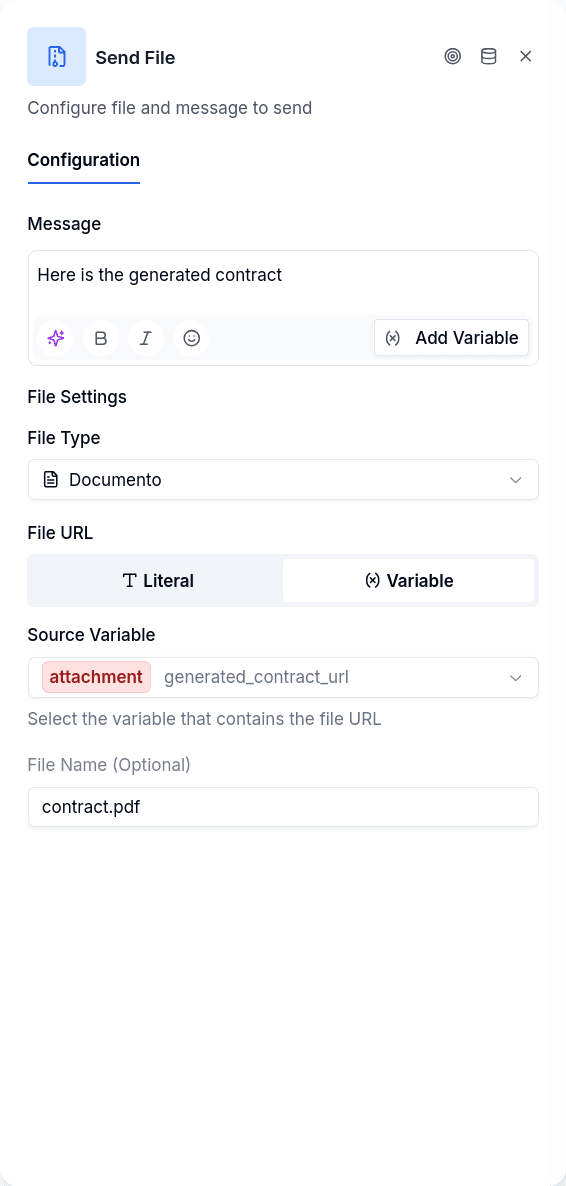
Delivering generated documents. A workflow generates a contract, quote, or receipt as a PDF. The URL ends up in a variable, and Send File delivers it to the customer. Configure the node to read the URL from that variable, set the file type to document, and add a caption explaining what they're receiving.
Returning a file the customer sent. An Ask File node captured a document into a variable earlier in the flow — a signed form, a photo of an invoice. Point Send File at that same variable to send it back, for example after stamping or reviewing it.
Forwarding several files at once. A customer uploaded the three pages of a contract through an Ask File with Multiple files, or a manager's flow received a list of documents from the customer's conversation. Point Send File at the list variable and every file goes out, each as its own message.
Sending promotional materials. You have a fixed image or PDF that every customer should receive — a brochure, terms and conditions, or welcome packet. Use a literal URL pointing directly to the file. The same file goes to everyone.
Sharing images without explanation. Sometimes a picture speaks for itself. Configure the node with an empty caption and just the image URL. The customer receives the image with no accompanying text.
URL Sources
You can provide the file in two ways.
Literal URL means you type the URL directly into the configuration. Good for static files that don't change between customers — promotional images, standard documents, fixed resources.
Variable pulls the file from a conversation variable. Good for dynamic files generated or captured during the flow. The variable can hold a plain URL written by a workflow or an HTTP Request, or the attachment variable written by an Ask File node — both work, no conversion step needed.
Reading the Files from a Variable
A file variable holds either one file or a list of them (an Ask File with Multiple files turned on writes a list). Send File resolves what it finds by the shape of the value, not by the type the variable was declared with. The variable selector offers both kinds, file (attachment) and list (array) variables.
- One file. The node sends it, exactly as it always has: File Type decides whether it goes as an image or a document, the text is its caption, and File Name is its name.
- A list of files. The node sends every file, one message per file, in the order of the list. The caption rides on the first file only, since WhatsApp shows the caption under the media and the text heads the block; the rest go without one. Each file is named after File Name, numbered by its position (
contract_1.pdf,contract_2.pdf...), and whether it goes as an image or a document is decided by each file, because one File Type cannot describe a JPG and a PDF at once. On the web and in Chat the files show up together, as a single entry. - More than ten files. One run sends at most ten. The first ten go out and a warning notice says how many were left: "The variable 'X' holds N files; node 'conversational-file' sends at most 10 per run, so the first 10 were sent and the other M were not...". Set a file limit in the Ask File that writes the list, or split the files across two nodes.
- No file. The variable does not exist, is empty, or the customer never sent anything. The node leaves a warning notice ("The variable X has no file, so node conversational-file has no file to send...") and exits through the Error handle. Nothing is sent.
- Expired link. Files captured by Ask File are signed links that expire 60 minutes after capture. Send File renews an expired link on its own before sending; only when the renewal fails twice does it leave an error-level notice ("The file URL expired and could not be renewed. Ask the customer for the file again, or run the node closer to the ask-file that captures it.") and exit through Error.
When some files fail
With a list, each file is sent on its own, so one can fail while the others arrive. When at least one file went out, the conversation is moved past the node, so reaching it again does not deliver the same files twice. When any file failed, the node still exits through Error, with a notice that names the file by its position ("File 2 of 3"), so the flow can tell the customer or hand the case to an agent.
A failed upload to WhatsApp stops the rest of the list. WhatsApp blocks media uploads for a whole number, for an hour, after five failures, and that would affect every flow on that number, not just this one.
The publish gate still refuses a variable that does not exist or is not a file or list type, and a node with no URL or variable set. See Publish Gate.
File Types
The node supports two file types: image and document.
Images are sent as native photos through the channel — on WhatsApp, they appear inline in the chat with the caption below. Documents are sent as downloadable files — on WhatsApp, they appear as file attachments that the customer taps to download.
Choose the type that matches your content. A promotional photo should be an image. A contract PDF should be a document. The file type affects how the channel renders the content, not just metadata.
Output Handles
| Handle | When it fires |
|---|---|
| Success | Every file was handed to the channel |
| Error | A download failed, a URL is inaccessible, the variable holds no file, the file type is not supported, or at least one file of a list could not be sent |
The Error output appears on the node in the editor; a node saved before it existed gets it the next time you open it. Leave it unconnected and a failure follows the conversation's failure path — on WhatsApp, a handover to a human agent.
Things to Know
Video is not supported. The configuration interface shows video icons, but the backend only handles images and documents. Attempting to send a video will fail and route to the error handle.
Every failure leaves a notice. Whatever goes wrong — a variable with no file, a link that could not be renewed, a download that failed — the node writes a notice on the conversation naming the node and the cause. You read them in the conversation's notices panel in Chat, and aggregated by flow and node in Flow Notices.
WhatsApp can reject a file after the node succeeded. The Success handle fires when the files are handed to the channel; Meta may still refuse one afterwards. When that happens, the conversation gets a delivery-failure notice with the explanation and what to do about it — for example "WhatsApp rechazó el archivo que intentó enviar el flujo" when the format is not supported, the file is too large, or the URL is not reachable, or the 24-hour window notice when more than a day has passed since the customer's last message. You read them in the same notices panel, and every code is listed in Notice Codes; the node itself does not route through Error for them.
Unresolved variables in the caption stay visible. A caption that uses {{name}} for a variable no node wrote is sent with the placeholder as written, and the node leaves a warning notice pointing at the missing variable. Nothing is silently replaced.
GCP signed URLs work, but require extra processing. Google Cloud signed URLs have access restrictions that prevent WhatsApp from fetching them directly. The system detects these URLs and handles them specially — downloading the file, re-uploading it to WhatsApp's media API, then sending via media ID instead of URL. This happens automatically, but it's worth knowing if you're troubleshooting slow delivery times.
Files are preserved internally. Every file sent through this node is downloaded and stored in internal storage, regardless of what happens with the original URL. If your source URL expires — common with signed URLs or workflow-generated files — the system still has a copy attached to the conversation record.
Differences from Ask File
Send File and Ask File are complementary — one sends, one receives.
| Aspect | Send File | Ask File |
|---|---|---|
| Direction | Bot to customer | Customer to bot |
| Waits for response | No | Yes |
| File source | URL (literal or variable) | Customer upload |
| Files per run | One, or up to ten from a list | One, or a list with Multiple files |