HTTP Request
HTTP Request makes direct API calls to external services from within a conversation flow. It supports all standard HTTP methods — GET, POST, PUT, DELETE, PATCH — with configurable headers, query parameters pulled from flow variables, and request bodies built either from raw JSON or dynamically assembled from variable values.
The node operates silently — no message goes to the customer. It executes the request, optionally stores the response in a variable, and routes based on the HTTP status code.
When to Use It
HTTP Request is the right choice for quick integrations with third-party services that don't warrant a full workflow: posting a webhook to notify an external system, fetching data from a simple REST endpoint, or prototyping an integration before committing to a proper workflow implementation.
For most production integrations, however, Workflow Execute is the better path. Workflows provide built-in tenant authentication, configurable retry policies, detailed execution history, and structured error handling. HTTP Request gives you none of that — it's a single attempt with a 30-second timeout, routing to an error handle if anything goes wrong. When reliability and observability matter, use workflows. When you need something quick and simple, HTTP Request gets it done.
Configuration
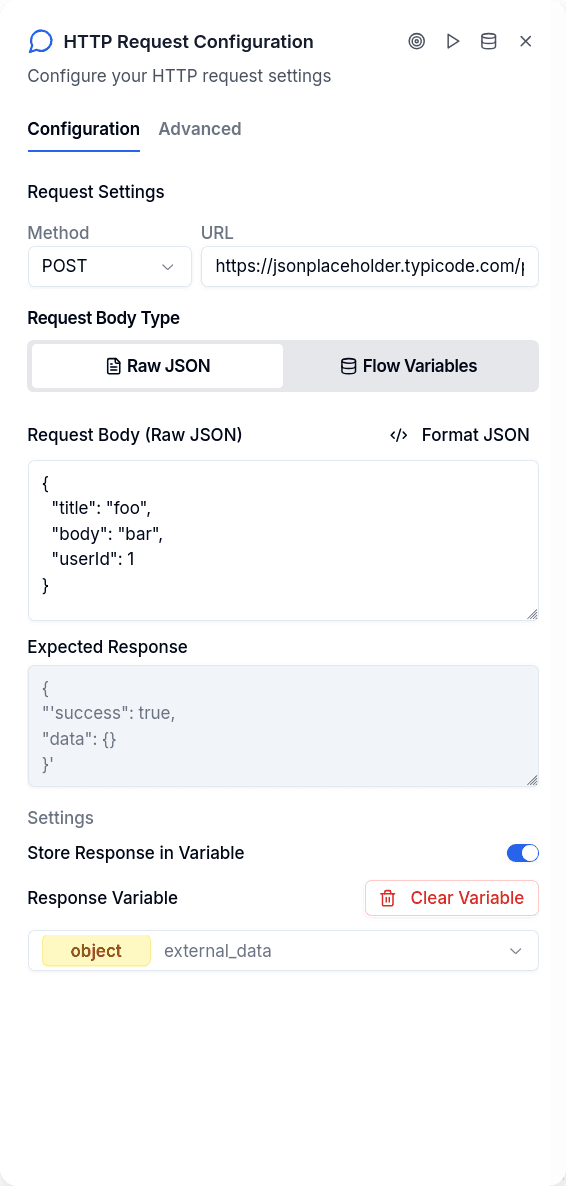
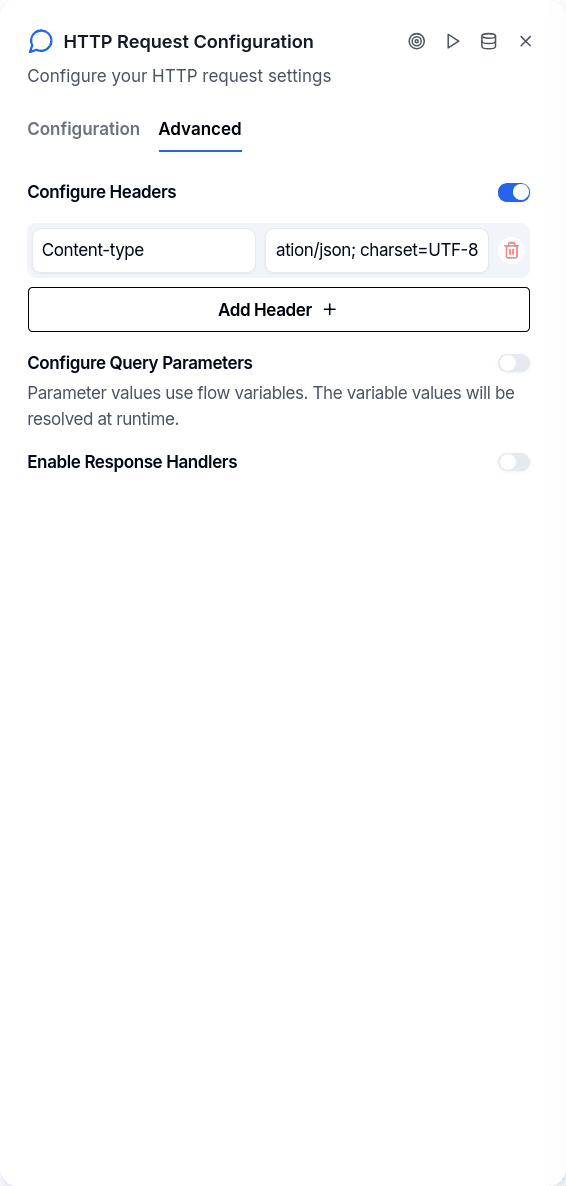
The request needs a URL and an HTTP method. Headers are static key-value pairs you define in the configuration. Query parameters, however, are mapped from flow variables at runtime — you specify the parameter name and which variable holds its value.
For POST, PUT, and PATCH requests, you have two options for constructing the body. Raw mode takes a JSON string directly from your configuration — useful when the body is mostly static. Structured mode builds the JSON from flow variables, mapping each variable to a path in the resulting object using dot notation. A field path like user.profile.name mapped to the variable full_name produces {"user": {"profile": {"name": "<value>"}}}.
When a response variable is configured, the system stores the entire API response and auto-detects its type — array, object, boolean, or string. To extract specific values from that response for use elsewhere in the flow, follow with a Set Variable node.
Response Routing
By default, the node routes to Success for any 2xx status code and Error for everything else — client errors, server errors, timeouts, network failures.
For finer control, enable custom response handlers. This lets you add output handles labeled with specific status codes — a handle labeled "404" catches 404 responses, "500" catches 500s. The system matches the status code against handle labels, allowing different handling for "not found" versus "server error" versus "success."
Output Handles
| Handle | When |
|---|---|
| Success | Status 200-299 (default mode) |
| Error | Status 4xx/5xx, timeouts, network failures, missing variables |
| Custom | When custom handlers enabled, matches status code in label |
Things to Know
Missing variables route to error. If a query parameter or body field references a variable that doesn't exist, the node doesn't substitute an empty value — it routes directly to the error handle. Validate that required variables exist before this node if their absence is possible.
Content-Type is set automatically. If you include a request body but don't specify a Content-Type header, the system adds application/json for you.
No retry logic. The node makes a single attempt. If the request fails — timeout, DNS error, connection refused — it routes to error. For retries, you'd need to build a loop in your flow or use Workflow Execute where retry policies are configurable.
The timeout is 30 seconds. There's no way to configure this — slow endpoints that might exceed this need a different approach.
Testing Requests
The flow builder includes a test dialog for HTTP Request nodes. It opens with your current configuration pre-filled and lets you substitute test values for variable placeholders. Execute the request directly from the UI and see the response — status code, timing, body. This is useful for validating endpoints work as expected before deploying the flow.