Workflow Execute
Workflow Execute triggers an AltScore workflow from within a conversation flow. It builds a payload from flow variables — values the customer has provided through the conversation — executes the workflow, waits for results, and stores the response for downstream nodes to use. This is how conversations connect to the platform's automation engine: credit bureau queries, KYC verification, scoring models, document generation.
The node operates silently — no message goes to the customer. It makes the call, captures the result, and routes based on whether the workflow succeeded or failed.
When to Use It
Workflow Execute is the right choice when you need to query external data sources, apply business rules, calculate risk scores, or produce documents. Workflows come with built-in tenant authentication, configurable retry policies, and detailed execution history. When the conversation needs to make a business decision based on external data or computed risk, this is how you get that data.
For simpler needs, consider the alternatives: HTTP Request for basic external API calls, Formula for calculations and expressions, or PDF Creator for document generation.
Configuration
| Option | Description |
|---|---|
| Workflow | UUID or alias of the workflow to execute (e.g., kyc, get_info_sri) |
| Execution Mode | sync waits for results; async returns immediately |
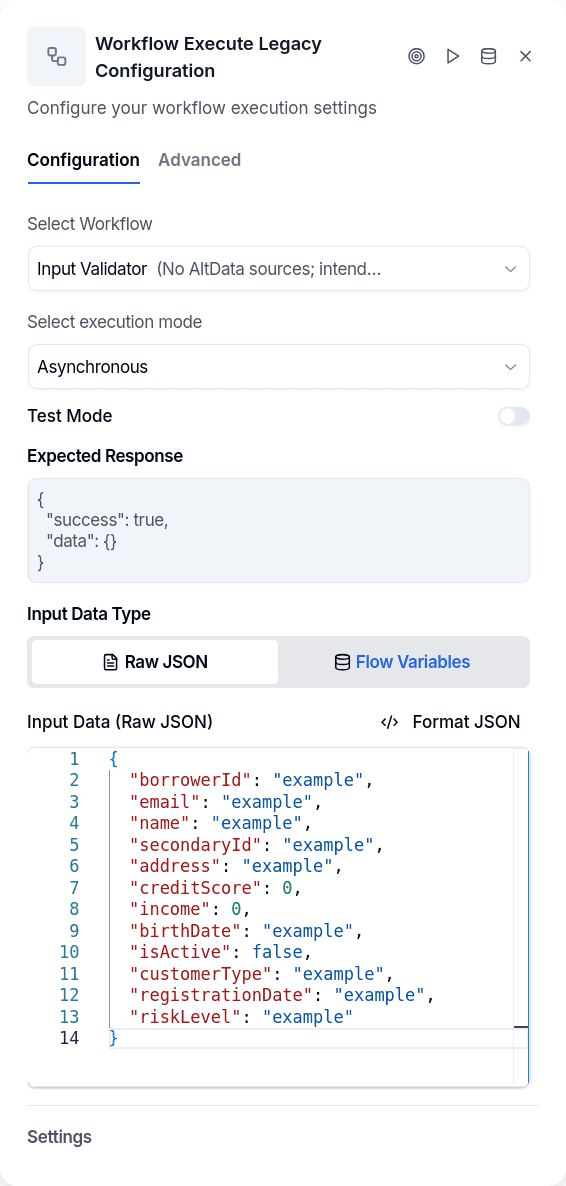
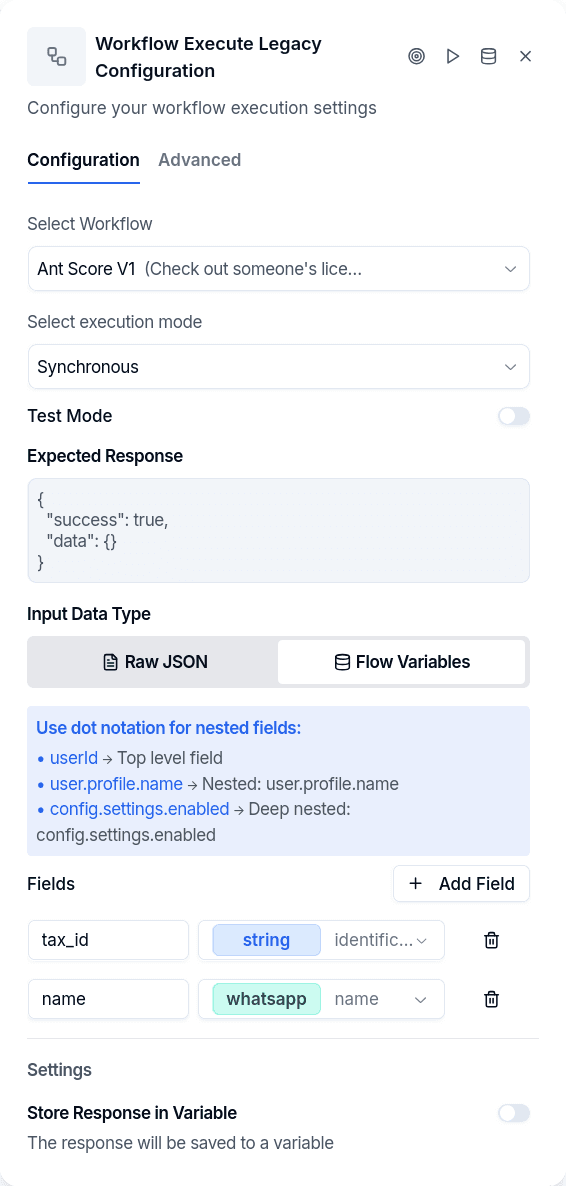
| Input Type | structured maps flow variables to fields; raw takes a JSON string |
| Input Fields | Variable-to-field mappings for the workflow payload |
| Response Variable | Where to store the workflow output |
Structured input maps flow variables to payload fields — you specify the field name and which variable holds its value:
Raw input takes a JSON string directly — useful when the payload is mostly static or you need a structure that doesn't map cleanly from variables. Note that raw mode doesn't do variable substitution.
The response variable holds the workflow's complete output — see the workflow response structure for details on what's returned. To extract specific values for use elsewhere in the flow, follow with a Set Variable node. Workflows can also produce attachments (PDFs, reports, signed documents) that come back as URLs ready to send to the customer.
Execution Modes
Sync mode waits for the workflow to complete before continuing. The system polls every 10 seconds, waiting up to 5 minutes for results. When the workflow finishes, its output is immediately available for the next node. This is the standard approach when you need the workflow's output to drive what happens next.
Async mode returns immediately after starting the workflow. You get an execution ID but not the results — the workflow runs in the background. Use this for long-running workflows when you don't need the result to continue the conversation, or when you'll check results later through a different mechanism.
Output Handles
| Handle | When |
|---|---|
| Success | Workflow completed without errors |
| Error | Workflow failed, timed out, or invalid configuration |
| Custom | When custom handlers enabled, matches HTTP status code in label |
Custom response handlers let you route based on specific status codes — a handle labeled "404" catches 404 responses, allowing different handling for "not found" versus other error types.
Things to Know
Missing variables route to error. If an input field references a variable that doesn't exist, the node catches this before making the call and routes to error. Make sure required variables exist before reaching this node.
Test executions are marked as such. When the technical users toggle is enabled, executions are tagged with ["test"] so they're distinguishable in execution history.