Ask Question
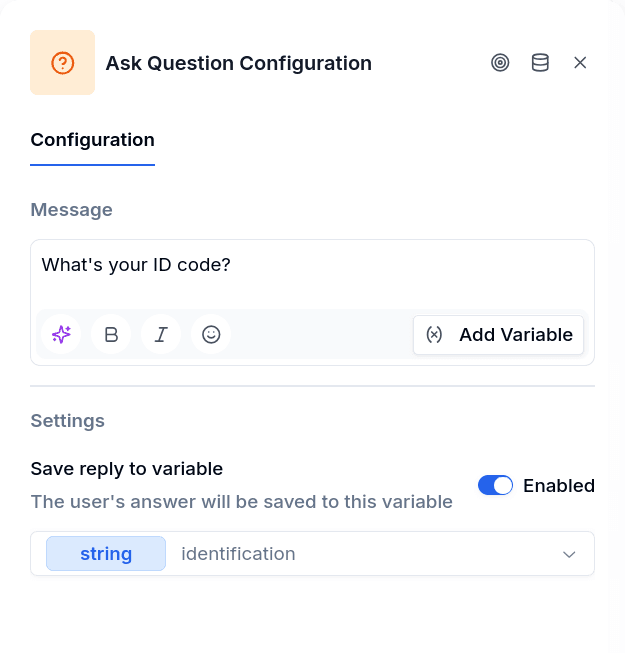
Ask Question is the simplest input node. It sends a prompt, waits for the customer to type something, and stores whatever they send. No validation, no format requirements — any text response is accepted.
Use it when you need open-ended input: names, business descriptions, custom IDs. If you need the response in a specific format — a valid email, a phone number, a date — use the specialized Ask nodes instead (Ask Email, Ask Phone, Ask Date).
How It Works
You write a question, pick a variable to store the answer, and connect the node to whatever comes next. When the customer responds, their text goes into the variable and the flow continues.
When to Use It
Collecting identity information. Ask for document numbers, tax IDs, or other identifiers that vary by country and don't follow a single pattern.
Gathering business details. Company names, descriptions of economic activity, job titles — information that's inherently freeform.
Building addresses step by step. Many flows collect addresses field by field: street, neighborhood, city, state. Each Ask Question stores one piece, and the flow assembles them. Progress indicators help customers know where they are: "[Address 1 of 4] What's the main street?"
Capturing information with examples. For questions where customers might not know what to write, include examples in the prompt: "What's your business's main activity? (Example: Selling auto parts, lubricants, etc.)"
Variables
Select a variable to store the response. The variable is then available to all downstream nodes — you can display it in a Message, check it in a Conditional, or send it to a Workflow.
If you don't select a variable, the system generates one automatically, but it's better to name it yourself. Clear names like company_name or address_street make the flow easier to maintain.
Storing Attachments
Enable Store attachments and select a second variable to also capture the files the customer attached to their reply. This works on every channel; it is especially relevant on email, where attachments are how people typically share documents. The attachments variable always has the shape its declared type promises, no matter how many files arrived:
- Type
array. The variable holds the list of files. Nodes that accept several files — Document Verifications, Extract Information with per-file results, Send File, a Send Email attachment — read it directly. The publish gate treats the variable as a list, so pointing a single-file node at it (OCR Verification, Face Verification, a Customer Update attachment row) blocks publishing. - Type
attachment. The variable holds the first file. When the customer sent more than one, the rest are dropped and the node leaves a warning notice on the conversation: "The customer sent N files and 'X' is typed 'attachment', so only the first was kept. Declare the variable as 'array' to keep all of them."
The files are stored as signed links that expire 60 minutes after capture; the nodes that read them renew an expired link on their own. If the reply has to be a file and nothing else, prefer Ask File, which validates that a file arrived and can file it directly on the customer's record.
Adding Validation After the Fact
If you need to validate the response but Ask Question is still the right input type, add a Conditional node after it. Check whether the value meets your requirements, and route back to Ask Question if it doesn't — with a Message explaining what went wrong.
Output Handles
| Handle | When it fires |
|---|---|
| Success | Customer responded and the value was stored |
| Error | Something failed (message couldn't send, storage failed) |
Email Flows
In email flows, Ask Question appears as Collect Reply in the node panel and configuration sheet. See Email connectors for channel setup. The mechanic is the same — send a message, wait for the customer to respond, store what they wrote — but the medium changes how things play out. On WhatsApp, the customer is holding their phone. On email, your message lands in an inbox and the reply might come minutes or days later.
The flow waits. There is no timeout. The next email from the same address — whenever it arrives — is treated as the response and advances the flow. If that reply arrives after the flow has already ended, a new flow starts from the entry node.
Everything stays in one email thread. The subject line carries over from the original, prefixed with "Re:" if it isn't already. The outbound message is HTML-escaped plain text — markdown formatting like *bold* will show up as literal asterisks in the customer's inbox.
Reply handling. Email replies carry quoted history — the previous messages in the thread, forwarded headers, signatures. The system strips all of that before storing the response. Gmail-style "On [date] wrote:" headers, Outlook "From: / Sent:" blocks, separator lines, and > quoted lines are all removed. What reaches your variable is only the new content the customer typed.
Attachments. Store attachments works here exactly as described above — declare the variable as array to keep every file of the reply.
Template variables. {{name}} and {{phone}} resolve to empty strings on email — there is no WhatsApp profile to pull from. Use variables you have collected earlier in the flow instead.