Ask Location
Ask Location collects a physical address from the customer. On WhatsApp, this can be a GPS pin they share from their phone or a Google Maps link they paste; on the web, the customer picks a point on a map or types the address. The node optionally geocodes the input into structured address fields and saves it as an Address entity linked to the customer.
This matters for business verification and geodata analysis. When a customer claims their shop is at a certain location, you can capture that address in a format that's both human-readable (street, city, postal code) and machine-usable (coordinates). Later, you can verify the business actually exists there, run geographic reports, or check if the location falls within your service area.
Two Ways to Collect
The node operates in two modes depending on the Literal Address setting.
GPS mode (the default) prompts the customer to share a location. On WhatsApp they use the phone's native location-sharing interface, tap a button, confirm the GPS reading, and the system receives latitude and longitude directly. On the web the portal shows a map: the customer taps to place the pin, adjusts it, and confirms. This is quick and produces precise coordinates, but it captures where they are right now — which may not be where their business is located.
Text mode (Literal Address on) asks the customer to type an address: "Av. 6 de Diciembre N34-120, Quito". The system then geocodes that text into coordinates. It's the right choice when you need the business address rather than the customer's current position.
How the Answer Is Read
Whatever the mode, the node reads what actually arrived and distinguishes four cases:
| Answer | Outcome |
|---|---|
| A native location attachment with both coordinates | Coordinates |
| A map link that resolves (short links from Google Maps are followed) | Coordinates |
| Written text, and the node asked for a written address | Text, geocoded |
| Anything else — prose when a pin was asked for, a link that resolves to nothing, an attachment without coordinates | The node asks again |
An unreadable answer never ends the flow. The node sends its Message again and leaves the warning notice "The location answer was not a place, the node asked again" on the conversation, so you can see it happening and word the Message so it tells the customer exactly what to send.
Enriching and Saving as a Structured Address
These are two separate options, and only the second one needs an identified customer.
Enrich Address (on by default) turns whatever arrived into a structured address: street, neighborhood, city, state, postal code, country, and coordinates. It works with or without an identified customer — the result goes to the flow variable either way.
- Pin or map link. The coordinates are reverse-geocoded to fill street, city and the rest. On WhatsApp two geocoders are combined, so a gap in one is filled by the other. Turn Enrich Address off if you only need lat/lon for mapping.
- Written address. The text is completed with the country and city you configured, forward-geocoded to coordinates, and any missing fields are filled from a reverse geocode of the result. If the text cannot be geocoded at all, the node takes the Error handle.
Save reply as Address additionally creates an Address entity on the customer's record with that same address, which is why it does need one (see When No Customer Is Identified). With a written address, turning it on geocodes anyway, even with Enrich Address off, because the address has to be located before it can be saved; with a pin and Enrich off, it is saved with the coordinates only. You can mark the address as the main one, which sets it as the customer's primary location. For more on how addresses are stored and managed, see the Address API.
Configuration
| Option | Description |
|---|---|
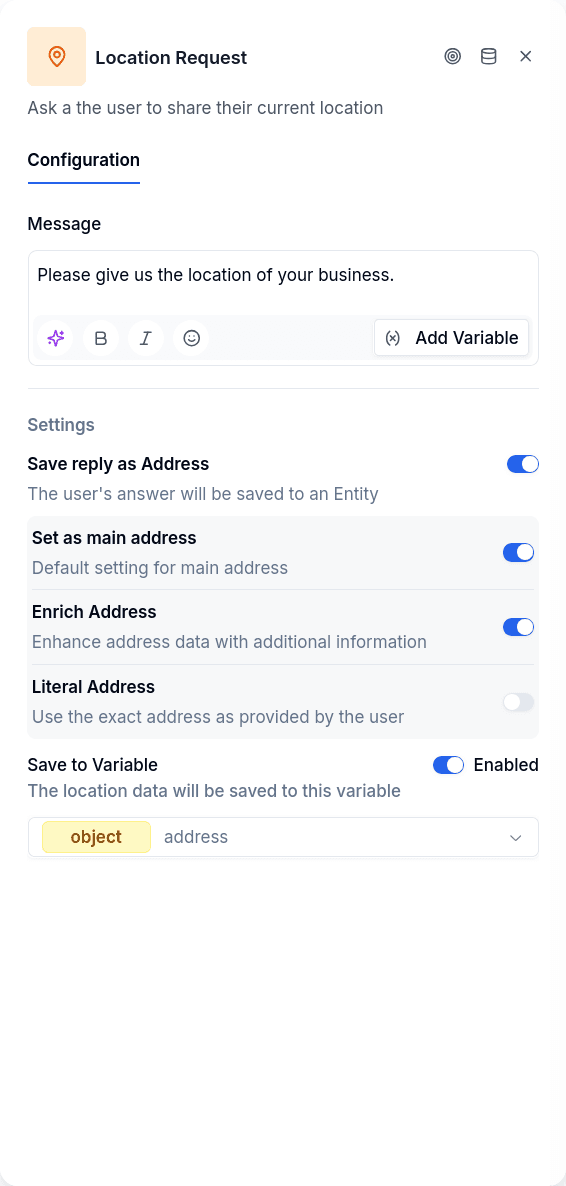
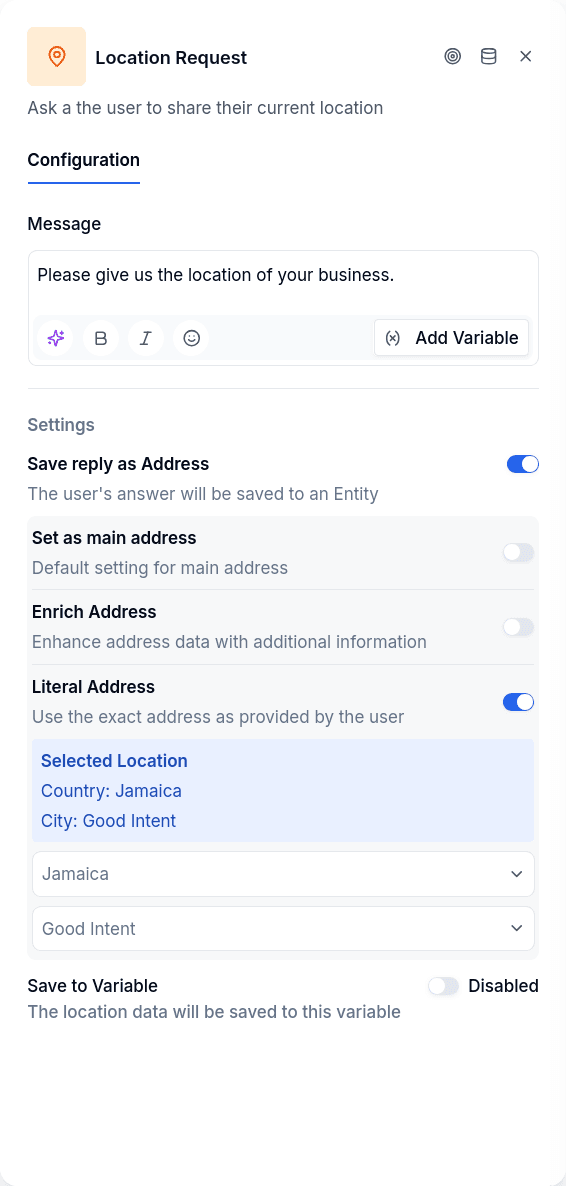
| Message | The prompt asking the customer to share their location. It is also what the node repeats when the answer could not be read as a place |
| Save to Variable | The flow variable that receives the result |
| Save reply as Address | Creates an Address entity on the customer's record. Needs an identified customer |
| Set as main address | Marks the created address as the primary one |
| Enrich Address | Reverse-geocodes coordinates into readable address fields. On by default; needs no identified customer |
| Literal Address | Ask for a written address instead of a pin; pick the Country and, optionally, the City to improve geocoding |
What Gets Stored
With both Enrich Address and Save as Address off, the variable contains whatever the customer provided: a coordinate pair, or the text they typed.
With either of them on, the variable contains the Address record with fields like street, neighborhood, city, state, postal code, country (normalized to ISO3 — "Ecuador" becomes "ECU") and coordinates. The record always carries a generated id; borrowerId is null when the address was not saved to a customer's record.
When No Customer Is Identified
Enrich Address needs no customer: geocoding runs all the same and the variable receives the structured address.
Save as Address does need a customer to attach the address to. If the conversation has not identified one yet — a first contact on WhatsApp, a campaign, a web flow without Login — the location is still enriched and saved to the variable, and the flow advances; only the write to the customer's record is skipped, and the conversation gets the warning notice "The location was saved to the variable, enriched, but not to the customer's address" telling you to identify the customer before this node (Login, Create Borrower) or to turn Save as Address off. The customer's answer is never lost and the node does not fail.
Output Handles
| Handle | When it fires |
|---|---|
| Continue | Location processed and stored |
| Error | Saving as Address and the written address could not be geocoded, or an internal failure |
Publish Gate
Both are warnings, not blockers:
- Save as Address is on but no destination variable is selected — enable Save to Variable and pick one so the captured location is reusable.
- Literal Address is on but neither Country nor City is selected — choose a location or turn the option off.
Channels
Available on WhatsApp and web. Not available on email: the editor does not offer it in email flows, and if an email conversation still reaches one, the engine leaves the warning notice "Unsupported node type for email" and continues through the error edge.