Customer Portal
The Customer Portal is the interface your customers actually interact with — a standalone web application that takes the conversational flows you've built and serves them directly to borrowers through their browser.
It supports two presentation modes: Chat and Wizard. Both execute the same underlying flow but present it differently. Chat mode looks and feels like a messaging app, with bubbles scrolling down a conversation stream. Wizard mode presents one focused step at a time, like a guided form. You choose which mode to offer by giving customers the corresponding URL.
No login is required. Identity is tracked in the browser (see Sessions and Cookies).
URL Structure
| Mode | URL Pattern |
|---|---|
| Chat | /{tenant}/{flow_alias} |
| Wizard | /{tenant}/wizard/{flow_alias} |
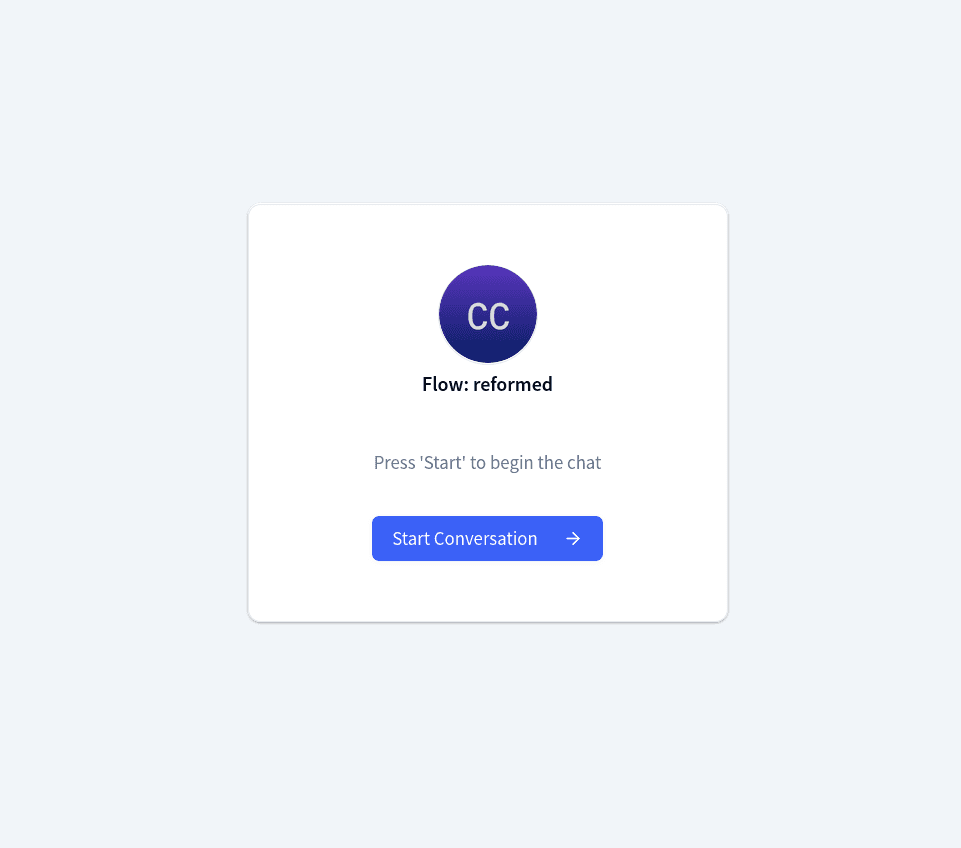
The tenant identifies your organization; the flow alias identifies which flow to run. On load, the portal fetches the flow configuration from the backend — branding, nodes, edges, and any global keywords injected from the web connector.
Customers see a branded start screen with your logo, name, description, and a button to begin. Returning customers whose browser still remembers the conversation skip this screen and pick up where they left off.
The session is scoped to the flow alias, not the tenant. A customer can have active conversations in multiple flows simultaneously, each with its own independent session.
When the flow is not available
Two different situations, two different outcomes:
- Initial load. If the alias in the URL does not match an existing, active flow, the start screen shows an error and nothing starts. This is what a customer sees when they open a link to a flow you never published, or one you archived.
- An existing conversation whose flow was deleted or unpublished. The customer already has a session and sends a new message. The engine does not fail: if the web connector has a default responder, the conversation restarts in that bot and the message is processed there; if it has none, nothing is sent back. In both cases a notice is left on the conversation — visible in Chat and in Flow Notices — naming the flow that is gone and, when applicable, the bot that took over.
Chat Mode vs Wizard Mode
| Aspect | Chat Mode | Wizard Mode |
|---|---|---|
| Layout | Scrollable message stream | One step per screen |
| Navigation | Forward-only | Back and forward arrows |
| Progress | Step indicator only with a journey | Percentage progress bar, plus the step indicator with a journey |
| Sidebar | None | Optional branding panel |
| Free-text input | During agent sessions and while an AI Collector step is active | Only while an AI Collector step is active |
| Forms | Modal overlay | Integrated as wizard steps |
| Agent escalation | Inline in stream | Transition screen, then redirects to chat |
Chat mode
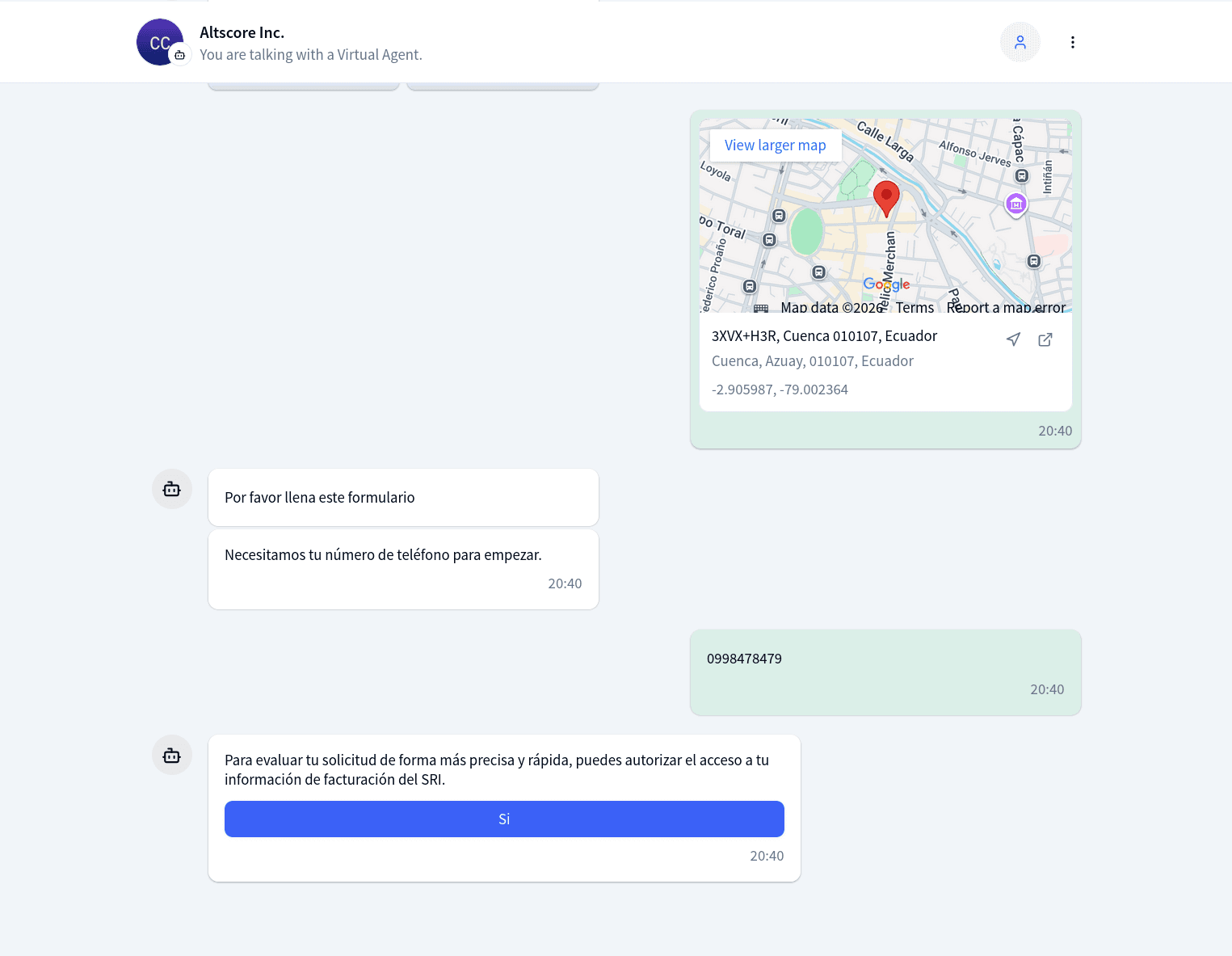
Messages appear as bubbles — bot on the left, customer on the right. Interactive options render as buttons below the message. A typing indicator shows while the bot responds.
Wizard mode
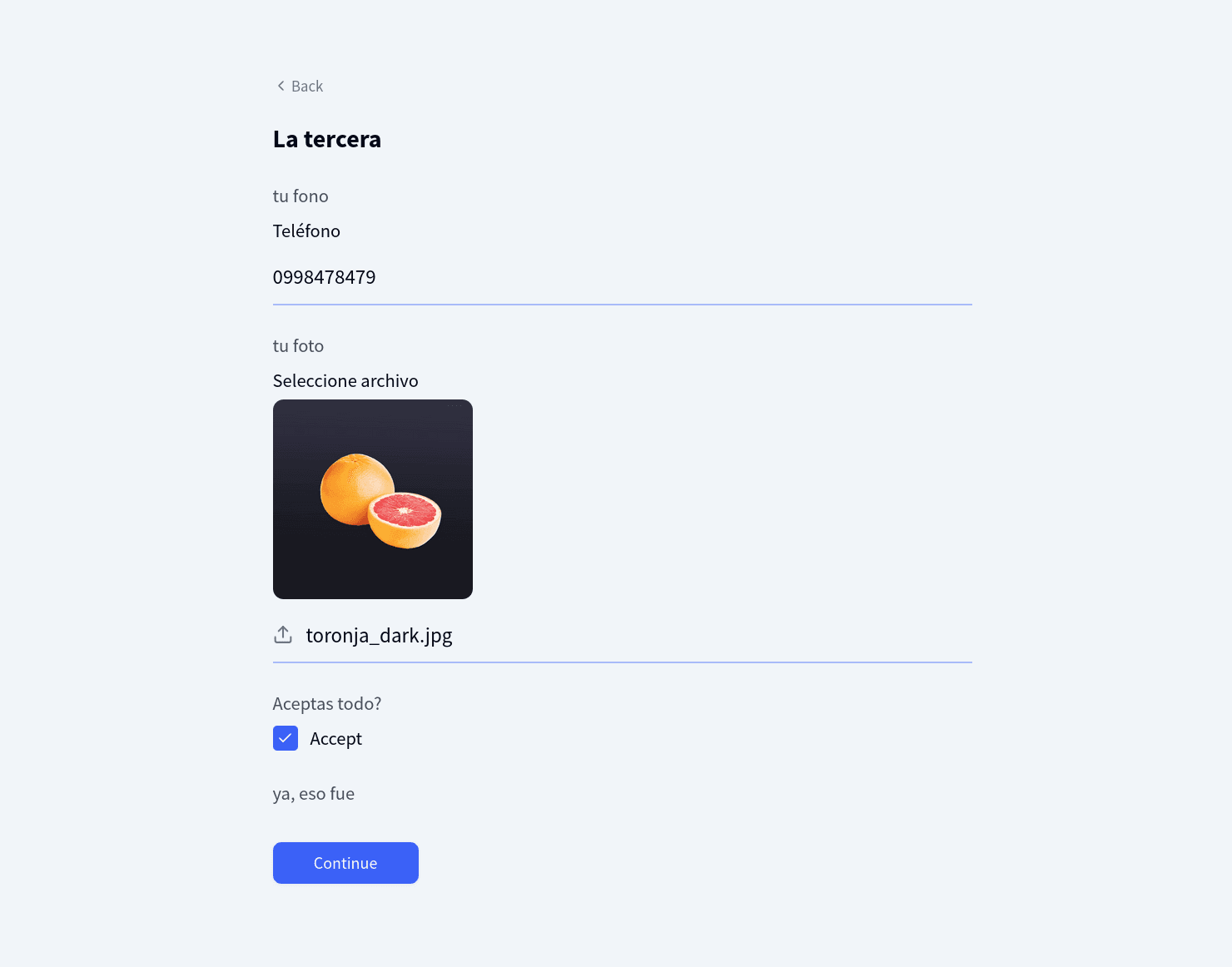
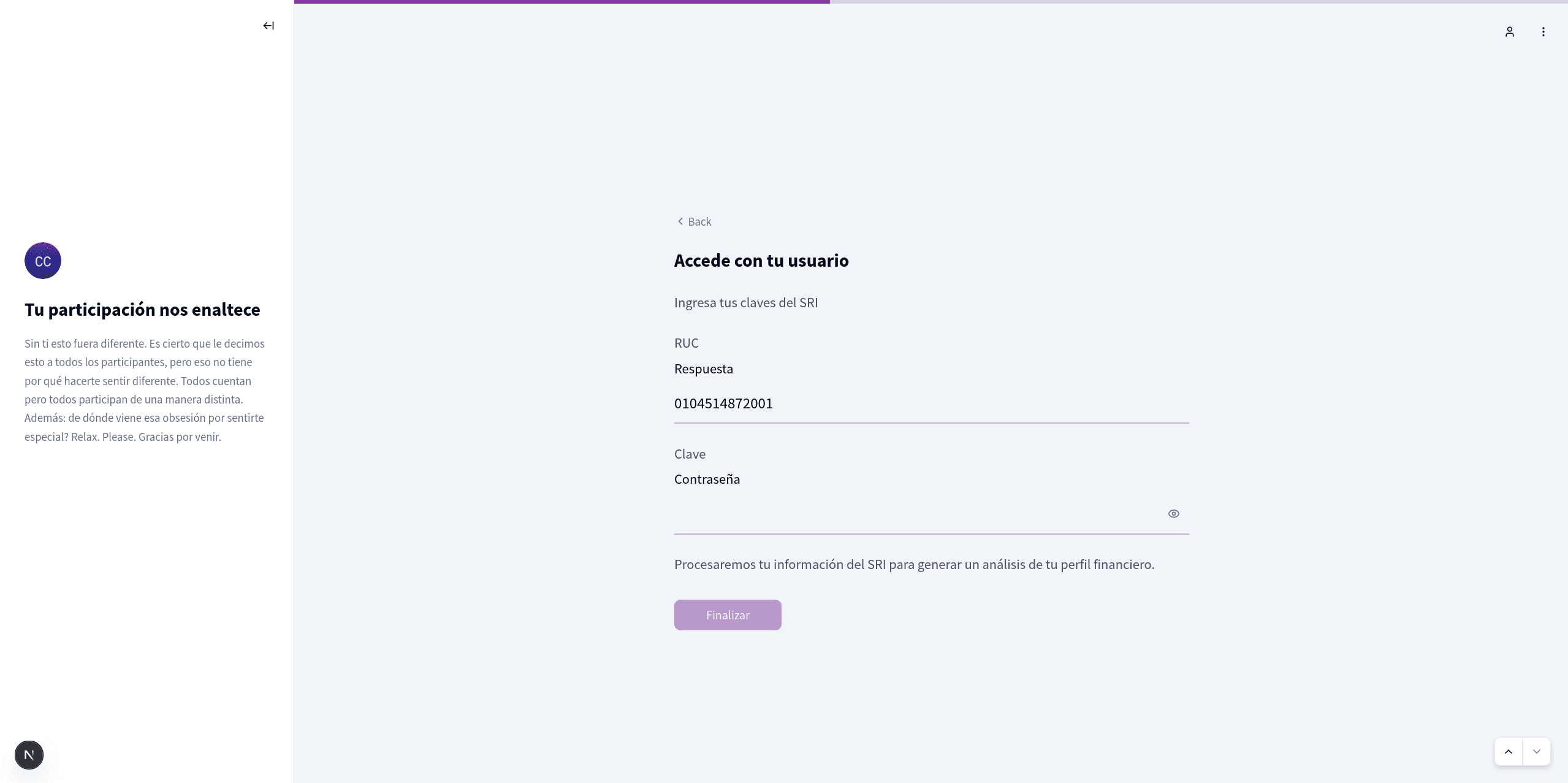
Each step fills the viewport with a centered card. Input fields are large and focused. Navigation arrows let customers review earlier answers, and a progress bar at the top estimates completion based on the flow's graph structure. An optional sidebar keeps your branding visible throughout.
When the flow continues in another flow through a Jump To, the portal cannot know how many steps remain, so the bar switches to an indeterminate animation instead of showing a percentage that would sit at 100% for the rest of the conversation. If the flow is the entry of a journey, the bar measures the whole errand instead of the flow, and the step indicator appears below the header.
How nodes render
| Node Type | Chat Mode | Wizard Mode |
|---|---|---|
| Message | Text bubble with markdown | Full-width text card |
| Interactive options | Button grid | Large centered buttons |
| Question | Inline text input | Text area with continue button |
| AI Collector | Free-text input stays open for as many turns as the collector needs | Blocking step with free-text input |
| Email / Phone | Typed input in bubble | Dedicated screen with validation |
| Date | Calendar picker | Full date picker with bounds |
| File request | Upload and camera buttons | Upload area with camera option |
| Location | GPS, address search and pick-on-map buttons | GPS, address search and pick-on-map interface |
| Form | Full-screen modal | Multi-screen integrated steps |
| Send file (bot to customer) | Inline viewer | Preview or download screen |
Mode switching is disabled when a human agent is assigned. If an agent joins while the customer is in wizard mode, the portal redirects to chat mode automatically — agent conversations require the free-text input that only chat mode provides.
Branding
The look of the portal comes from two places. The Web connector holds the default theme, shared by every flow of your organization (see Channel Connectors). Each flow can override any part of it from its Web Settings panel in the Hub (see Web Settings for every field). A field the flow leaves empty follows the connector, including later changes to the connector's theme.
What the customer sees, and where it comes from:
| On screen | Set in Web Settings |
|---|---|
| Start screen: title, paragraph, start button, background color or pattern | Welcome tab |
| Name in the chat header | Chat title, in the General tab |
| Colors of buttons, header and highlights | Main color, in the Appearance tab |
| Logo on the start screen, chat header and wizard sidebar; avatar next to the bot's messages | Logo and Chat avatar, in the Appearance tab |
| The option to ask for an agent in the chat menu | Talk to a human agent, in the Appearance tab |
| The prefix of the phone fields | Phone country code, in the Appearance tab |
| Wizard sidebar heading and text | Sidebar tab |
Whether a returning visitor gets their conversation back is also set per flow, with Remember the conversation when the visitor returns; see Sessions and Cookies.
The main color is converted to HSL and injected as a CSS variable, so every themed element inherits from it. When neither the flow nor the connector sets one, the portal uses a default blue.
Agent Escalation
Customers can request a human agent from the chat menu, when the flow's Talk to a human agent setting shows that option. The backend checks support hours and availability. If an agent is assigned, their name replaces the bot name in the header, a divider appears in the stream, and a free-text input opens so the customer can type freely. If no agent responds within about eight seconds, a "No agents available" banner appears.
The agent works from the Chat workspace in the Hub.
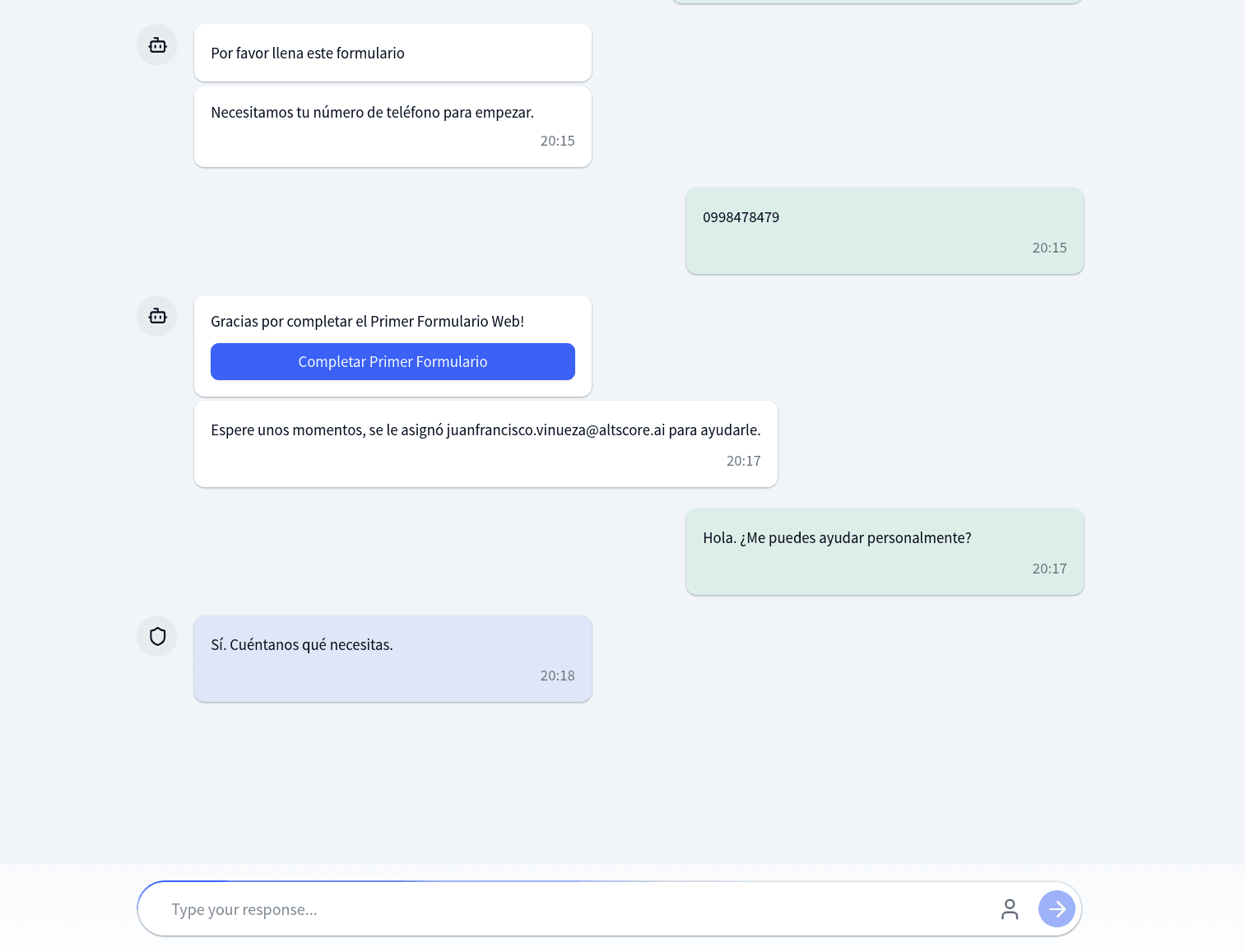
Support hours are configured on the channel connector, not on the flow.
Sessions and Cookies
Identity is anonymous — no login, no account creation. When a customer starts a conversation, the portal generates a unique ID, keeps it in the browser, and uses it for every later interaction. The ID is stored per flow alias, so each flow has its own conversation.
How long the browser keeps it depends on the flow's Remember the conversation when the visitor returns setting, inherited from the Web connector unless the flow overrides it:
| Setting | Where the ID lives | What the visitor experiences |
|---|---|---|
| On (the default) | Local browser storage, plus a webflow-{flowAlias} cookie that lasts 30 days | Closing the tab and coming back tomorrow lands in the same conversation, with its previous messages |
| Off | Storage that belongs to the tab, plus a cookie that lasts only for the browser session | Reloading the page keeps the conversation; closing the tab forgets it, and the next visit starts from scratch |
Turn it off for a counter or a shared device, where the next customer must not walk into the previous one's conversation. When the conversation is forgotten, what belongs to that visit is cleared too, such as the agent assignment.
The NEXT_LOCALE cookie keeps the language preference for a year.
Returning customers skip the start screen — the portal finds the ID and loads previous messages. Restarting (via the dropdown menu) deletes the current ID, generates a new one, clears all local state (form data, navigation history, agent assignment), and sends a fresh start message — effectively beginning a brand-new conversation. The previous conversation still exists in the backend but is no longer reachable from the portal.
A flow can also restart the conversation when it ends. The Close Conversation node has a Restart the web conversation on close toggle. With it on, reaching that node ends the web conversation for good: the chat says the conversation has ended ("Esta conversación terminó." in Spanish) and shows a Start over button below it (or the text you configured in the node), and the next visit starts a new conversation without the previous data, whether or not the flow remembers conversations. That is the setting for a customer who can place more than one order: remembering the conversation keeps a visitor's thread while a process is under way, and the Close Conversation toggle ends it once the process is done. WhatsApp conversations are not affected.
Clearing browser data or switching devices means losing the session. There is no way to recover a previous conversation from the portal.
Forms
When a flow reaches a form node, the portal fetches the form definition and renders it. In chat mode, it opens as a modal that slides up from the bottom. In wizard mode, each form screen becomes an individual wizard step with back-and-forward navigation — customers can revisit earlier screens to edit answers before submitting.
Forms support conditional routing between screens — if a field's value determines which screen comes next, the portal follows the same routing rules you defined in the form editor.
A form field that collects files renders as a photo picker or as a document picker, depending on how you built it: a field that accepts PDFs shows the document picker, limited to the number of documents you configured, instead of disappearing from the screen.
For details on building forms and available field types, see Forms Builder and Form Nodes.
File Uploads
When the flow reaches an Ask File node, the bubble (or the wizard step) shows an upload button and a camera button. The camera supports photo capture and short video recording (up to 10 seconds).
Limits
Every file is checked in the browser before it is sent, and again by the backend:
- Maximum size: 20 MB per file. A larger file is refused with "El archivo es demasiado grande. El tamaño máximo es 20 MB."
- Accepted extensions:
pdf,csv,doc,docx,xls,xlsx,jpg,jpeg,png,mp4,json,zip,heic,heif,webp,txt. Anything else is refused with "Ese formato no se admite. Puedes subir: ..." followed by the list. When the node asks for an image only, the picker is restricted to the image formats.
The file keeps its real name: what the customer picked is what you see in Chat and what downstream nodes receive.
Several files in one answer
With Multiple files turned on in the Ask File node, the file input accepts a multiple selection. The customer picks N files, they upload together, and a single answer is posted; the bubble reads "Puedes elegir varios archivos y enviarlos juntos." or, when the node sets a maximum, "Puedes elegir hasta {max} archivos y enviarlos juntos.". If the selection exceeds the maximum, the portal keeps the first ones and says so: "Puedes enviar hasta {max} archivos. Enviamos los primeros {count}."
Three things to know about the web channel specifically:
- The message is the answer. The picker returns the whole selection at once, so the node stores that list and advances in the same turn. There is no "Done" button on web — that exists only on WhatsApp, where files arrive one message at a time. The upload and camera buttons stay active until the customer answers; after that they are disabled. If the answer was not valid, the node asks again with a new bubble that has its own live buttons.
- The camera still takes one shot at a time, and that shot is a complete answer: it closes the step even when several files were allowed.
- A flow published before the option existed keeps working as before: one file per prompt.
Location
Location can be captured three ways: device GPS, address search, or picking a point on a map. The map picker opens an interactive map (tiles from OpenFreeMap, no API key involved): the customer taps a point, can drag the marker to adjust, and confirms. All three paths return coordinates enriched with address components, so the Ask Location node receives the same shape whichever button the customer used.
Language and Theme
The portal supports English and Spanish, with Spanish as the default. Language is determined by cookie, then browser preference, then default. A dark/light mode toggle follows the OS preference by default. Both are switchable from the dropdown menu.
Things to Know
Keywords come from the connector. Global keywords live on the web channel connector, not on individual flows. The backend injects them into the flow configuration at load time.
One web connector per tenant. All web flows share the same connector configuration for keywords, support hours, and timeout.
Deployment settings live on the connector. Redirect URL, allowed domains, form styles, and the embed code snippet are configured on the connector. See Channel Connectors.
Real-time delivery. Messages arrive instantly through a persistent WebSocket connection — no polling needed. The same channel delivers agent assignment notifications.
The customer never sees a stand-in for a missing variable. If a message references {{name}} and nothing set that variable, the text reaches the customer exactly as written, {{name}} included, and the node leaves a warning notice on the conversation listing every unresolved name. No [VAR NOT FOUND] or similar placeholder is ever sent. See Variables.
Delegated OTP delivery
The customer delivers the code through their own infrastructure; AltScore still generates it, verifies it, and signs the authorization.
Seller Portal
A mobile web app where your field sellers reach their customers, prequalify them and simulate own financing, without a password and with every rule set by you in the Hub.