Input Schema Guide
We're about to execute a workflow: data will go through a series of triggers and transformations, in turn fetching more data, printing out reports or mutating the state of the system according to business needs. Now, the input_schema field within a workflow asks for some special considerations from implementors and executors, for it describes and specifies the initial drop that will flow through the execution. This input data—which must vary from one execution to the next so they don't always return the same result—is usually user-provided, context-aware and therefore a bit more error-prone and less automatable.
We use input_schema to exert some control on what's coming in. It serves as a data-shape specification, and allows us to type and then programmatically verify that each execution's initial payload conforms to those types. We naturally delegate this task to pydantic, as it is the library we use through our python codebase for type-conformance needs.
Specifying that a workflow initially requires a name and a cédula would look like this:
Different workflows will require different initial inputs. We actually strive to minimize user-provided data, so many times you'll see workflows whose input_schema looks like this:
If there's an existing borrower, fetching him/her would be our first step, and all related data would come from the existing entity. However, workflows can be used for any entity, in any situation, so their initial schema can get way more convoluted than that:
As long as it complies with pydantic and as long as the workflow's inner tasks understand how to process incoming data, it really is an anything-goes situation. Of course, we'd put our effort on keeping it as simple as possible, as everywhere else in our system.
Field Types and Constraints
The system maps JSON schema types to Pydantic validators. Here's what we can use:
Standard types:
"type": "string"→ Text fields (names, IDs, addresses)"type": "integer"→ Whole numbers (counts, ages)"type": "number"→ Decimals (amounts, percentages)"type": "boolean"→ True/false flags
Format validators (add "format" alongside "type": "string"):
"format": "email"→ Email validation"format": "date"→ Date strings (YYYY-MM-DD)"format": "date-time"→ ISO datetime strings
Enums (restrict to specific values):
Arrays and nested objects are supported:
Constraints for validation:
minLength/maxLength→ String length boundsminimum/maximum→ Numeric boundspattern→ Regex validation (e.g.,"^[A-Z0-9]+$")
Custom regional validators:
Some fields need country-specific validation. Use these as the "type" value:
"type": "ecu_personal_id"→ Ecuador cédula (10 digits, checksum validated)
These validators strip formatting characters and run proper verification algorithms. When validation fails, users get specific error messages about what went wrong.
Need a new regional validator? Talk to the platform team with the requirements.
UI hints:
Two fields control how schemas appear in forms:
"title"→ The label users see ("Cédula de identidad")"description"→ Help text below the field
Always provide these in the users' language. The field name itself (the JSON key) stays in English for API consistency.
Validation Endpoints
Now, since we can't run Pydantic validation in web browsers or Excel, we've provided API endpoints for validating data before execution. The behavior is simple: we pass the input data and the stringified JSON schema (not the workflow_id, but the whole thing). It then validates that incoming data matches the schema types. When processing batches, "what's coming in" may consist of hundreds or thousands of records, and they usually don't come in through JSON arrays but in tabular fashion, using Microsoft Excel files, for that's the software most of our end users are acquainted with.
Validating Batch Files
Excel files go through a two-step validation process before we let them trigger hundreds of workflow executions. First we check the structure: do the column headers match what the schema expects? Then we validate the data itself: does each row contain valid values?
When a file gets uploaded, we hit the /batch/columns endpoint. It pulls the Excel headers, grabs a few sample rows from each column, and checks for missing required fields. If the schema specifies tax_id but the spreadsheet has "Tax ID Number", we catch that mismatch and show a mapping interface. Users map their uploaded columns to schema fields, and /replace-column-headers rewrites the headers in the stored file on our backend.
Once columns align, /batch/rows validates every single row against the schema's type rules: string length constraints, format validators, custom regional ID checks. Each error gets captured with its exact location: row 47, column person_id, value "12345", message "Ecuadorian personal ID must have 10 digits". The error messages come back in the specified language (English or Spanish, via the language parameter).
If everything validates, we proceed to execution. If not, we show the error summary and let users fix the source file or download a detailed error report.
 Users upload an Excel file to begin the batch validation process
 When uploaded columns don't match schema fields, we show a mapping interface with sample data to help users align them correctly
 Validation errors are displayed with exact row and column locations to help users fix their data
Both validation endpoints run on high-memory server instances—Excel files and pandas can get heavy.
Single Execution Validation
For individual workflow executions, we provide the /input_validation endpoint: pass the schema and the input data for a single execution, and we'll validate it matches the schema requirements.
 The form fields are generated directly from the
 input_schema definition—each property becomes a form field with its title, description, and validation rules applied automatically
contact_flags Special Case
There's a special case to consider in the deal context: we may intend to set specific settings not for the deal itself, but for each of its associated borrowers (contacts). A deal evaluation workflow might need to query credit bureaus for multiple parties—the main applicant, guarantors, co-signers. Sometimes we want to skip certain reports for certain people. Maybe we already have recent data from one bureau for the guarantor but need fresh reports from another for everyone. The contact_flags pattern handles this.
Special Key: The contact_flags array is treated differently by the Hub. When detected in a workflow's input schema, it triggers a custom UI for per-party data source selection instead of the standard form.
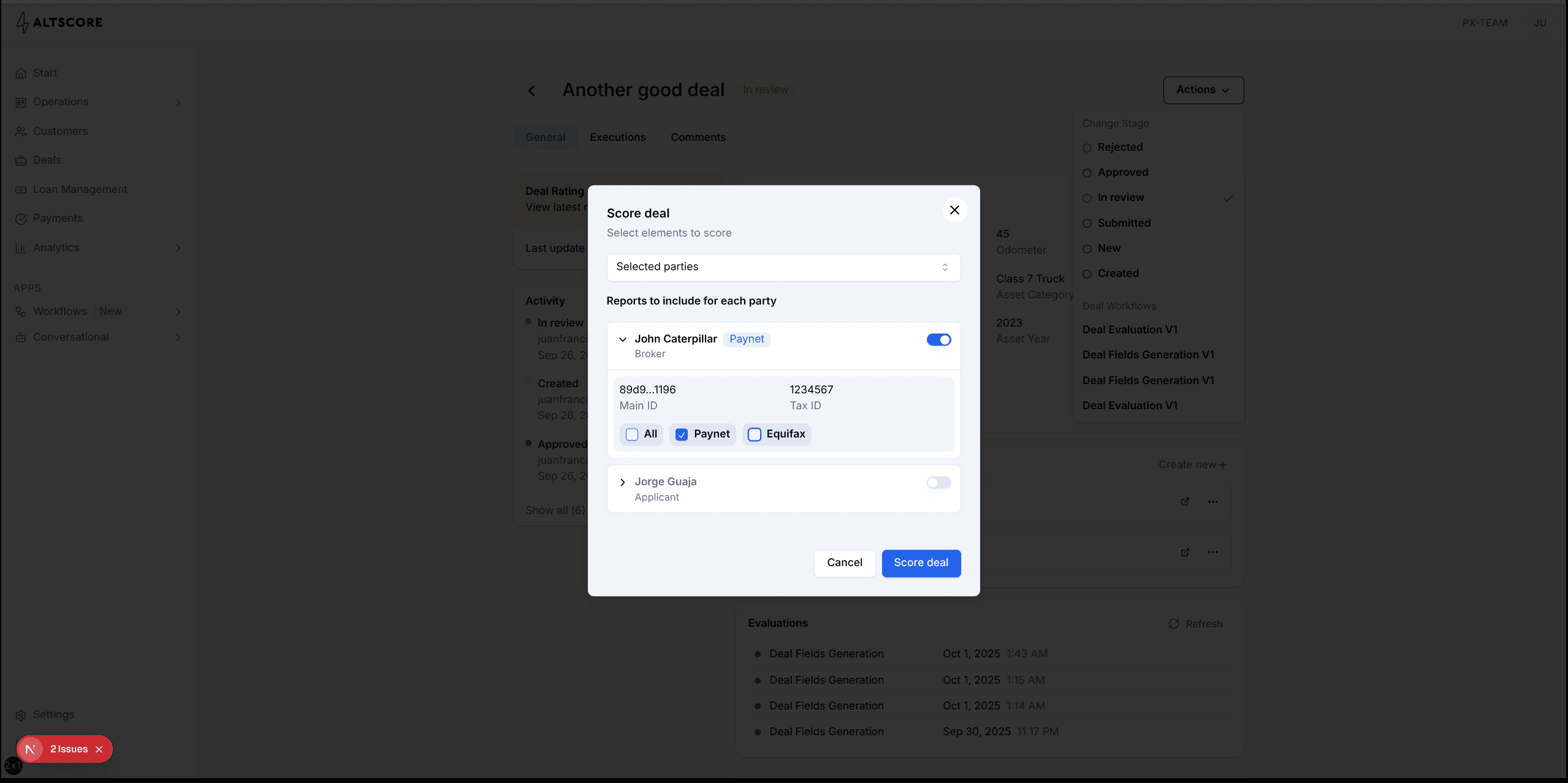
When the schema includes a contact_flags array property, our frontend detects it and renders a special dialog instead of the standard form. Each party gets listed with toggles for which data sources to query. The schema looks like this:
The UI pulls all parties from the deal and renders them with their role (Broker, Applicant, Guarantor) and identification numbers. Users select which reports to run for each party, and we generate a payload like:
Important: Schemas with arrays and nested objects only work for single execution validation. When processing batch files through Excel, the system expects flat tabular data. Keep batch workflow schemas simple—one row, one execution.
UI Widget Extensions
Beyond standard field types and formats, you can use the x-ui-widget property to specify custom UI components for specific fields. This follows the JSON Schema extension convention (properties prefixed with x-) and allows you to request specialized input components that go beyond basic text fields and selects.
Available Widgets
deal-contact-borrower
Renders a dropdown selector that only shows borrowers who are contacts of the current deal. This is useful when a workflow needs to reference a specific party from the deal's contacts—for example, selecting which guarantor to run additional checks on.
When this schema is rendered in the workflow execution dialog:
- The
deal_idfield is auto-populated from the deal context (and hidden from the UI) - The
guarantor_idfield shows a dropdown with all borrowers who are contacts of that deal - Each option displays the borrower's name/label and their role in the deal (e.g., "John Smith - Guarantor")
Context Required: The deal-contact-borrower widget only works when executing from a deal context. If the workflow is run without a deal context, the field will display a message indicating that a deal context is required.
When to Use UI Widgets
Use x-ui-widget when:
- Standard inputs aren't enough: You need to filter options based on context (like showing only deal contacts instead of all borrowers)
- Field names don't match conventions: The automatic
borrower_idpicker works by field name detection; widgets let any field use specialized components - Multiple fields need the same component: You can have
guarantor_id,cosigner_id, andapplicant_idall using"x-ui-widget": "deal-contact-borrower"
Adding New Widgets
The widget system is extensible. If you need a custom picker or input component for a specific use case, contact the platform team with:
- The use case and why existing widgets don't work
- What data the widget needs access to
- Example schema showing how you'd use it