Flow Notices
Every time a bot runs into trouble — a node that fails, a message WhatsApp rejects, a flow that ends without a next step — the engine leaves a notice on that conversation. The Chat notices panel shows them one conversation at a time. Flow Notices is the aggregate on top of it: it answers which nodes fail, in how many conversations, and since when, so you can fix the flow once instead of reading conversations one by one.
You find it in the sidebar under Conversational, between Bot Builder and WhatsApp Templates. It uses the same permission as the rest of the conversational module: whoever can open the Bot Builder can open this screen.
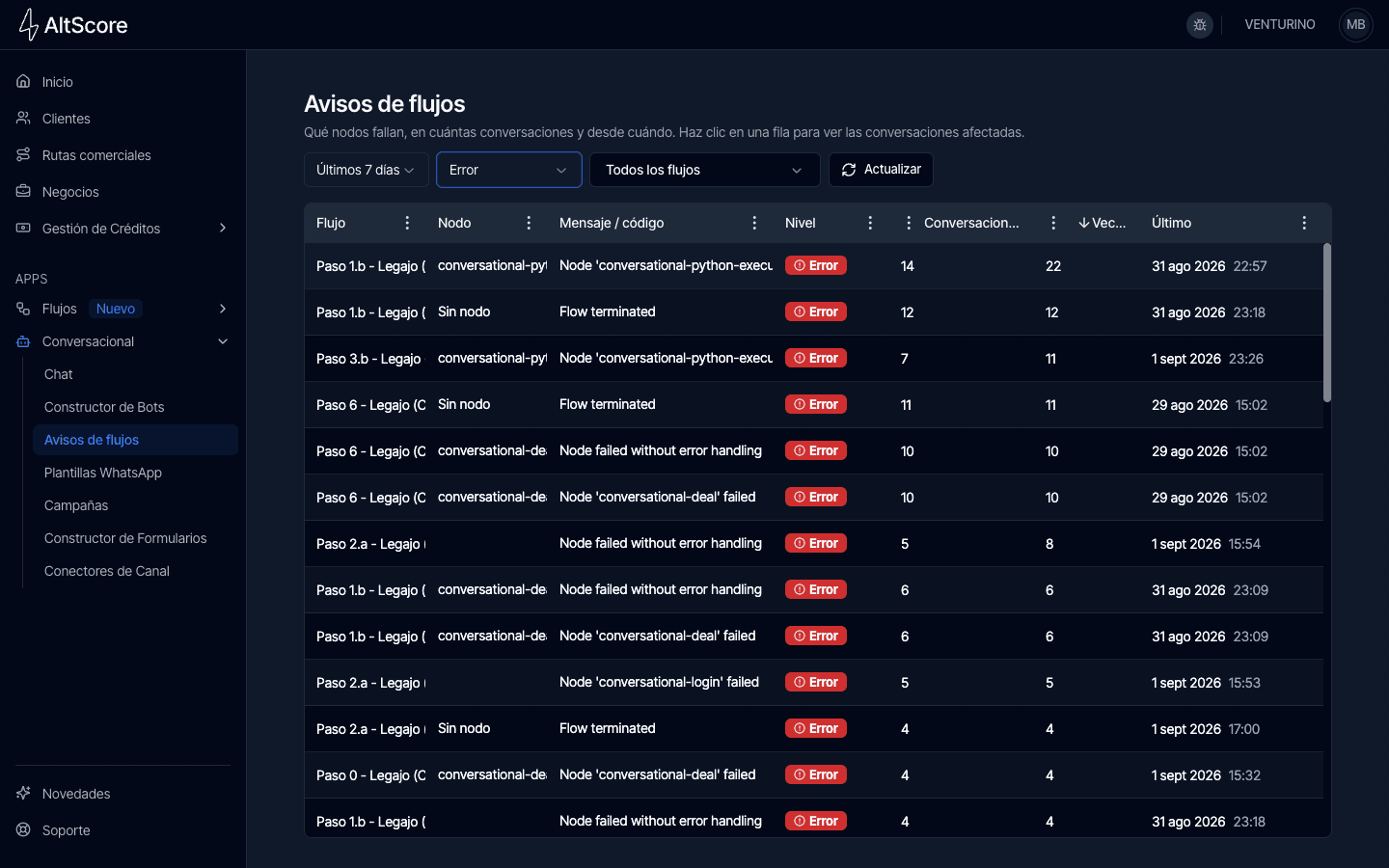
Filters
The controls above the table narrow what you see. Nothing refreshes on its own — the screen loads once and only reloads when you change a filter or press Refresh.
| Control | Options | Behavior |
|---|---|---|
| Range | Last 24 h, Last 7 days, Last 30 days | Time window measured back from the moment you pick it. Default: Last 7 days. |
| Level | All levels, Error, Warning, Info | Keeps only notices at that level. With All levels, each row shows the worst level found in its group. |
| Flow | All flows, or one flow | Searchable dropdown. It lists only the flows that have notices in the selected range and level, so an empty search means no flow is failing there. |
| Refresh | Button | Reloads the table and moves the window forward to the current time. |
The start of the window is fixed when you choose the range or press Refresh, not every time the screen re-renders. If you leave the screen open for an hour, the table still shows the window you selected; press Refresh to bring it up to date.
The Table
Each row is a group: the same flow, the same node (by type and identifier), and the same notice code — or, when the notice has no code, the same exact message. Rows are sorted by Times descending, so the noisiest problem is at the top. Click any column header to sort by it.
| Column | Meaning |
|---|---|
| Flow | Name of the flow. If the flow no longer exists, its identifier is shown instead; notices without a flow read No flow. |
| Node | The node's description on the first line and its type in monospace below. Nodes without a description show only the type; notices that do not belong to a node (for example, a flow that terminated) read No node. |
| Message / code | The notice code in monospace, with the message underneath. Hover the cell to read the full message. |
| Level | Badge with the worst level in the group: Error, Warning or Info. |
| Conversations | How many distinct conversations hit this notice in the range. |
| Times | How many times the notice was recorded, adding up repeats. The engine folds a notice that repeats consecutively into a counter on the same entry, so a loop inside one conversation counts here without flooding the table. |
| Last seen | Date and time of the most recent occurrence, in your browser's timezone. |
The table shows at most 500 groups. If a tenant has more, narrow the range, level or flow to see the rest. When nothing matches, the table reads No notices in the selected range.
Affected Conversations
Click a row to open the Affected conversations panel on the right.
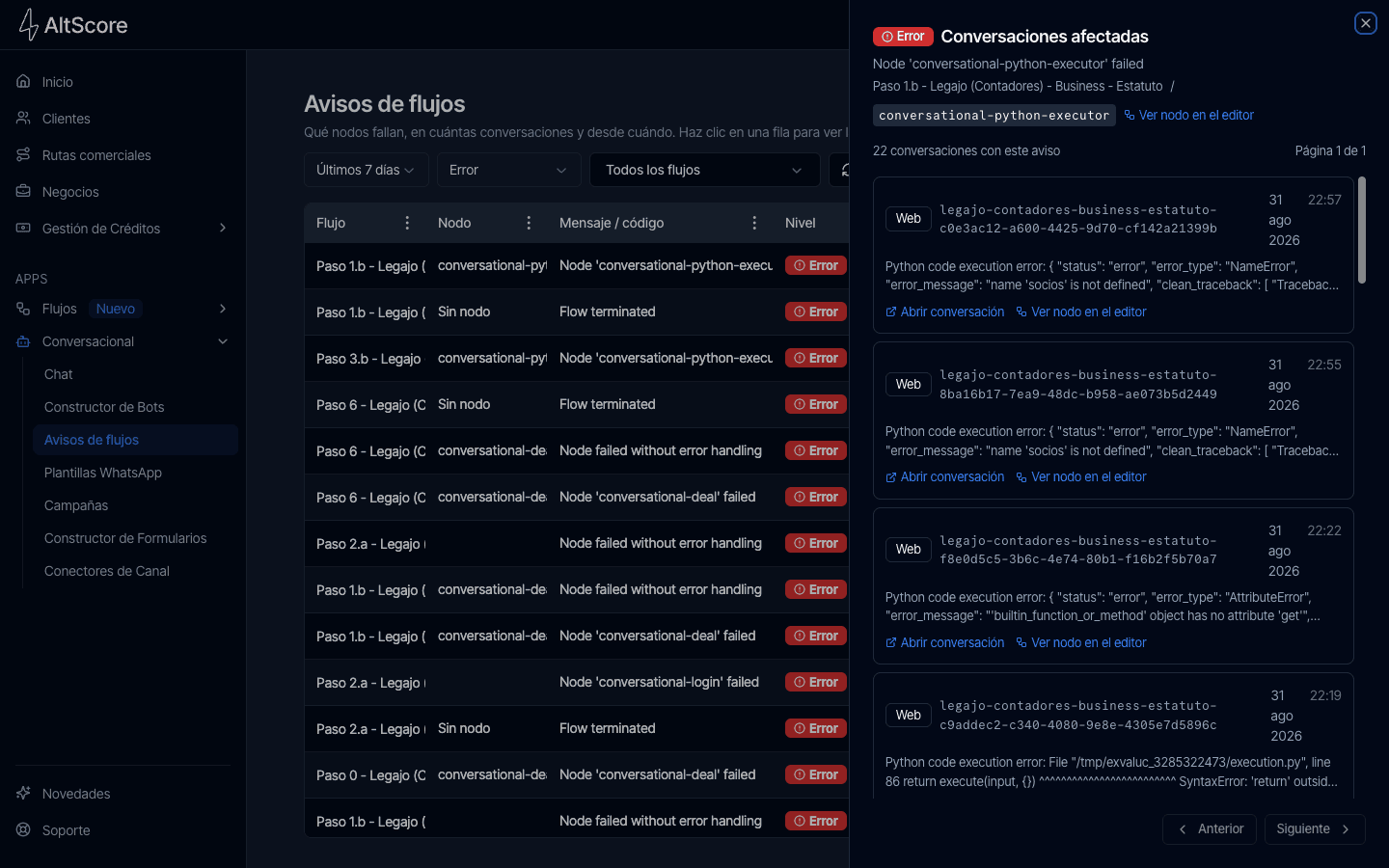
The header repeats the row's identity: the level badge, the code (or the panel title when there is none), the message, and the flow and node the notice belongs to. When the notice carries a node, Open node in editor takes you to that flow in the Bot Builder; the editor opens, centers the canvas on the node and selects it so its configuration panel is already open.
Below the header, {n} conversations with this notice and the page indicator introduce the list. The list is paginated in pages of 50 with Previous and Next.
Each card is one recorded notice:
- Channel — WhatsApp, Web or Email.
- Customer identifier — the identifier on that channel (the phone number on WhatsApp, the session identifier on Web); when the channel has none, the borrower identifier, and as a last resort the first eight characters of the conversation identifier.
- Date and time of the occurrence.
- Reason — the detail the engine attached to the notice, truncated to two lines. For a node failure this is usually the underlying error.
- Open conversation — opens that conversation in Chat, where you can read the full notice, the traceback and everything the customer saw.
- Open node in editor — the same deep link as in the header.
The list respects everything the row already respects: the selected range and level, plus the row's flow, node type, node identifier and code (or exact message). It is the drill-down of that row, not a general search.
The figure in {n} conversations with this notice counts recorded entries (one per folded card), and the list shows one card per entry. That is why it can be lower than the Times column when consecutive repeats were folded into a counter, and higher than the Conversations column when the same conversation hit the notice on separate occasions.
Recommended Workflow
- Start from the top of the table with Level set to Error. The row with the most Times is usually the one costing you the most conversations.
- Open a conversation from the panel to confirm what the customer experienced and read the full reason.
- Open the node in the editor and correct the configuration — a missing error handle, a variable nobody writes, an unreachable step.
- Publish the corrected flow. The publish gate blocks the flow if the fix left a structural problem behind and warns you about the rest.
- Clear the notices of the conversations you reviewed from the notices panel in Chat, so the next time you open this screen you only see what is still failing.
Good to Know
- Conversations hidden from the Chat inbox are excluded here as well.
- Notices are stored on the conversation, not on the flow. Deleting or unpublishing a flow does not remove its notices; they keep showing under the flow identifier until they age out of the range.
- The screen never polls. The notices panel in Chat updates in real time with most warnings and errors of the conversation you have open; this screen updates when you press Refresh.
Notices
What a notice is, the three levels, how repeats fold into a counter, where you read them, and how they close the loop with the publish gate.
Notice Codes
Every notice code with its label in the panel and when the engine emits it, followed by the most common notices with their cause and the action they ask for.