Chat
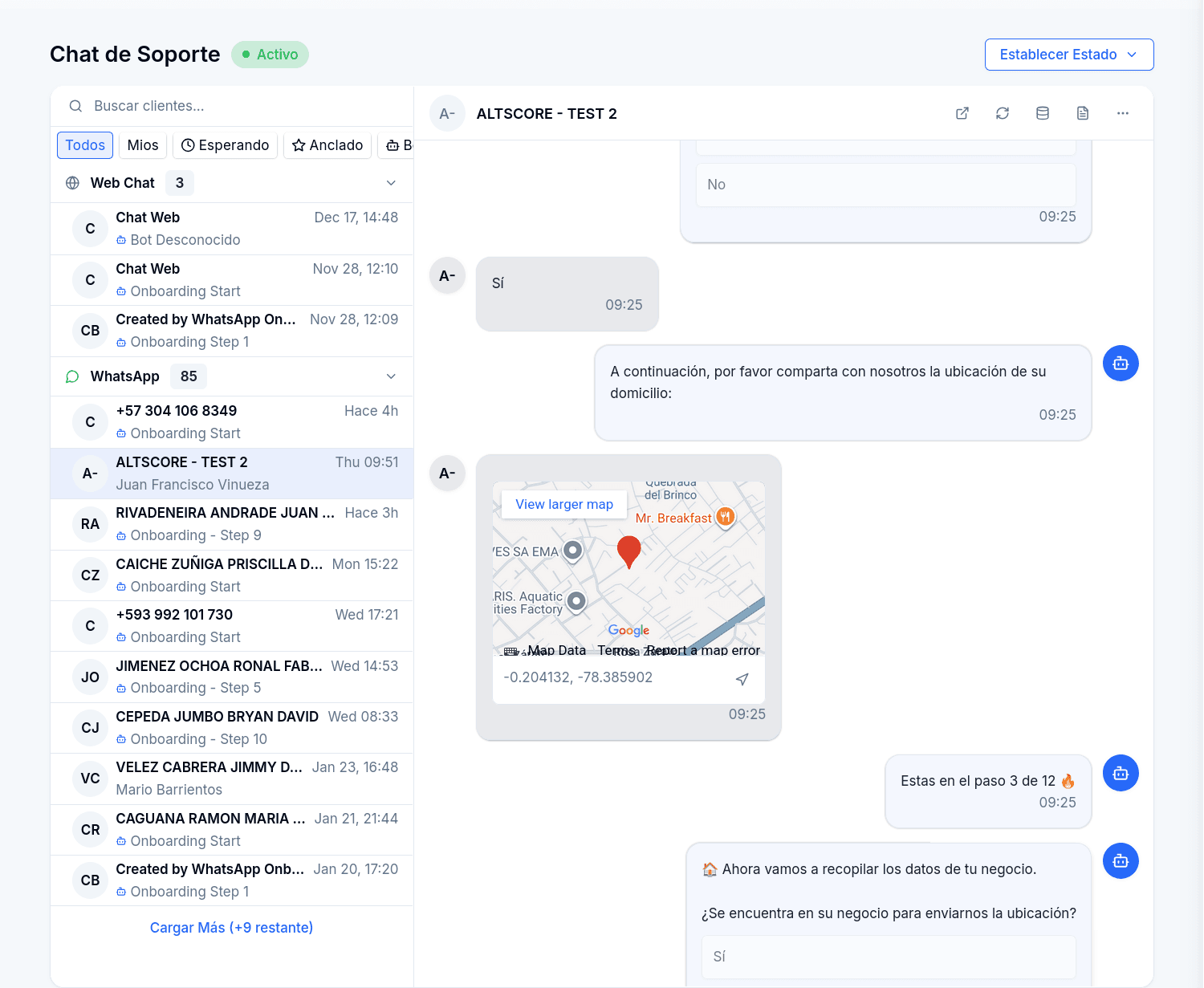
Chat is the operator's inbox for every conversation flowing through your channel connectors. Conversations from WhatsApp, Web Chat, and Email arrive in a single list, grouped by channel. From here an agent can watch what bots are doing, take control of a conversation, respond directly, transfer it to a colleague or back to a bot, and resolve it when the customer is done.
The screen has two halves: the conversation list on the left, and the active conversation panel on the right. Everything updates in real time — new messages, assignments, and state changes appear without reloading the page.
Finding Conversations
Search and Filters
The search bar matches against borrower name, phone number, assigned agent email, or bot name. Below it, filter tabs narrow the list:
| Filter | Shows |
|---|---|
| All | Every conversation, no filter |
| Mine | Conversations assigned to you |
| Waiting | Conversations with unread (pending) messages |
| Pinned | Conversations you pinned with the star icon |
| Bot | Conversations currently handled by an AI agent |
Filtering happens in the browser against conversations already loaded. Conversations are grouped under collapsible channel headers, loading ten per channel initially with more available on demand.
Reading the List
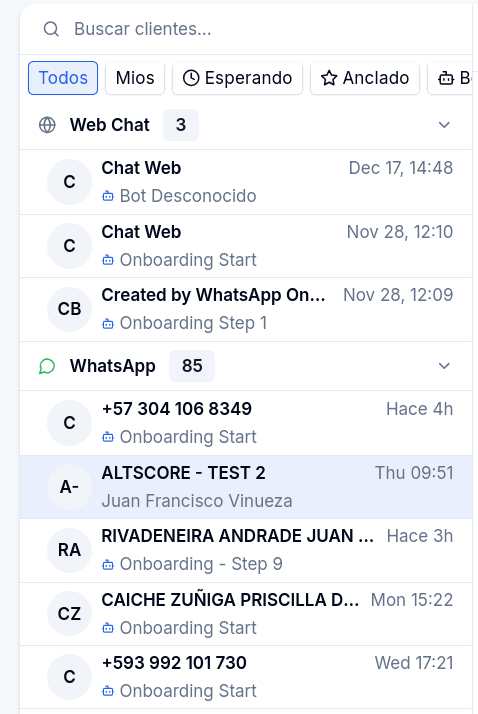
Each row shows the customer (name if identified, otherwise phone number or email address), a relative timestamp, who currently owns the conversation (an agent's name or a bot's name), and an animated badge with the pending message count. Opening a conversation clears its pending count — there is no separate "mark as read" action.
Your Availability
Set Status in the top-right corner switches you between Active, Away and Offline. The assignment modal sorts agents by this status, so keep it current when you step away.

Taking Control
When a conversation is unassigned or owned by a bot, the message input is replaced by a Take Control banner. Clicking it:
- Assigns the conversation to you (
human_activestate) - Clears any running bot flow so the bot stops responding
- Shows the message input so you can type immediately

Take Control also appears when a WhatsApp conversation is in template mode (see below).
Responding
Messages
Type and press Enter to send. Messages support {{variable}} placeholders — customer_name and any variable collected during the conversation flow. As you type, the input checks every placeholder against the conversation's variables: if one does not exist, the input turns red and lists the missing names under the text. That check is a warning, not a lock — the message can still be sent, so fix the placeholder or open the variables panel before you press Enter.
Attachments are supported on WhatsApp, Web Chat, and Email conversations. WhatsApp text is sanitized to at most two consecutive line breaks.
Quick Actions and Identify Client
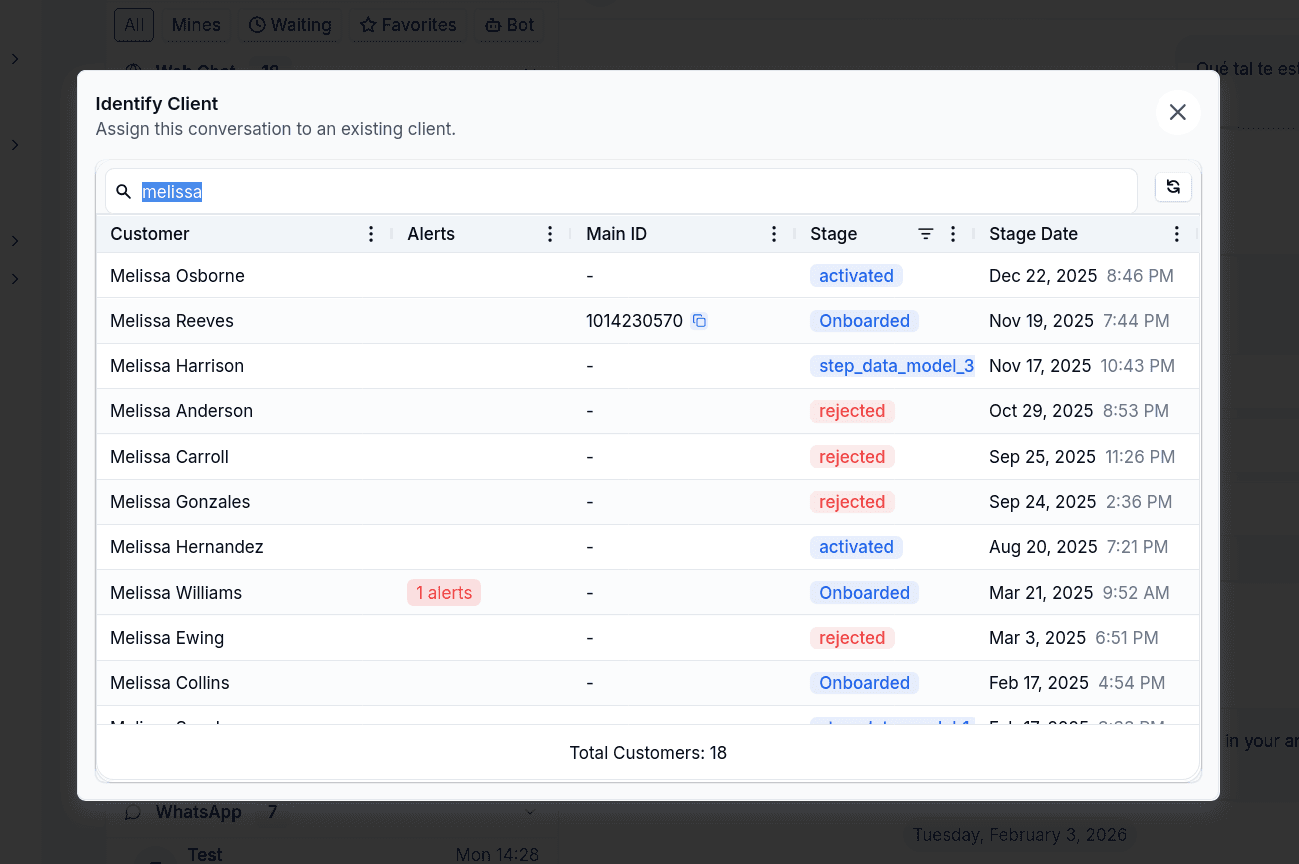
The + button at the left of the input opens the quick actions. Identify Client links the conversation to an existing customer: search the customer table and pick the record. Once linked, the row shows the customer's name and the flow can act on the customer's data.
Shortcuts
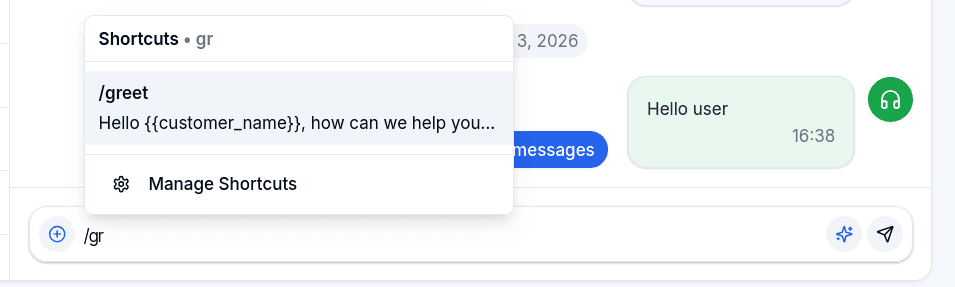
Type / to open a searchable list of saved response templates shared across the connector. Selecting one fills your input with variables already substituted. Shortcuts can be created, edited, and deleted from the same popover.
AI Text Enhancer
The AI tool refines your draft before sending — improve, shorten, make formal or friendly, or give a free-form instruction. You review the suggestion and apply or discard it.
WhatsApp Templates
When more than 24 hours have passed since the customer's last message, WhatsApp blocks free-text replies (a WhatsApp Business API rule, not a platform limitation). The interface shows a banner and switches to the template sender: pick an approved template, fill its variable slots, and send. Once the customer replies, normal messaging resumes.
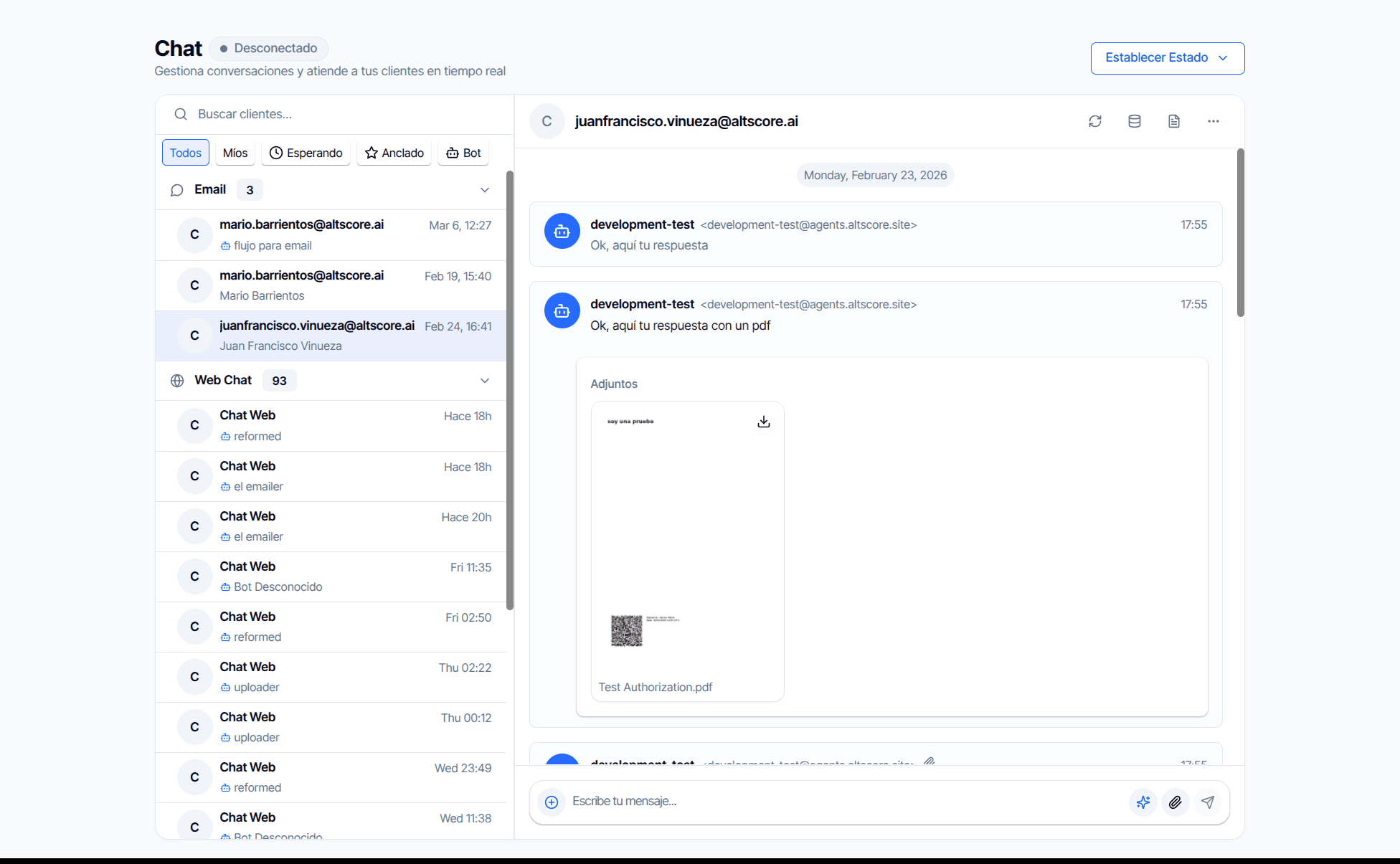
Email conversations appear in their own channel group. The thread shows the sender address of each message and the attachments as cards you can download. Replies and attachments go out through the same input as the other channels.
Conversation Context
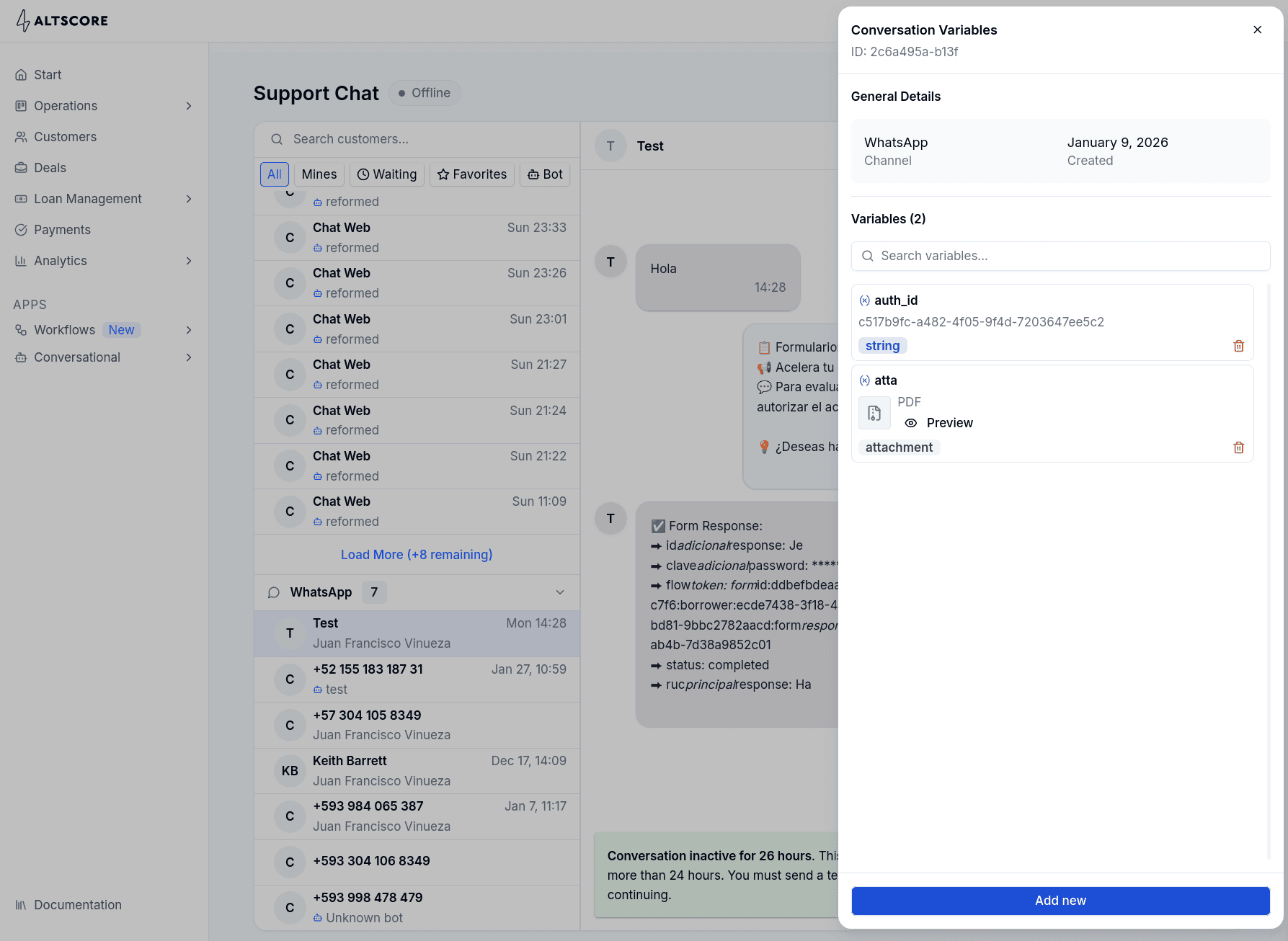
The header of the active conversation has two icons for context: the database icon opens the variables panel and the document icon opens the notices panel.
Variables Panel
Shows every variable collected during the conversation — the same values available for {{variable}} substitution in messages and shortcuts. Each card shows the name, the value and the type; attachments show a preview. You can add a variable with Add new and delete one with the trash icon, which is useful when a flow is waiting for a value the customer gave you by other means.
Notices
Notices are the system-generated trail of what the bot did in this conversation: a node that failed, a message WhatsApp rejected, a flow that ended, a variable nobody filled. They are written by the engine, never by agents — there are no manual internal notes. This is where you understand what happened before you took over, and what the flow author needs to fix.
Badge in the Header
The document icon in the conversation header carries a badge with the number of notices that need attention: errors plus warnings, info notices excluded. The badge is red when there is at least one error and amber when there are only warnings; from 100 it reads 99+. Hovering shows the breakdown, for example 2 errors and 5 warnings. No badge means the conversation only has info notices, or none.
The Notices Panel
Clicking the icon opens the Notices panel on the right, with the conversation id under the title. It shows:
- A counter, N notices, with three colored dots for how many are errors, warnings and info.
- Filters All, Info, Warning and Error.
- A search box that matches the message, the reason, the node type, the code, the traceback and the flow name.
Notices are listed most recent first. Each card has:
| Element | What it shows |
|---|---|
| Level badge | INFO, WARNING or ERROR, with a colored border on the card for warnings and errors. |
| Code badge | The notice code translated to a short label — Node failed, Delivery failed, Flow terminated. If the hub does not know the code, the raw snake_case id is shown. |
| Repeat badge | ×N when the same event repeated back to back. Hover to read Repeated N times, last: date. |
| Date | When the notice was first written. |
| Layer and stage badges | Where in the engine it happened, when the notice carries that prefix. |
| Message | What happened, in one line. |
| Node type | The type of the node that was executing. |
| Reason | Why, truncated to 150 characters; the traceback dialog shows it in full. |
| Flow | The name of the flow. |
Two actions can appear under a card:
- Open in editor — shown when the notice knows its flow and node. It opens the flow in a new tab with that node centered and selected, so you land on the exact configuration that produced the notice.
- View traceback — shown on errors that carry a stack trace. It opens a dialog with the message, node type and reason in full, and the trace split by frames, last frame highlighted. This is what you share with support.
Clear notices, in the panel header, deletes every notice of the conversation after a confirmation: The N notices of this conversation will be deleted. This cannot be undone. Use it once a problem is understood and fixed, so the next notices stand out.
The panel refreshes on its own with most of the warnings and errors the engine writes on the open conversation (node failures and warnings, variable type, cycles, jumps without destination, Ask File destinations, Meta rejections and service errors); the remaining notices, and every info one, appear the next time the conversation loads.
How to Read Notices
Not every notice is a problem. Read the level first, then the code:
- Info notices record ordinary events. Flow terminated at info level means the flow reached an end node or handed the conversation to an agent; an agent assigned through the API, or a conversation restarted in the connector's default bot, are info as well. Nothing to fix.
- Warning notices describe an outcome the flow author has to know about: a customer who did not pass a verification, a node with no error handle wired, a variable nobody set, a message WhatsApp refused to deliver. The reason says what to do.
- Error notices mean something in the service failed — an unhandled exception, a provider outage, a broken contract. They carry a traceback. Share the conversation id with AltScore support.
Some notices you will meet often:
| Code | Meaning |
|---|---|
| Node failed / Node failed, no error handle | A node did not complete. The reason names the node and where the customer went next: the Error handle, an agent, or the default responder. The second variant means the node had no Error handle, so the flow could not route the failure — fix it in the editor. |
| Answer without destination / Answer unresolved | Only Ask File leaves them. The first: files arrived and the node has neither a variable nor an entity to store them in (or the destination is an address and the node does not say which one). The second: the files arrived but their URL could not be resolved or they could not be written to storage, or an email reply carried no attachment; the customer was asked again. |
| Entity without customer | A node tried to save a document, identity or address but the conversation is not linked to a customer. Use Identify Client or add a login step to the flow. |
| Flow cycle | The flow looped back to the same node without waiting for the customer. The repeat badge tells you how many times. |
| Interrupted by deploy | A deployment stopped the node mid-execution. The conversation resumes on the customer's next message; nothing to do. |
| Delivery failed | WhatsApp rejected an outbound message. See below. |
| Inactivity expiry | Written once when the conversation timed out waiting for the customer: how long they were silent, on which node type, what was sent and where the conversation went. It is a warning when the connector has no default responder, because the conversation is left with no flow. |
| No active flow | The customer wrote while the conversation pointed at a deleted or inactive flow, or at no flow at all. With a default responder on the connector, the conversation restarts there and the notice names the old and the new flow; without one, nothing is sent and an error notice asks you to configure a default responder or reassign the conversation. |
The same event repeated in a row is folded into one card with the ×N badge instead of N cards, so a loop that hit a node 157 times shows as one notice with ×157. A conversation keeps its last 200 notices; older ones drop off.
WhatsApp Rejections
When WhatsApp refuses to deliver a message, the conversation gets a Delivery failed notice whose title, explanation and action are written in Spanish for the agent — you do not need the raw Meta code to act. The reason ends with the code and Meta's own message in brackets. The rejections you will see most:
| Situation | What the notice tells you |
|---|---|
| 24-hour window closed (131047, 470) | More than 24 hours passed since the customer's last message. Free text will not arrive; use an approved template (template node or template campaign). Warning. |
| Marketing frequency cap (131049) | Meta decided this user already received too many marketing messages in the period. Do not retry — it will not arrive until Meta frees the quota; use a utility template if the message is transactional. Warning. |
| Customer opted out of marketing (131050) | The customer asked to stop receiving marketing from this business. Mark them as not contactable for marketing; only utility or authentication templates can reach them. Warning. |
| Template paused for low quality (132015) | Meta paused the template because too many customers blocked or reported it. Wait for Meta to reactivate it or create a new version, and pause the campaigns that use it. Warning. |
| Template disabled permanently (132016) | The template was paused too many times and will not work again. Create and approve a new one and update the nodes and campaigns that used it. Warning. |
| Number cannot receive messages (131026) | The destination is not a WhatsApp number, or the customer did not accept the current terms or uses a very old app. Verify the number with the customer or use another channel. Warning. |
| Too many messages to the same number (131056) | Meta limits how many messages a business number can send to one customer in a short window. Group consecutive message nodes into one and do not retry. Warning. |
| Template parameters do not match (132000, 132008, 132012) | The variables the flow or campaign sent do not match the approved template in count, value or format. Align them with the template. Warning. |
| Access denied / account restricted (131005, 131031) | The token or the WhatsApp Business account cannot send. Check the channel connection in 360dialog and the account status in the WhatsApp Manager, and tell AltScore support. Error. |
| Meta error / service unavailable (131000, 131016) | A problem on Meta's side. Wait a few minutes and retry; if it persists, tell AltScore support. Error. |
A rejection with a known, expected cause is a warning; only failures that mean the integration or the account is broken are errors. The full list of codes and what each means is in the notice codes catalog.
Notices Across Conversations
The panel shows one conversation at a time. To see which nodes fail across all conversations of a flow, in how many conversations and since when, open Conversational and then Flow Notices — the Flow Notices screen aggregates the same notices by flow and node, and every affected conversation there has an Open conversation link back to this inbox.
Managing the Lifecycle
Assigning
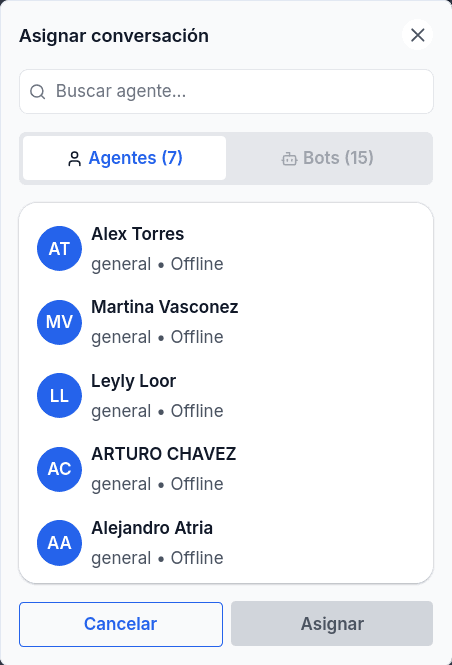
The assignment modal has two tabs: Agents (humans, sorted by availability status — active, away, offline) and Bots (active flows). Assigning to a human transfers the conversation directly; assigning to a bot starts that bot's flow for the customer.
Resuming at a Specific Node
By default, assigning a conversation to a bot starts that bot's flow from the beginning. When the customer was already halfway through a flow and got stuck on one node, starting over means asking them again for everything they already answered. Resume at sends the conversation back to the bot at the node you choose instead.
It appears in the Bots tab once you select a bot, on web and WhatsApp conversations only:
-
Select the bot. Under it, Resume at shows Flow Start, which behaves exactly as assigning always did.
-
If the node needs a value that is wrong or missing, click Edit variables. It opens the same variables panel as the conversation header, so you can fix the value before the node runs.
-
Open the node picker and choose the node. Each node is listed by its type, with its description underneath, or the first message it sends when it has no description; long texts are cut to two lines. The search box matches the node type, the description, the first message and the node id. The list scrolls with the mouse wheel, and the arrow keys move between nodes. The picker lists the nodes of the flow's published version; the start node, canvas notes and the inactivity follow-up node are not offered, because none of them runs inside a conversation.
Nodes the flow's author starred as key points come first, in a Key points group, and every other node follows under Other nodes. A star added in the editor appears here once the flow is published.
-
Click Assign. The bot runs that node right away, as if the conversation had just arrived there.
Example. A customer typed their RUC where the flow asked for the cédula. The flow went on to ask for the amount and the term, and then the node that runs the evaluation workflow failed, because the identifier did not have the expected length. Open Edit variables, replace the RUC with the cédula in the variable the flow saved, choose the workflow node in Resume at and assign. The evaluation runs again with the corrected value, and the customer does not have to repeat the amount and the term.
After you assign, a message tells you how it went:
| Message | What it means |
|---|---|
| The conversation went back to the bot at the chosen node | The node ran |
| The conversation is on the chosen node, but it did not run because the customer was writing at that moment | WhatsApp only. The conversation is already on the node; assign it again to run it |
| The conversation is on the chosen node, but the node failed when it ran | The node ran and failed. Its own notice in the conversation says why |
The assignment is rejected without changing anything when the node is not in the flow's published version (it was deleted, or exists only in a draft), when the flow has no published version, or when the node is one that never runs inside a conversation. On a channel other than web or WhatsApp the conversation can only go back to the start of a flow.
Each resume leaves an info notice, Resumed by an operator at a node, with the node, the flow, its version and who did it. You need the same permission as for assigning a conversation to a bot.
Two things to keep in mind. The inactivity follow-up and the connector's timeout start counting again with the customer's next message, not when you resume. And a slow node, such as a workflow run that waits for its result, can make the assignment take a while to answer: read the conversation's notices before assigning again, in case the node already ran.
Resolving
Mark as Resolved returns the conversation to the default responder. If the customer writes again later, they start fresh in the connector's default flow rather than resuming with you. Available on non-web conversations.
Pinning
The star icon pins a conversation to your personal Pinned filter, regardless of assignment or pending messages.
Conversation States
| State | Meaning |
|---|---|
default | The connector's default responder handles incoming messages |
bot_active | A specific bot flow is processing the conversation |
ai_active | An AI agent is handling the conversation |
human_active | A human agent is actively handling the conversation |
waiting_handoff | Waiting for an available agent to pick it up |
States change as a consequence of your actions: taking control moves to human_active, resolving returns to default, assigning to a bot switches to bot_active.
Real-time Behavior
Updates arrive over a realtime connection (Ably): new conversations, new messages, assignment and state changes, and most warning or error notices. If no updates arrive for two minutes, the refresh button highlights to signal the view may be stale — click it to reload manually.
Gotchas
- Resolved means restart. Resolving sends the conversation back to the default responder; the customer's next message starts the default flow from the beginning.
- Template mode is automatic. You cannot free-text a WhatsApp customer after 24 hours of inactivity; only approved templates are available until they reply.
- Two layers guard placeholders, differently. Your own input flags a missing
{{variable}}in red but lets you send. The bot, on the other hand, never invents a value: a placeholder no node filled goes out to the customer literally as{{name}}, and the node leaves one warning notice listing every unresolved name. If you see brackets in a bot message, the notice tells you which variable to fix. - Notices are folded and capped. A repeated event is one card with a ×N badge, not N cards, and only the last 200 notices of a conversation are kept. Clear them once a problem is fixed so new ones are easy to spot.
- An info notice is not a failure. Flow terminated at info level, an agent assigned through the API, or a restart in the default bot are normal events. Filter by Warning and Error to find what needs action.
Form Nodes
Reference for every node in the Forms Builder — structure, messages, and data collection — with their configuration fields.
Campaigns
Send bulk WhatsApp template, email or SMS messages to a list of recipients, route their replies into a flow, and read why a recipient failed without leaving the hub.