Channel Connectors
A channel connector is the entry point for a channel: it holds the credentials (or provisions them automatically), decides which flow greets new conversations, and applies rules that affect every message on the channel — support hours, global keywords, and timeout behavior. Every conversational flow needs a connector; without one, incoming messages have nowhere to go.
The connector is not the channel itself. Each channel delivers messages its own way — the connector determines what happens once they arrive.
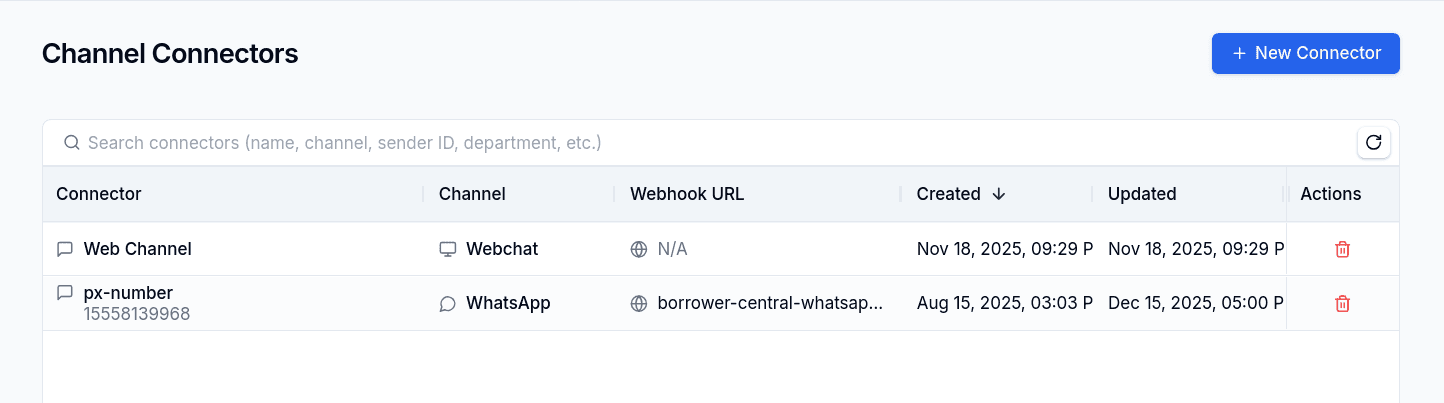
Supported Channels
| Channel | Provider | Credentials |
|---|---|---|
| 360dialog / Meta | Access token, partner ID (or 360dialog OAuth auto-setup) | |
| Web Chat | Built-in (realtime via Ably) | None |
| AgentMail (inbox auto-provisioned), or the customer's own SMTP server | None with AgentMail; server, user and password with SMTP | |
| Telegram | Telegram Bot API | Access token |
| SMS | SMS provider | Access token |
| Delegated OTP delivery | The customer's own endpoint | A delivery secret (otp_delivery_token or otp_delivery_api_key) |
WhatsApp, Web Chat, and Email are the primary channels; a status bar shows the health of their providers (360dialog, Ably, AgentMail), refreshed every minute.
Delegated OTP delivery is the exception on this list: it receives no conversations. It is an address with a credential that we POST one-time codes to, so the customer can deliver them through their own infrastructure. It has no default responder, no support hours, and no keywords, and the rest of this page does not apply to it. See Delegated OTP delivery.
Common Configuration
Every connector has a name, an optional department, and a default responder — the flow that receives new conversations and every conversation that is left without a flow. Non-email connectors add:
| Setting | Purpose |
|---|---|
| Webhook URL | Where the provider delivers incoming messages; must start with http(s):// |
| Sender ID / phone number | Identifies your account on the channel |
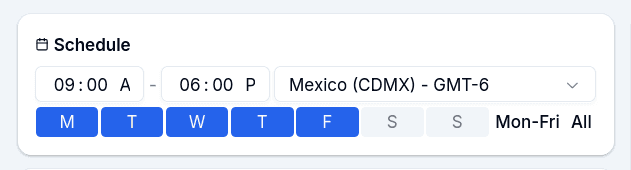
| Support hours | Days, start/end time, and timezone when human agents are available |
| Out of hours | Auto-reply when an agent is requested outside support hours |
| Timeout (seconds) | Seconds of customer inactivity (default 900) before the conversation returns to the default responder |
| Timeout message | Auto-reply sent when the timeout fires |
| Processing message | Optional reply when a message arrives while the previous one is still processing |
| Exit flow warning / Exit flow button | Optional confirmation before a keyword pulls the customer out of a running flow |
| Unsupported format message | WhatsApp-only reply for media the platform cannot handle |
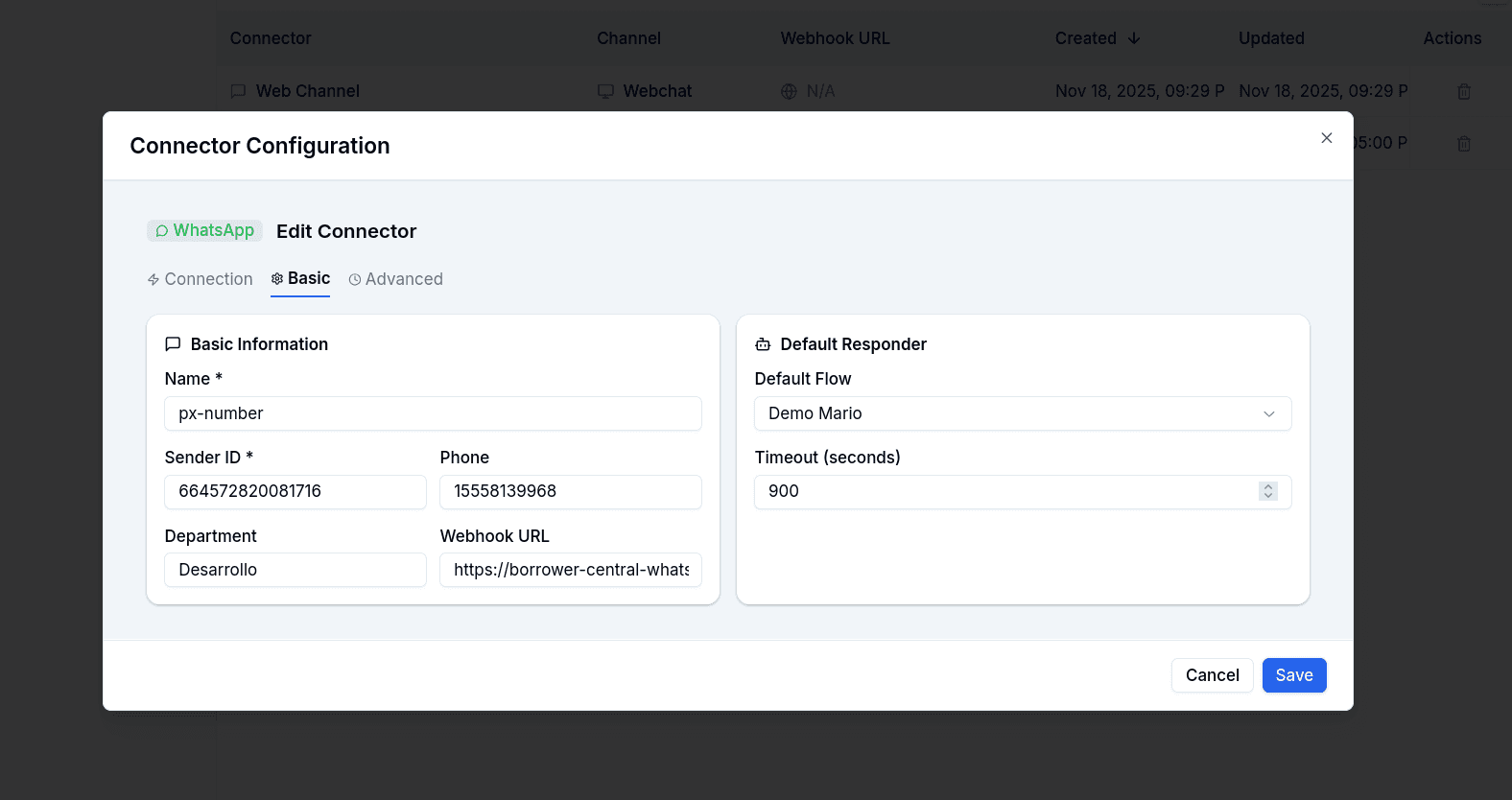
Default Responder
The most important setting, and the one to treat as mandatory. The default responder is the flow that greets a first-time customer, and it is also where every conversation lands when it has no active flow. That happens more often than it sounds:
- the flow reached an End node;
- a node failed and had no Error handle connected;
- the flow the conversation was running was deleted or unpublished;
- the customer went quiet and the inactivity timeout fired;
- a human agent took the conversation and then went idle.
When the customer writes again in any of those states, the engine restarts the conversation in the default responder from its first node and leaves a notice on the conversation: an info notice when the conversation simply had no flow (it quotes why the previous flow ended, for example terminó por: Node conversational-login failed), and a warning when the conversation pointed at a flow that no longer exists or is inactive.
Without a default responder, the customer's message is ignored. Nothing is sent back, and the conversation gets an error notice — El cliente escribió pero la conversación no tiene flujo activo y el connector no tiene bot por defecto: el mensaje se ignoró. Configurar un bot por defecto o reasignar la conversación — which is also what the Flow Notices screen surfaces. The create form blocks saving a WhatsApp connector without one; on the other channels the No responder option exists, but the only reason to use it is a channel you run entirely from the human inbox.
Email is the exception by design: an email conversation with no flow is the human inbox, so only the deleted-flow case leaves a notice there.
Timeout
Timeout (seconds) is the customer's inactivity window. It is armed after each customer message, and only while the flow is waiting on a node for an answer — a flow that is between nodes, or that already finished, arms nothing. It is not armed when the last message in the conversation came from a human agent, and it is cancelled when an agent takes over.
When it fires, the engine sends the Timeout message if you configured one, then returns the conversation to the default responder — or, without one, leaves it with no flow. Either way the conversation gets a notice saying how long the customer was silent, on which node type, what was sent and where the conversation went: Conversación expirada por inactividad tras 15 min en el nodo conversational-interactive-options: se envió '...' y se redirigió a .... The level is info when there was a default responder to go to and warning when the conversation was left without a flow. The inactivity timeout runs on WhatsApp conversations.
If you want the flow to insist before the timeout runs out, the Inactivity follow-up node writes to the customer again at shorter intervals and closes just like the timeout once its attempts are exhausted.
A separate, fixed timer covers the other side of the conversation: when a human agent has the conversation and neither writes nor closes it for 24 hours, the conversation is released from the agent and returned to the default responder.
Support Hours and the Out-of-Hours Message
Support hours are read by the Human Takeover node and by the agent keyword. Outside the configured days and time range, the engine sends the Out of hours message and does not assign an agent; the customer stays where the flow left them. Inside the range, the conversation is assigned to the active agent with the fewest conversations (away agents are the fallback).
The check only applies when an out-of-hours message exists: support hours without a message, or an incomplete schedule (no days, no start or end time), are treated as always open.
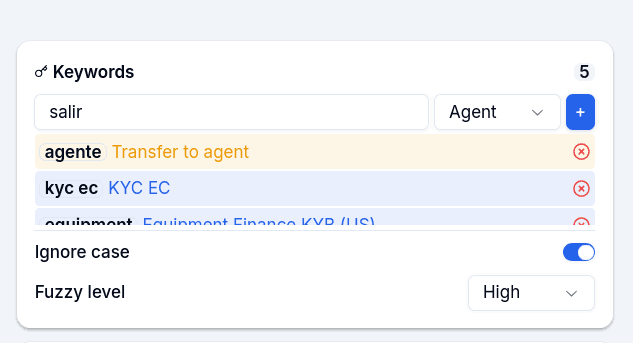
Global Keywords
Keywords map a word or phrase to a destination, overriding whatever flow is running:
agent— immediate human takeover- A flow ID — jump to that specific flow
Matching is configurable: case sensitivity can be ignored, and a fuzzy matching level controls typo tolerance (from strict to relaxed). Messages starting with / bypass keyword matching entirely. If an exit flow warning is configured, the customer confirms before being pulled out of an in-progress flow.
Files by Channel
What a customer can send as a file depends on the channel, and the Ask File node inherits those limits.
| Channel | What is accepted | Limit |
|---|---|---|
Images and documents. A video or a voice note sent to an Ask File node is not stored: the node replies with its invalid-file message, asks again and leaves an unsupported_media_type notice. | Meta's media limits | |
| Web Chat | pdf, csv, doc, docx, xls, xlsx, jpg, jpeg, png, mp4, json, zip, heic, heif, webp, txt | 20 MB per file |
| Every attachment of the reply; the type is taken from the file name's extension | Provider limits |
The connector's Unsupported format message is a different thing: on WhatsApp it answers audio messages that arrive when the flow is not waiting on a node that listens for audio (Speech to Text, AI Collector). It is sent before any node runs and nothing is stored.
Secrets
Secrets store the credentials the connector uses to call the provider's API.
| Secret | Used by |
|---|---|
access_token | WhatsApp, Telegram, SMS — authenticates every outbound message |
partner_id, channel_id, client_id | 360dialog setups |
business_account_id, waba_account_id | WhatsApp — filled automatically by the health check |
smtp_password | Email connectors on the customer SMTP transport — the password of the mailbox that authenticates. The only secret that transport reads |
otp_delivery_token, otp_delivery_api_key | Delegated OTP delivery — authenticate the POST to the customer endpoint. They are the only keys that channel ever sends |
Secrets are write-only: once saved, values display as masked dots and cannot be read back. When editing, only the fields you actually change are updated — untouched fields keep their current values.
Health Check
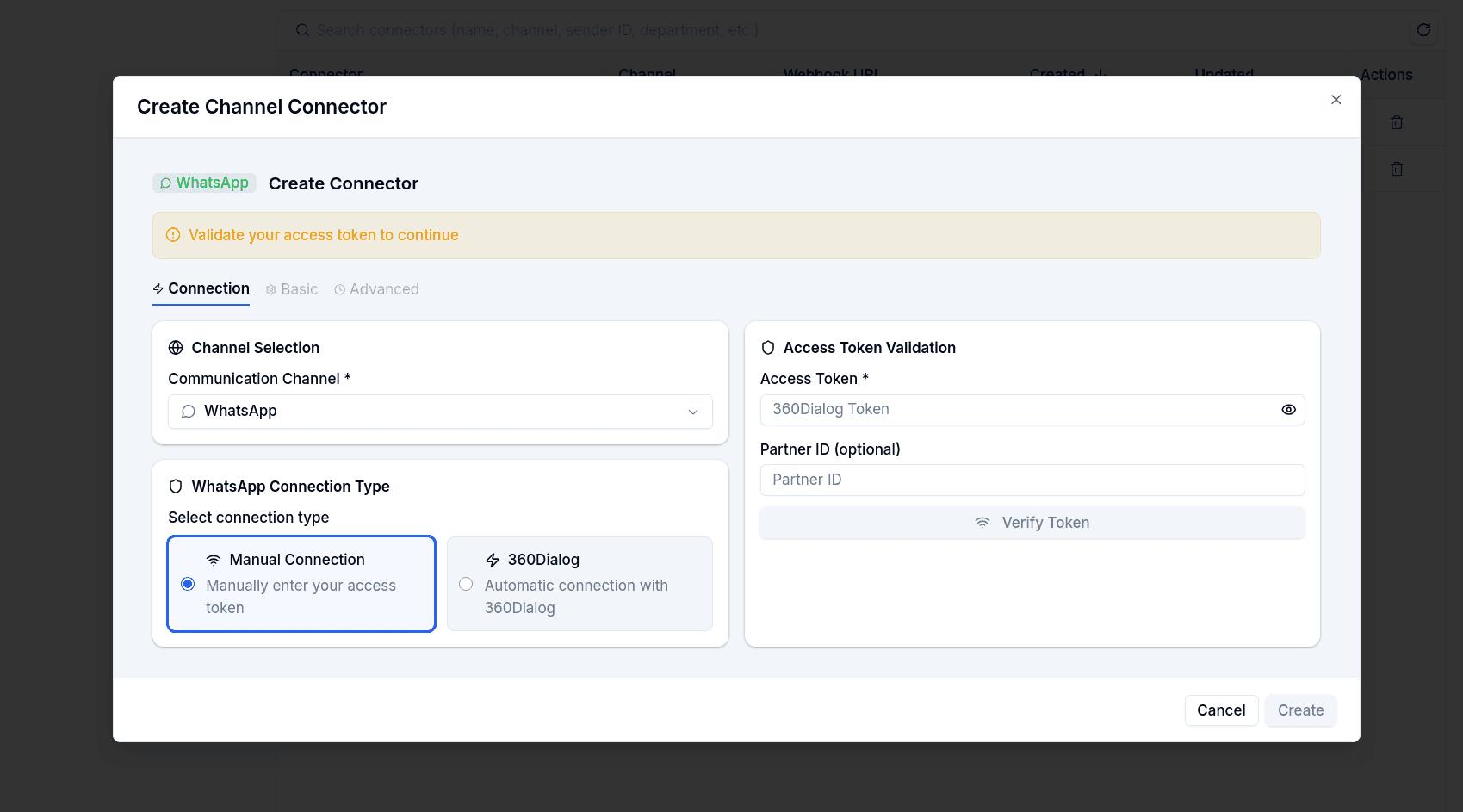
For WhatsApp (manual setup), a health check validates the access token against the API and returns healthy, degraded, or unhealthy. On success it auto-fills the business account, WABA, phone number ID, and phone number — you do not look up identifiers manually. With 360dialog OAuth, credentials are retrieved automatically when the authorization completes.
When Meta rejects a message
Every Meta rejection reaches the conversation as a delivery_failed notice, explained in Spanish with the action to take. Most of them are about the recipient (24-hour window, marketing frequency, opt-out) and are covered in Notice Codes. Four of them are about your number or account, not the customer, and are the ones to watch from the connector's side:
| Meta code | What it means | What to do |
|---|---|---|
131048 | The number has spam restrictions: too many previous messages were blocked or reported. | Check the number's quality in the WhatsApp Manager and pause campaigns until it recovers. |
130429 | The number exceeded the messages per second Meta allows it. | Slow down (smaller or staggered campaigns); if recurrent, ask 360dialog to raise the number's tier. |
80007 | The WhatsApp Business account exceeded its call limit for the period. | Wait and stagger the sends; if recurrent, ask 360dialog to raise the limit. |
131026 | The destination cannot receive messages: not a WhatsApp number, outdated app, or terms not accepted. | Verify the number with the customer (country and format) or use another channel. |
They all land as warnings on the affected conversation and, aggregated by flow, on the Flow Notices screen.
Web Chat
Web connectors need no credentials and no webhook — everything stays in the platform, with realtime delivery via Ably. Only one web connector per organization is allowed; once it exists, the option disappears from the create form.
Web connectors carry a branding configuration saved separately from the main connector form: company name, logo, chat avatar, main color, and a splash screen (background color or pattern, image, title, welcome paragraph, and button text).
An email connector picks an outbound transport when it is created, and that choice is locked afterwards.
| Transport | What it is |
|---|---|
| Managed inbox (default) | AltScore provisions an inbox through AgentMail — no credentials, no webhook. It can receive replies, so the conversation works in both directions. A custom domain requires DNS records |
| Customer SMTP server | The email leaves from the customer's own server with their credentials, and nothing on their DNS changes. Send only: the customer's server delivers the email, and bounces go to their mailbox, not to the platform |
The rest of this section describes the managed inbox. For the SMTP transport — the fields, the Microsoft 365 requirements, and what a send-only channel costs you — see Customer SMTP server.
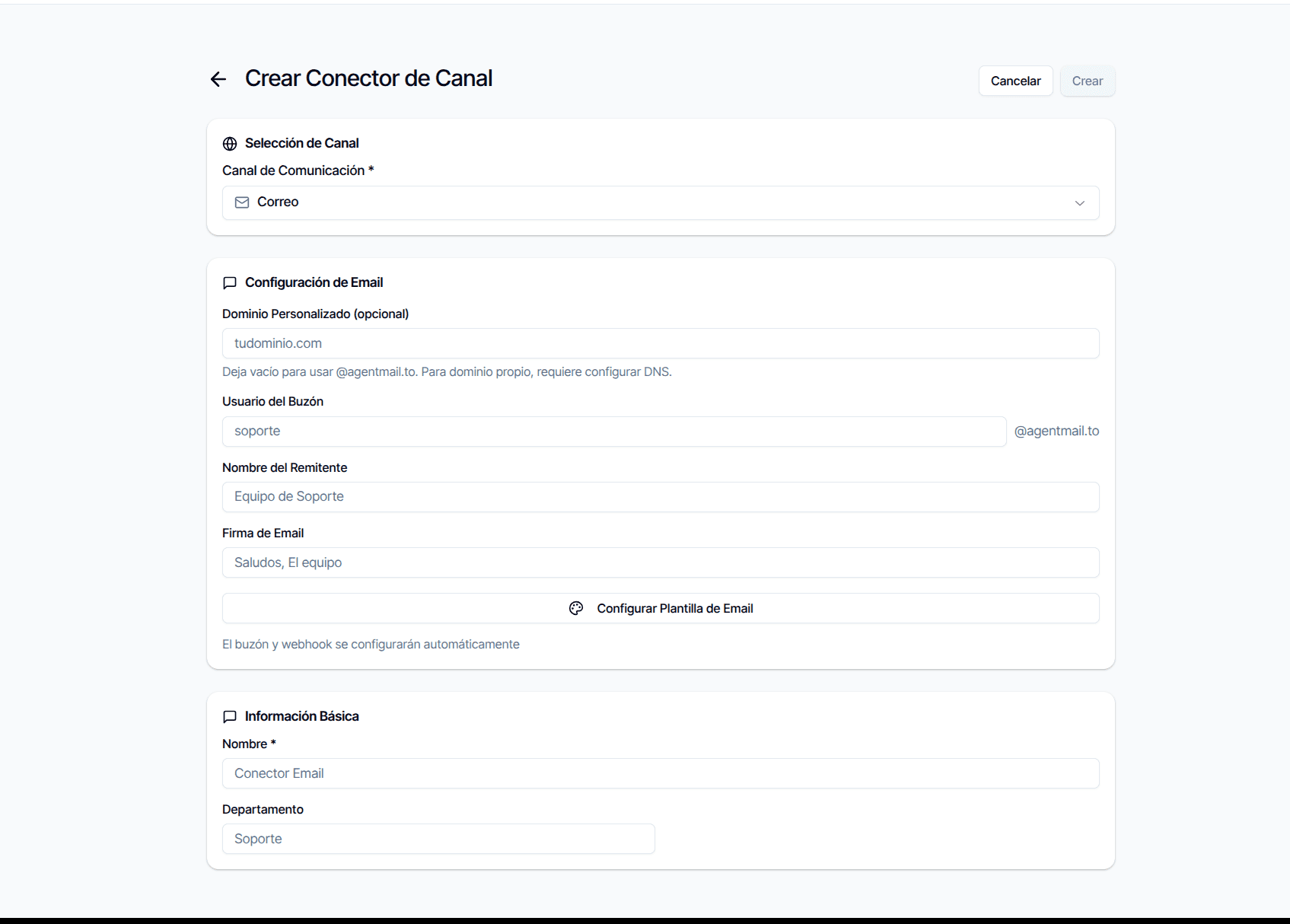
With a managed inbox you choose the inbox username (the part before the @), a from name shown to recipients, and an optional HTML email signature.
Custom Domain
By default the address lives on agentmail.to. Providing a custom domain starts a verification cycle: the connector shows the DNS records to add (MX, CNAME, and related), the domain status moves from pending to verified once you verify, or failed if verification does not pass. Deleting a connector removes the custom domain only if you explicitly request it.
Branded Template
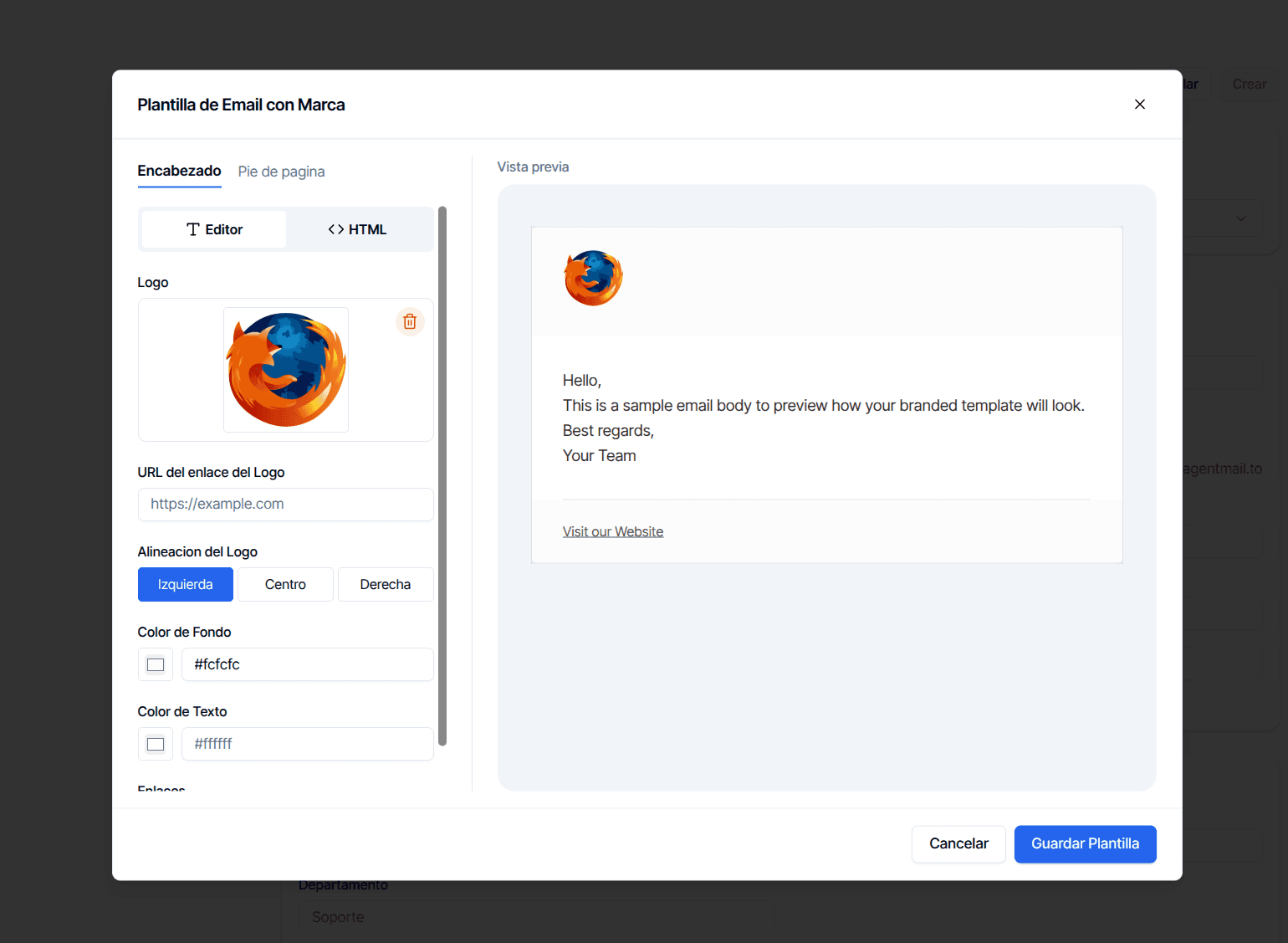
Each email connector can carry a branded template that wraps every outgoing email — header with logo, footer, and brand colors — configured post-creation from the connector detail view, with a live preview.
Nodes That Do Not Run on Email
Email is a slower, message-per-turn channel, and part of the node catalog does not fit it. Two lists apply:
The editor hides them. In an email flow the nodes panel does not offer Message, File, Send Email, Interactive Options, Ask File, Ask Location, Ask Email, Ask Phone, Ask Date, AI Collector, Uanataca Liveness, Liveness Verification, Login, OTP Verification, Point of Contact Verification, SAT Password or SRI Password. Channel Relay is the one node offered only on email. The compatibility check in Test Flow walks the flow and every flow it jumps into and reports the incompatible types before you publish.
The engine refuses them. If an email conversation still reaches one of AI Collector, Ask Location, Form List, Product List, Speech to Text, Uanataca Liveness, Liveness Verification, Login, OTP Verification, Point of Contact Verification, SAT Password or SRI Password — for example through a flow imported or edited outside the email editor — the node is not executed. The conversation gets a warning notice, Unsupported node type for email: ..., and the flow leaves through the node's Error handle if connected, otherwise through Next; with neither, the flow terminates.
Managing Connectors
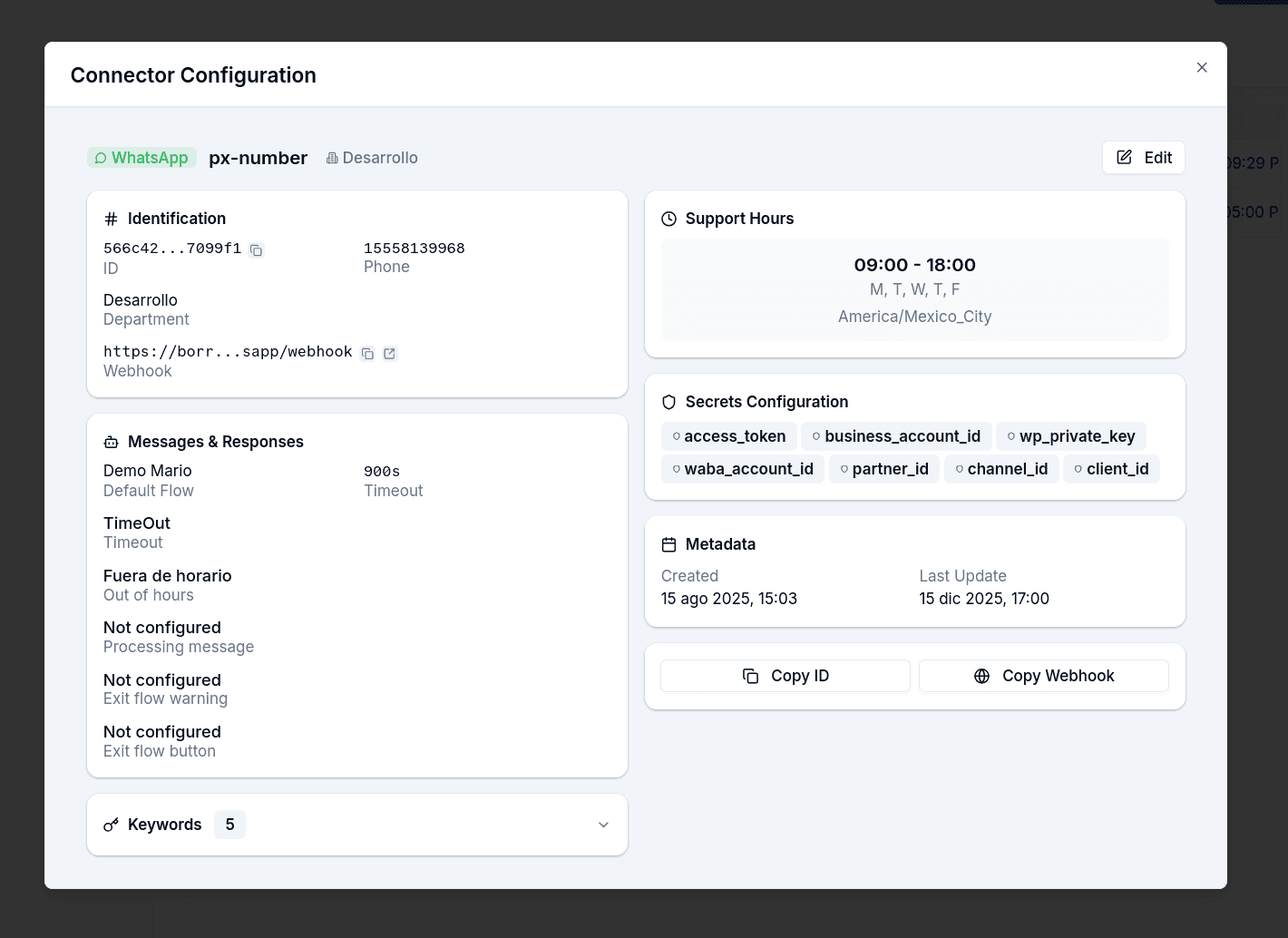
The connectors grid lists every connector with its channel badge, sender or inbox address, webhook URL, and timestamps. From the detail view you edit configuration, manage secrets, and delete. Deleting requires confirmation; conversations tied to a deleted connector are not removed, but they stop receiving new messages.
Gotchas
- Set a default responder on every channel that runs flows. Without it, a customer writing after an End node, a failed node or a timeout is ignored and the conversation only earns an error notice.
- The timeout counts the customer's silence, not the agent's. A conversation in an agent's hands does not expire; an agent who stays idle for 24 hours hands it back to the default responder.
- Support hours need an out-of-hours message to have any effect. Without the message, the schedule is ignored and takeovers are assigned at any hour.
- Support hours require at least one day on non-email channels — the form blocks saving otherwise.
- Secrets cannot be recovered. You see which keys exist, never their values; to rotate, overwrite them.
- One web connector per organization — plan its branding accordingly.
- Email address is fixed after creation. Username and domain are locked; to change them, create a new connector.
- Web branding saves separately. Logo, avatar, and splash screen go through their own save, not the main connector form.
- Ask File on WhatsApp means images and documents. If you need video or audio, the channel is the constraint, not the node.
Campaigns
Send bulk WhatsApp template, email or SMS messages to a list of recipients, route their replies into a flow, and read why a recipient failed without leaving the hub.
Customer SMTP server
Send email out through the customer's own SMTP server instead of a managed inbox — the fields, the Microsoft 365 requirements, and what you give up.